Drag Answer in Blank
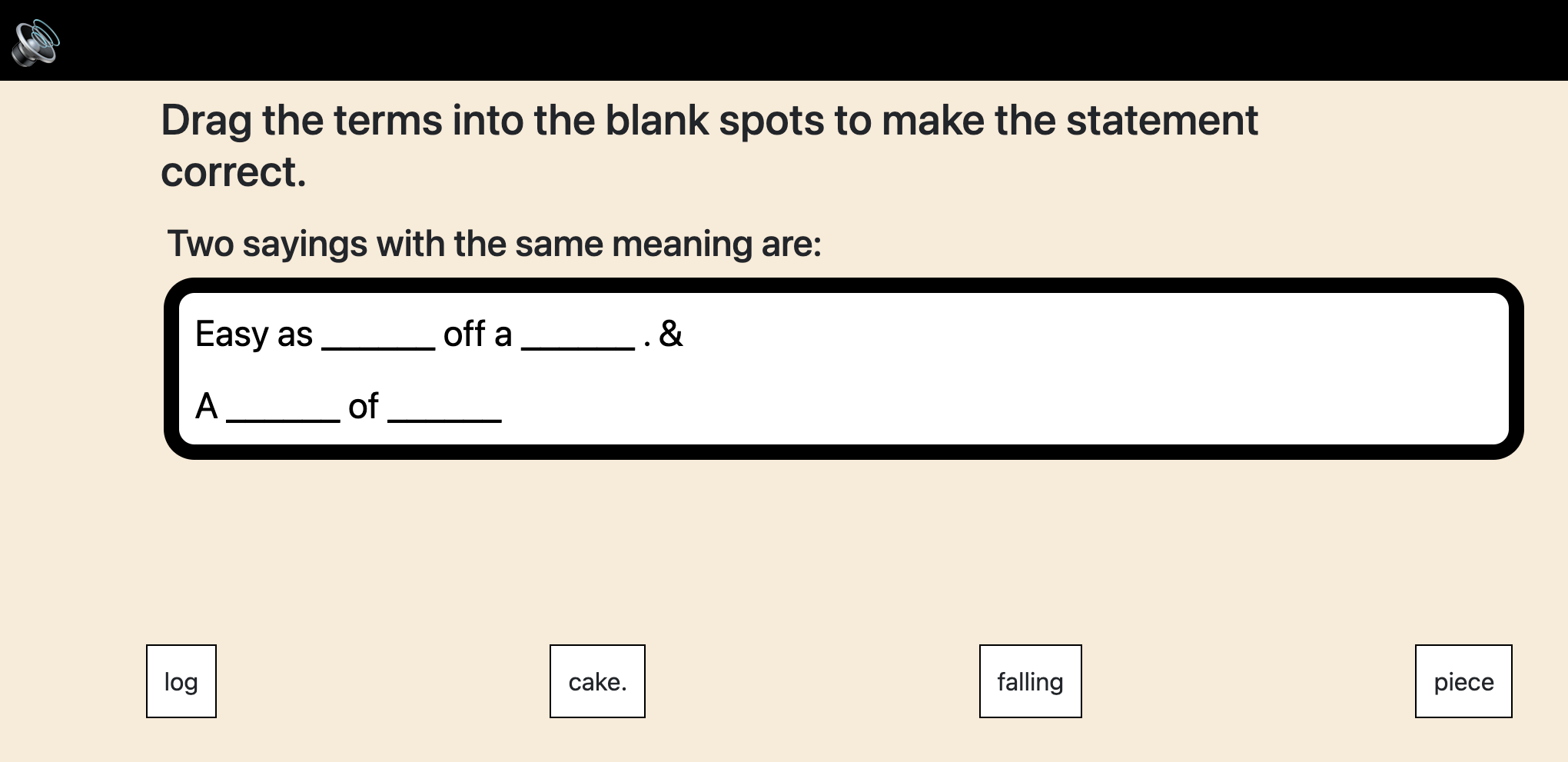
The drag_blank block is an assessment block in which the player drags a block into a blank to complete a statement. There can be from 1 to 4 blanks on a page.
When an item is dragged on the blank, the blank is bordered with a yellow box to show it has been dragged on the blank. When dropped (the mouse is released) the player receives a message whether this is the correct or incorrect response The dialog box gives a message in text, visually (red vs green background and box border color. Box border is either solid for correct or dashed for incorrect and a correct or incorrect sound plays.) The correct/ incorrect score box on the page has the number of correct or incorrect increased. The word or phrase used to fill in the blank is shown bordered in yellow.
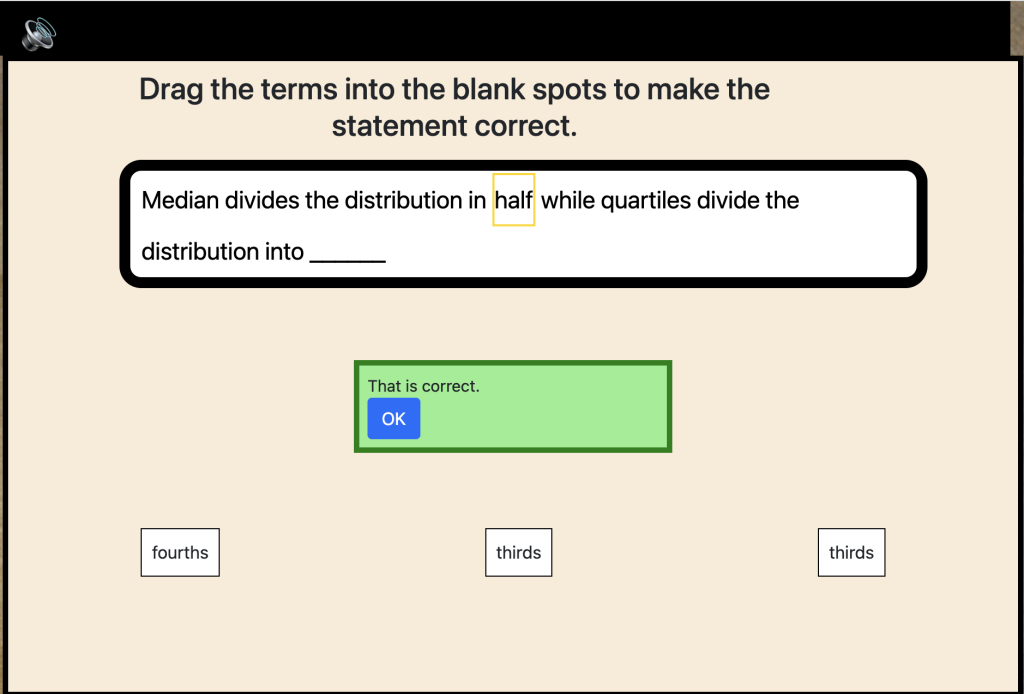
Each blank can have ONE item that matches.
Once an item has been dragged, it disappears from the screen. Once the player has dragged the number of tries specified, the player is shown a box in the center of the screen with the number of correct and incorrect answers.
The game designer may choose to have only correct choices, which need to be dragged into the correct box, or include incorrect choices as distractors, as shown above.
Making it Your Own
Like every block, the drag_blank block has two files in the folder:
- An HTML file: dnb.html . You should not have to change anything in this file. You can change the name to whatever you like or leave it named as is.
- A config file: dnb_config.js – This is where you will make any changes to create your unique game.
In the dnb_config.js file you’ll see three sections. The first sets page options, the second section sets categories (questions) and the third sets answers (items). The categories are what precedes the blank and the answers are options to drag into the blanks.
Page Options
const options = {
  itemsClass: "item",
  instructions: "<h3 class='text-center p-2'>Drag the terms into the blank spots to make the statement correct. </h3>",
  instructions_audio: "audio/instructions.m4a" , // Optional - include audio here if you want
  completionURL: "../next_block/next_block.html", // URL to proceed to after the last screen,
  randomizeItems: false,
  numberOfItemsOnScreen: 4, // How may items are shown on the screen at once
  numberOfAnswersRequired: 2, // The game stops after this number of items are dragged to a blank. Increase this number to make the game easier.
};
instructions: These are the instructions shown on the page above the categories. This can be either html or just plain text. (See the example in the first image above.)
OPTIONAL: If you would like to include an audio recording of the instructions on the first page
instructions_audio: If an audio file link is given here, the file will play when a user clicks on a speaker button. Normally, this would just be the sentence(s) given for instructions, but the questions can also be spoken.
completionURL – you’ll see this in every block. It is the URL where you want to go on the completion of this assessment.
randomizeItems – by default, this is set to true, so items will be placed on the screen in random order. If you change it to false, the first item you list below will always be shown first, the second item will be shown second, and so on.
NOTE: If you are putting the items in random order AND you have fewer items on the screen than the number of answers required then it is possible that the correct answers will not be shown as an option. You should EITHER have the number of items on the screen be less than or equal to your total number of items (see below) OR select randomizeItems: false and have your correct items in the items to be shown. That is, you have numberOfItemsOnScreen:4 then the correct answers should be somewhere in the first 4 items.
Categories (questions)
const categories = [ // CATEGORY ID MUST BE question0, question1, question2 or question3 ;
  {
    categoryID: "question0",
    categoryTitle: "Median divides the distribution in",
  },
  {
    categoryID: "question1",
    categoryTitle: "while quartiles divide the distribution into",
  }
];
The categories are the statements that precede each blank. You can have 1-4 “questions”.
categoryID – start with question0 as the categoryID, the second question is question1, third is question2 and fourth is question3. If you only have one question, delete the second categoryID. If you have two or three questions, add using the same format above.
categoryTitle – This is the statement that precedes the blank, so, the “question”.
Answers (items)
These are the boxes to be dragged into the blank. These can be entered in any order but there MUST be a box that matches each question and has the same categoryID or your players won’t be able to get the correct answers.
const answers = [
  {
    itemTitle: "half",
    categoryID: "question0",
  },
  {
    itemTitle: "thirds",
    categoryID: "example",
  },
  {
    itemTitle: "fourths",
    categoryID: "question1",
  },

  {
    itemTitle: "eighths",
    categoryID: "categoryX",
  }
];
itemTitle – The text you want entered in the box. This can be a single word or multiple words.
categoryID – This is used to match the correct answer to each blank. If you have distractor items that are not correct, you can use any categoryID value as long as it does not match any question categoryID. In the example above, I used categoryX