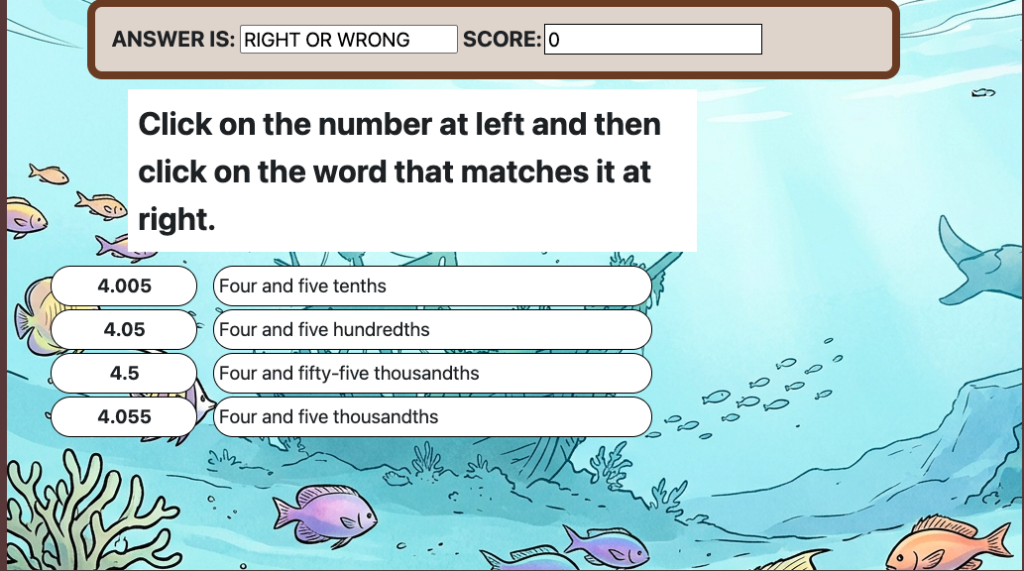
This is an assessment block where players match a term on the left with its definition on the right. You could use it for mathematics, English language arts, social studies or science.
Need a PowerPoint to show your class how to use this block? Download it here.
Getting Started
- Login
- Select create a game or edit a game
- If you selected Create a Game, give your game a name. If you selected Edit a Game, pick the name of the game you want to edit from a drop down list.
Make your Matching Terms Block
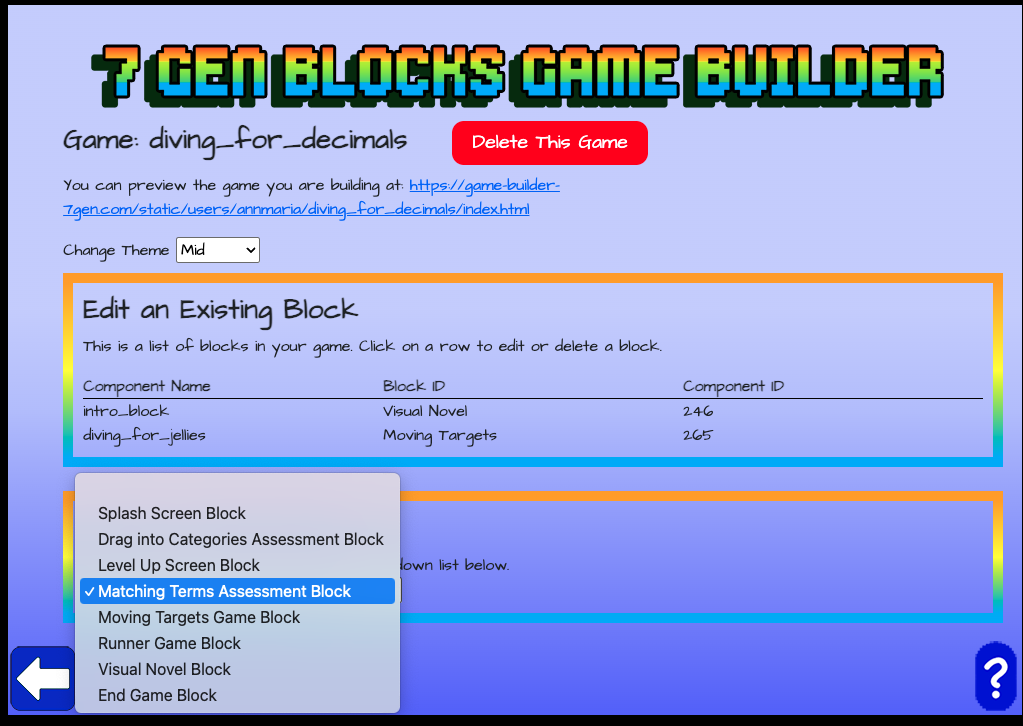
Select Matching Terms Assessment Block
from the drop-down
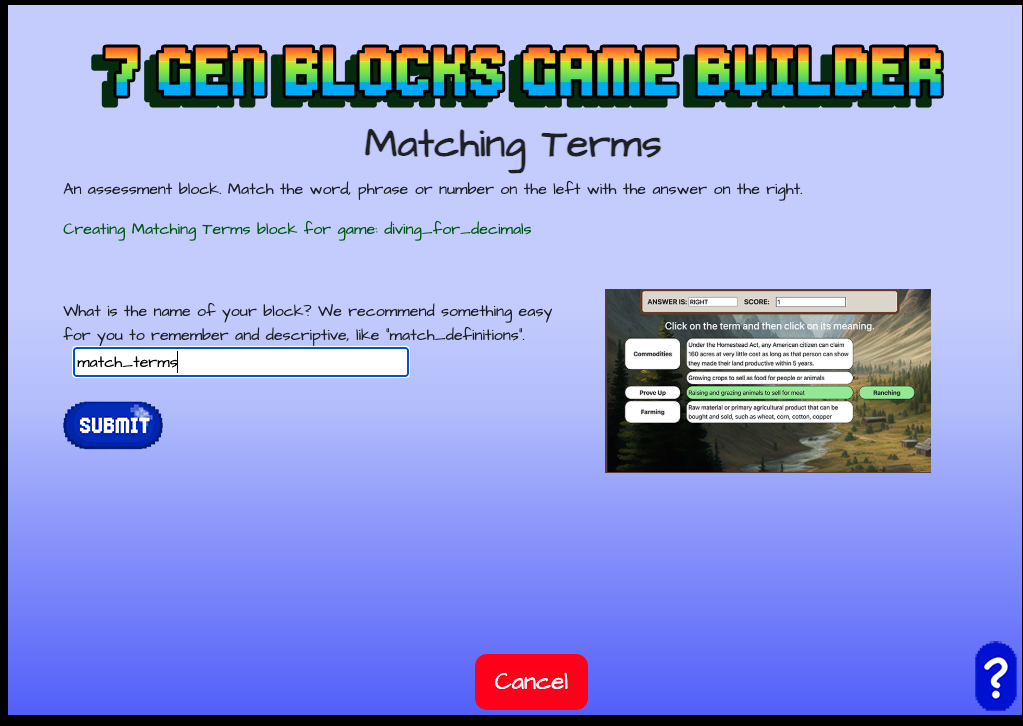
Give your block a name
As with all blocks, whatever name you give will be converted to all lower case, the spaces will be changed to an underscore ( _ ) and any special characters will be deleted, so Match Terms! becomes match_terms. In my case, I just typed match_terms to begin with.
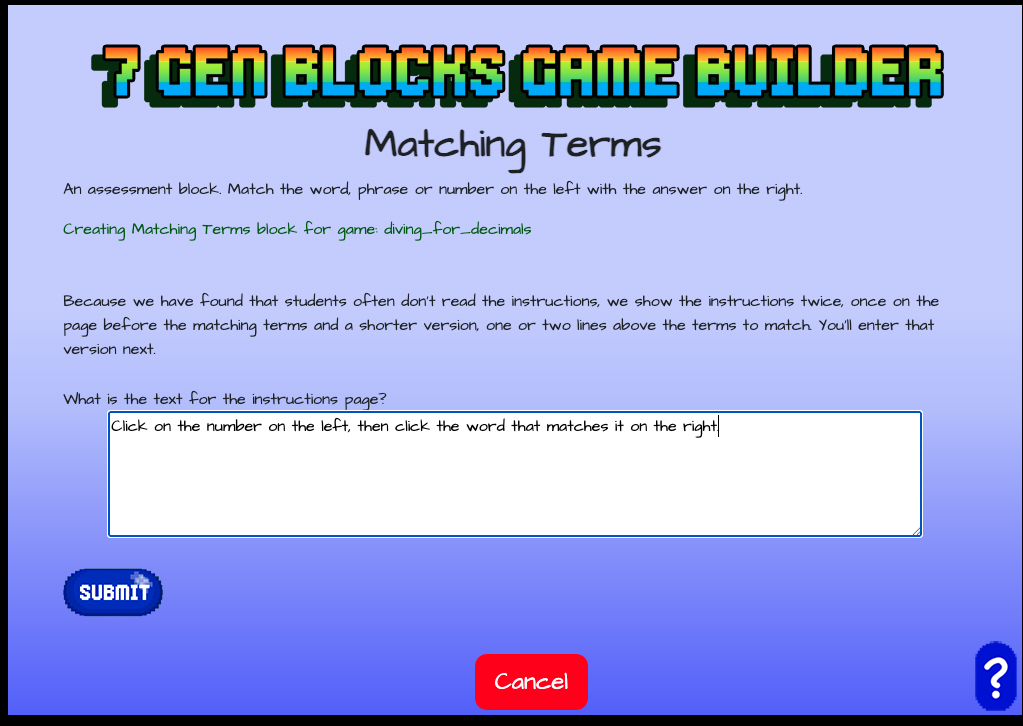
Enter instructions and click SUBMIT
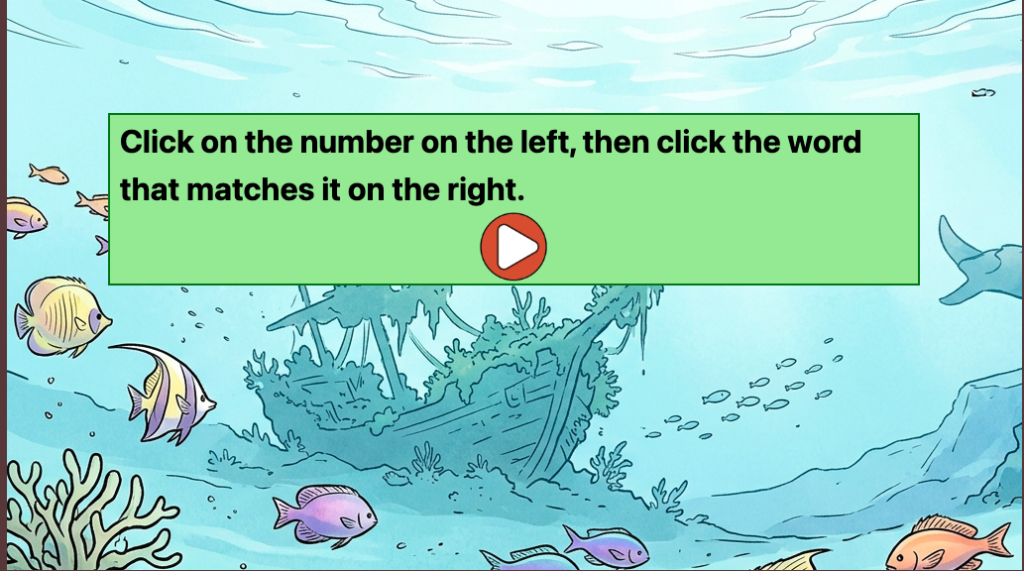
These instructions will be shown on the screen before the matching terms screen.
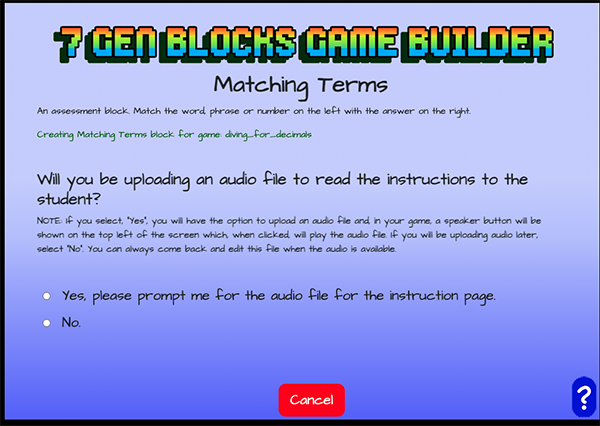
Click Yes if you will be uploading an audio file for the instructions
If you select “Yes”, the next screen will prompt you to select or upload an audio file. In your game, a speaker will be shown on the screen that the player can click to have the instructions read to them.
Select “No” if you don’t have an audio file or if you don’t have one recorded right now.
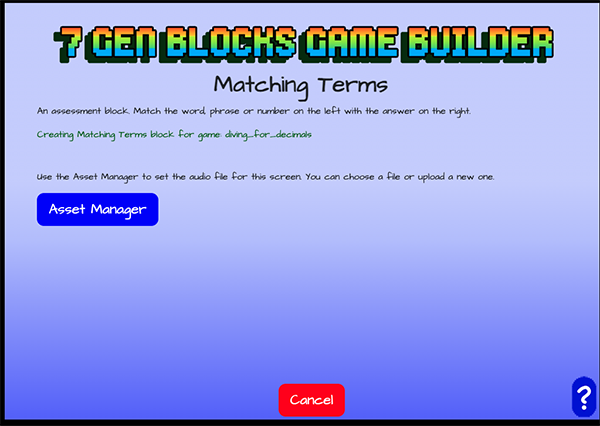
Because I clicked Yes, the Asset Manager button is shown
When click on the blue Asset Manager button, it brings up the asset manager screen
Click on the Audio button to select or upload audio
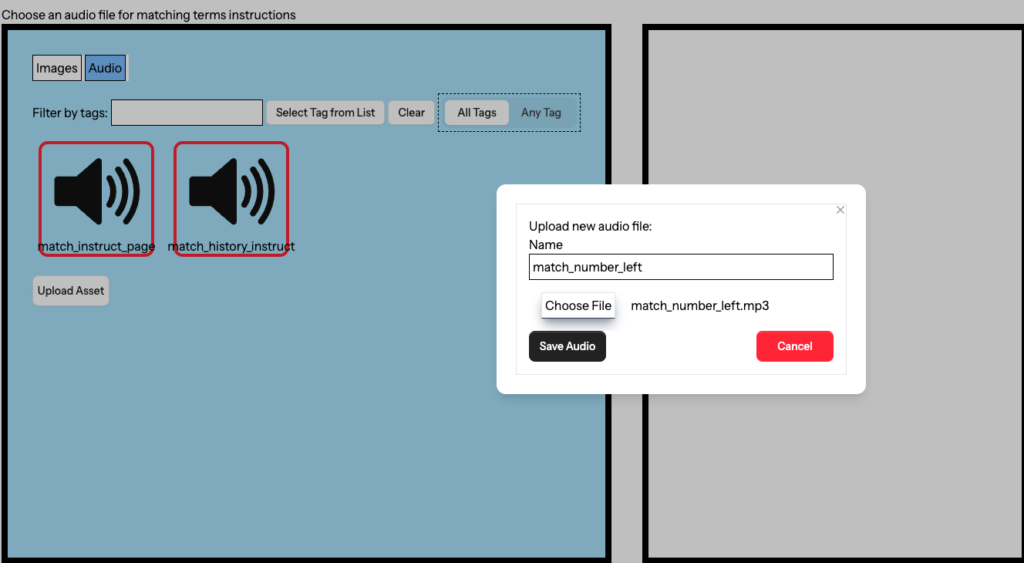
In this example, I want to upload audio, so I click the Audio button on the top right of the screen, then click the Upload Asset button. I give the audio a name and click the Choose File button.
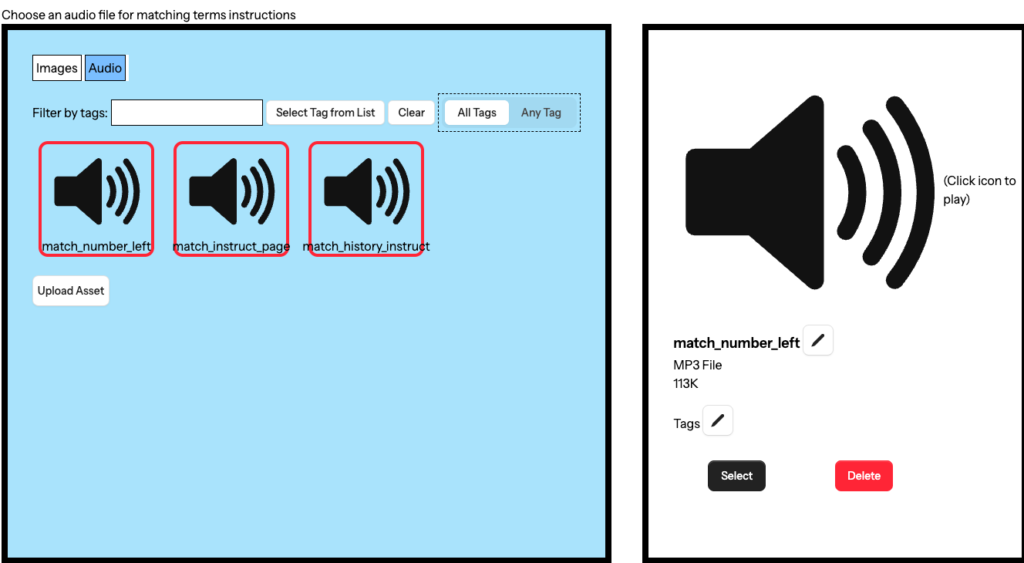
Click the audio file you want
Then, click the SELECT button at right to select it/
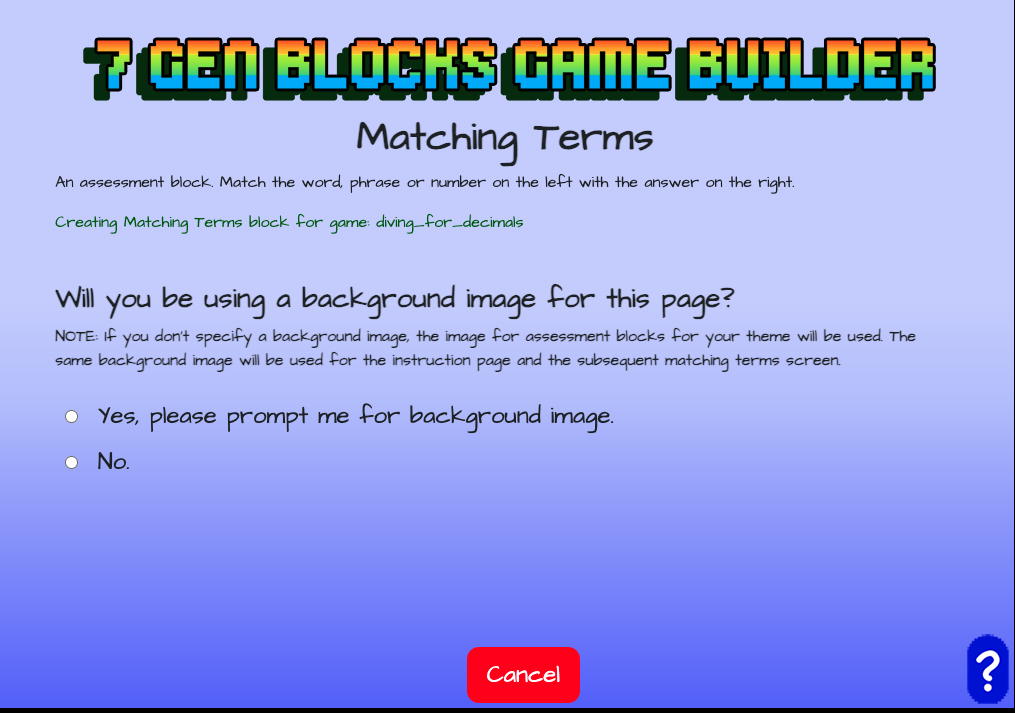
Click Yes to select a background image
You’ll see a screen that asks if you want to select a background image for your game. If you click “No”, the default image for your game theme will be used.
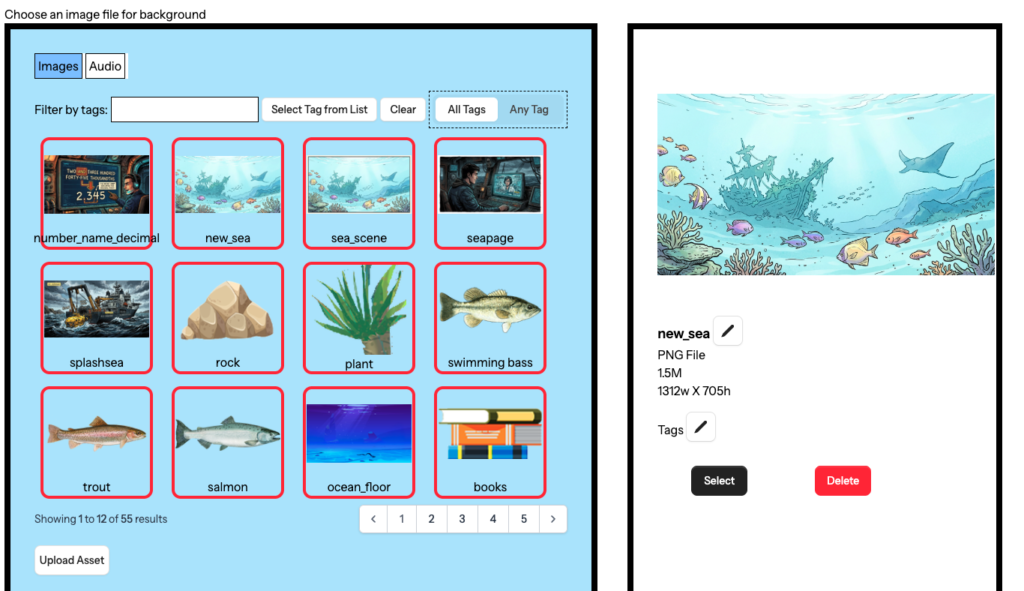
Select an image file for the background
Selecting an image is very similar to selecting audio, so I have not repeated all the screenshots here.
- If you click Yes, you will see a screen with the blue ASSET manager button again.
- Clicking the asset manager button brings up the asset manager again, showing images, which is the default.
- Click Upload Asset to upload an image or select an image from the existing media.
- Click the asset you want to select and then click SELECT from the button on the right
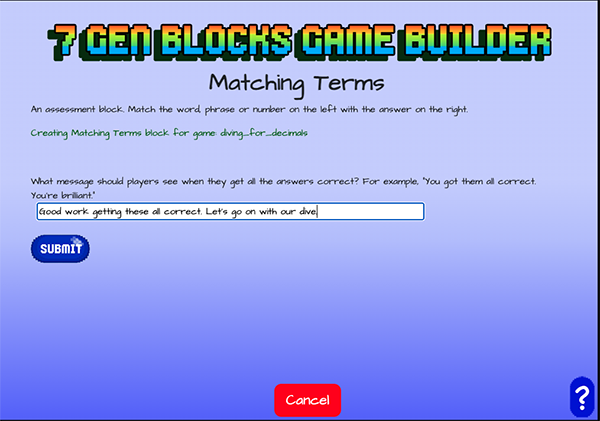
Enter the message to see when the player gets all of the items correct
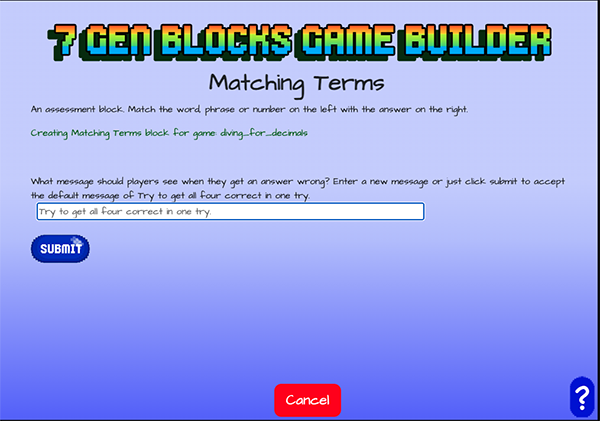
Enter the message for when the player gets all of the items incorrect
If you just click SUBMIT the default message of “Try to get all four correct in one try” will be used.
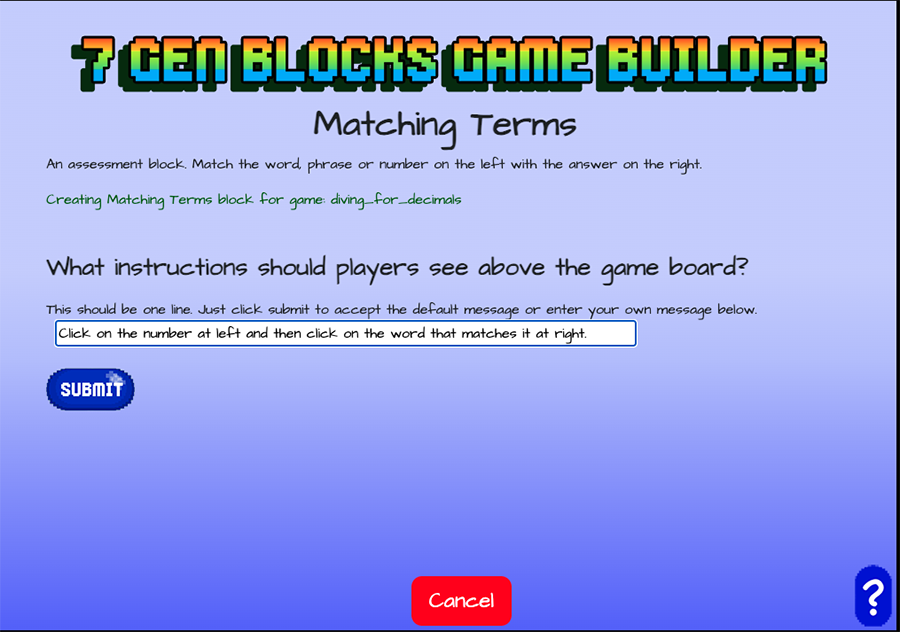
Enter instructions shown the game board
Because you know they probably just clicked the next arrow and didn’t read the first set of instructions.
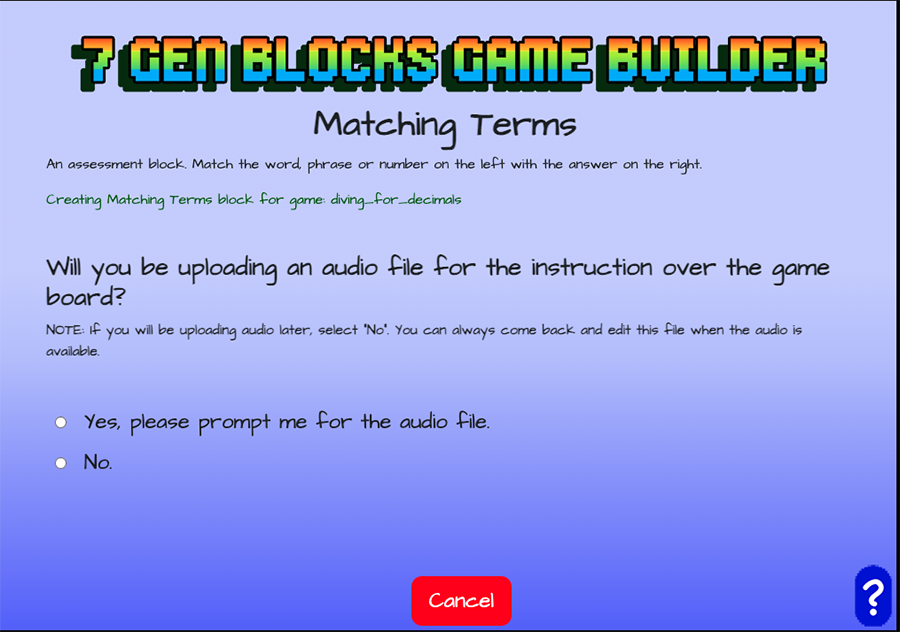
Select “Yes” or “No” for audio for instructions above the game board
If you select “Yes”, you’ll follow the same steps as above to upload or select an audio file.
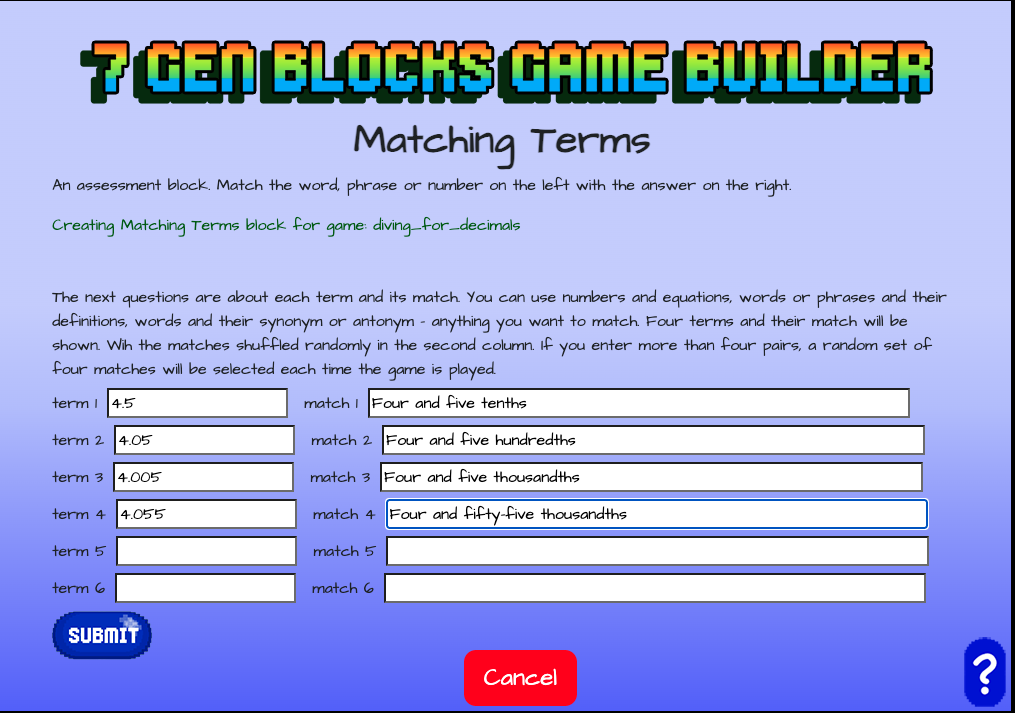
Enter the terms to be matched
A word, phrase or number should be entered on the left and its correct match on the right.
Four pairs will be shown on the screen in the game, so you must enter at least four terms and their matches. If more than four terms are entered, four pairs will be selected randomly each time the game is played.
Although you enter the terms and matches side by side, the terms and their matches will be shown in random order in the actual game.
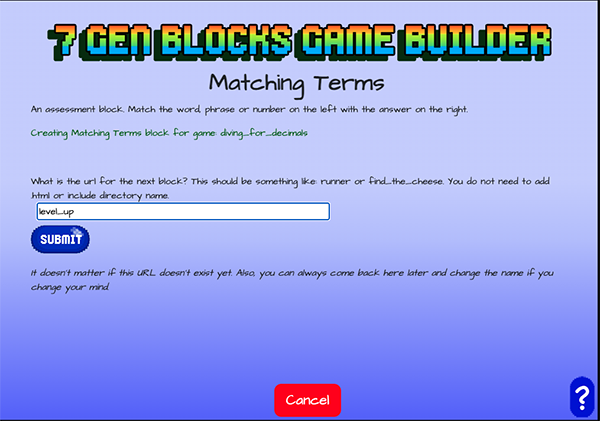
Enter the name of the next block
Create another block
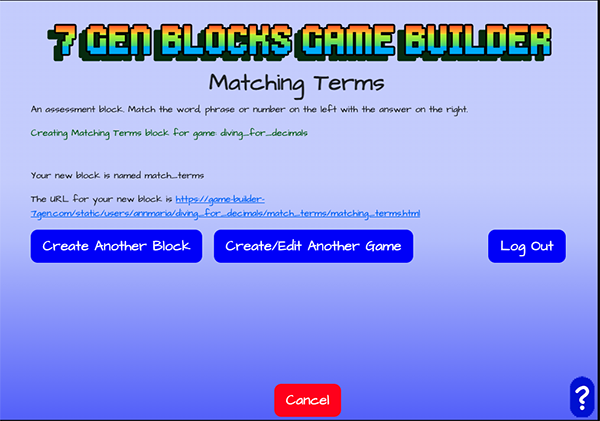
Your block is done! Click the URL to see it in another tab or click any of the buttons to create a new block, edit another game or log out