When creating your game blocks, it’s normal to make a mistake or simply change your mind. That’s why it’s important to know how to edit any game block.
Login and Choose Game to Edit
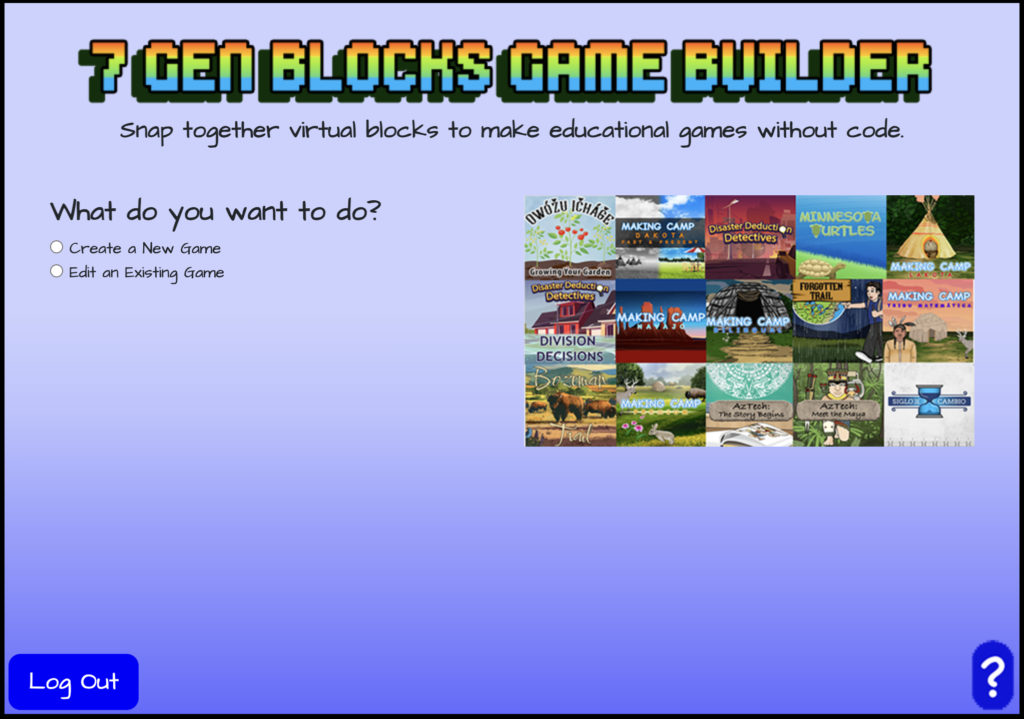
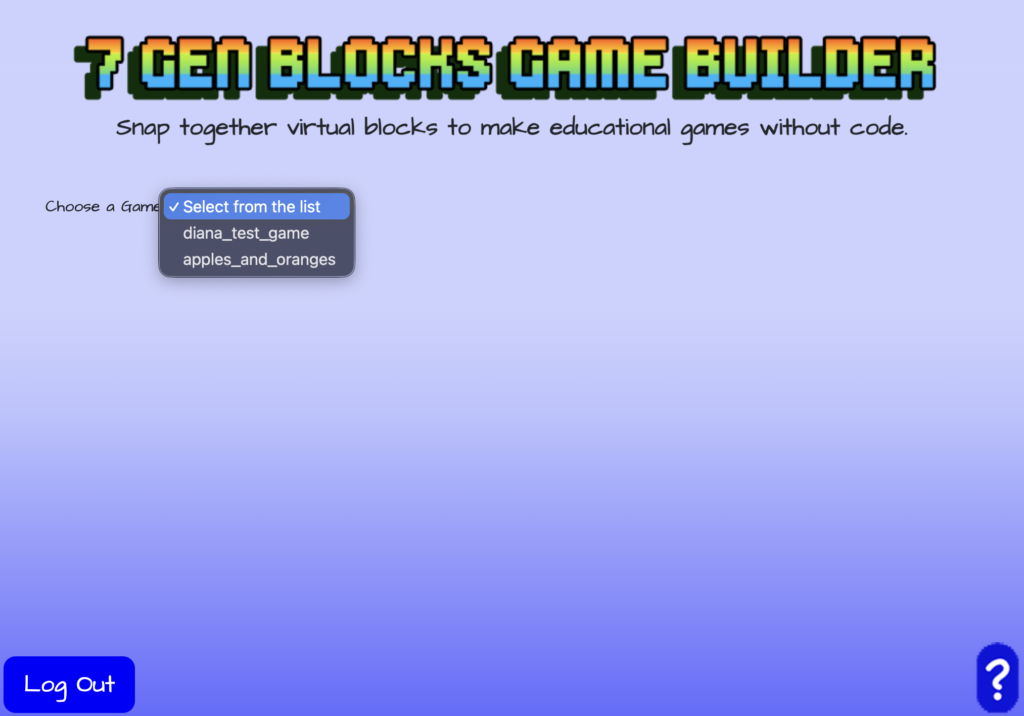
When choosing to edit a game block, like your moving targets block, login to the 7 Gen Blocks Game Builder like you normally would. However, instead of creating a game, select “Edit an Existing Game”. Then choose the game that you want to edit from your list of games.
Choosing Your Block to Edit
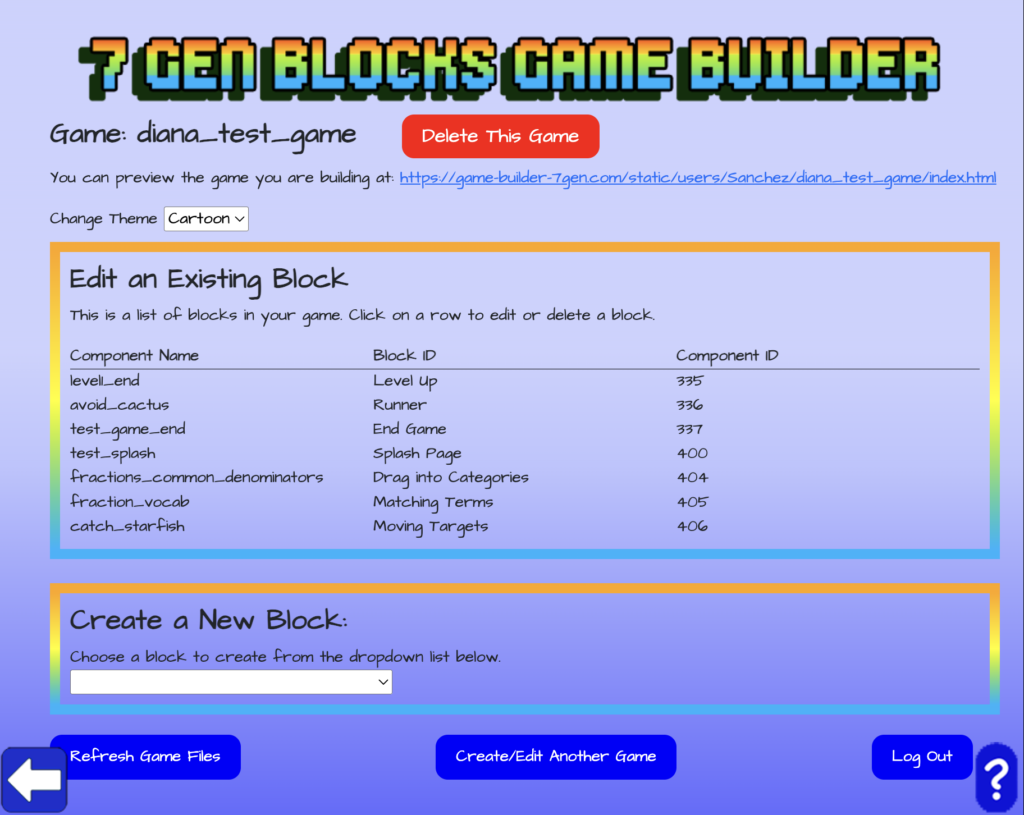
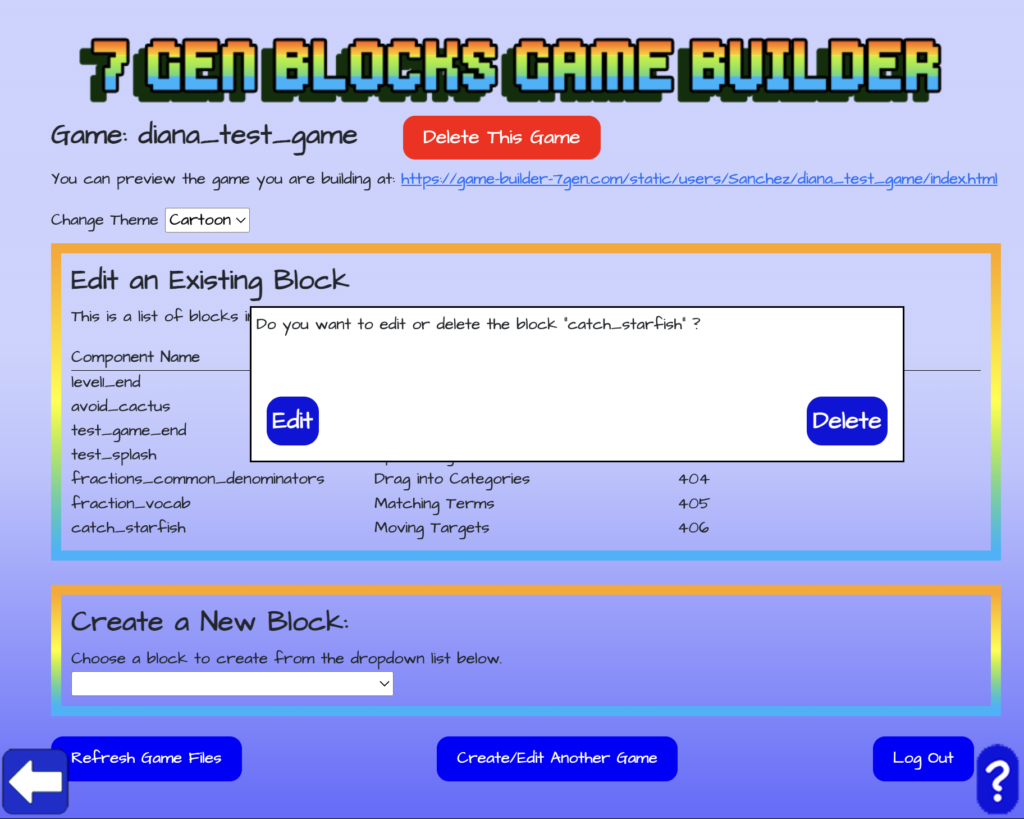
Once you have chosen the game, you can then choose which existing block in that game you want to edit. You’ll be shown a list of the blocks in that game. Click on the name of the block that you want to edit. In this case, we’re selecting to edit the moving targets block. You’ll be asked if you want to edit or delete your moving targets block. Click on edit.
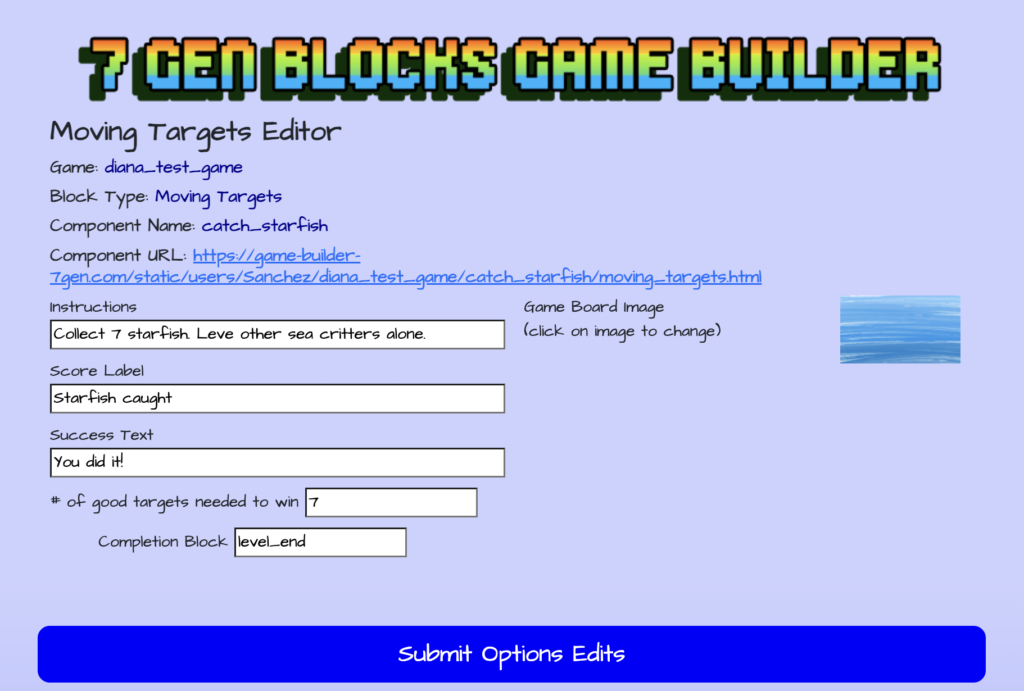
Moving Targets Block Editor – Editing Instructions and Image
After choosing to edit your moving targets block, you’ll be directed to the Moving Targets Editor. Using the top section of the Moving Targets Editor, you can edit the text for the instructions, the text for the label of the score, the number of good targets needed to win, the message players get when they succeed, and the name of the completion block. You can also change the image to your moving targets block.
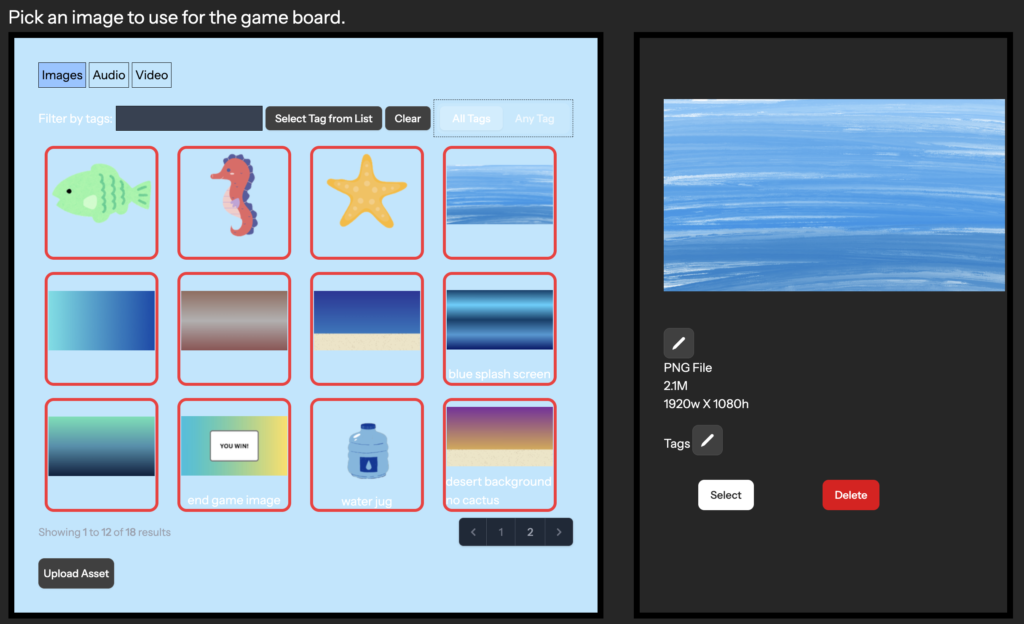
To change the game board image, click on the current game board image to open the asset manager.
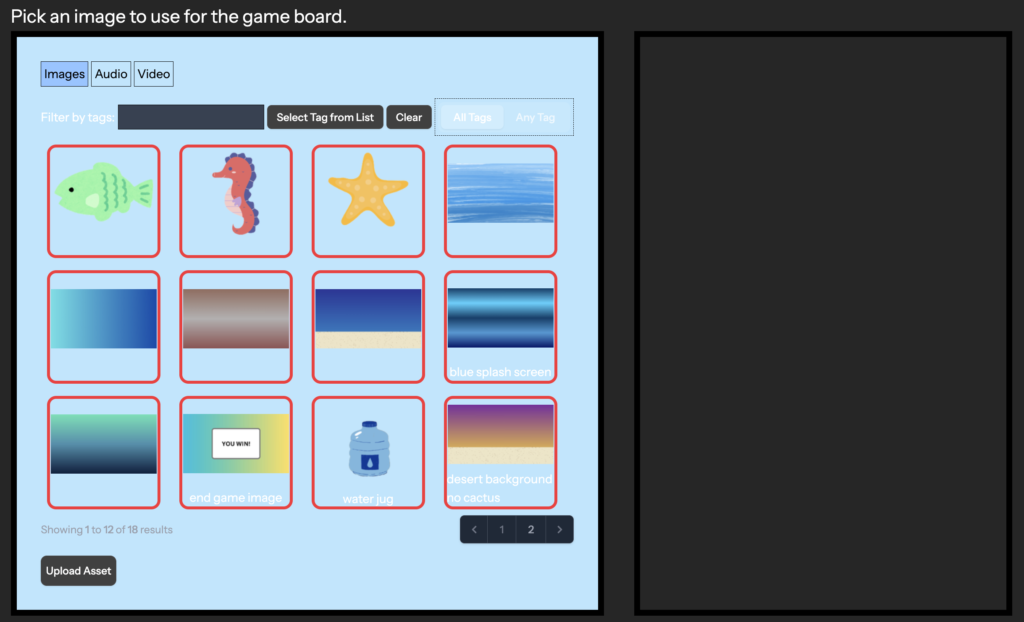
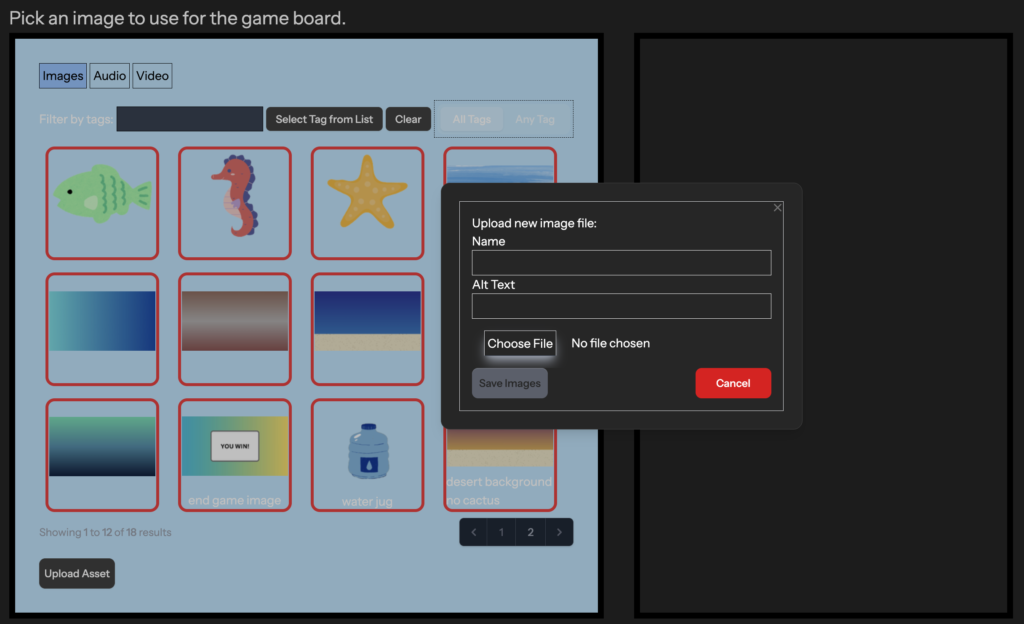
Using the asset manager, you can select the image that you want to replace the current game board image for your moving targets block. Or you can click on the “Upload Asset” button in the asset manager in order to upload a new image. When uploading a new image, click on “Choose File”, select the image you want to upload, and click “Save Images”.
Once you have uploaded your new image or if you are selecting another image already uploaded, make sure to click on the image that you want to select as your new game board image. Selecting the image will show you those image’s details, there you can click on the “Select” button to make that image your new game board image for your moving targets block.
Once you have finished making the desired changes to your moving targets block using the Moving Targets Editor, click on the “Submit Options Edits” button to save those changes.
Moving Targets Block Editor – Existing Targets
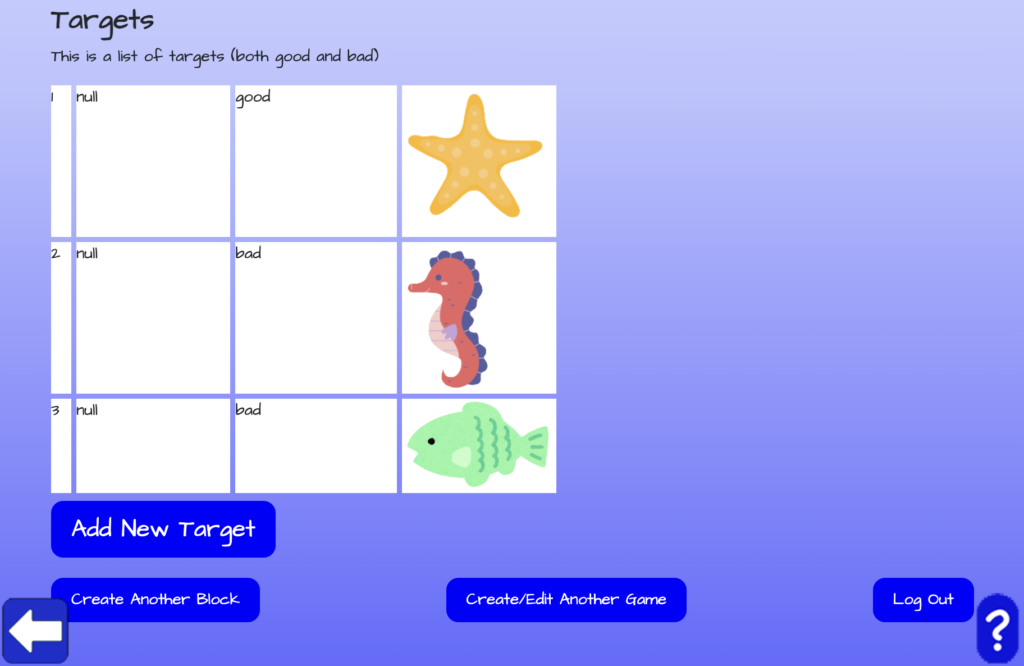
Then scroll down to the second section of the Moving Targets Editor. There you’ll be able to edit existing targets and add another target if you have less than four targets.
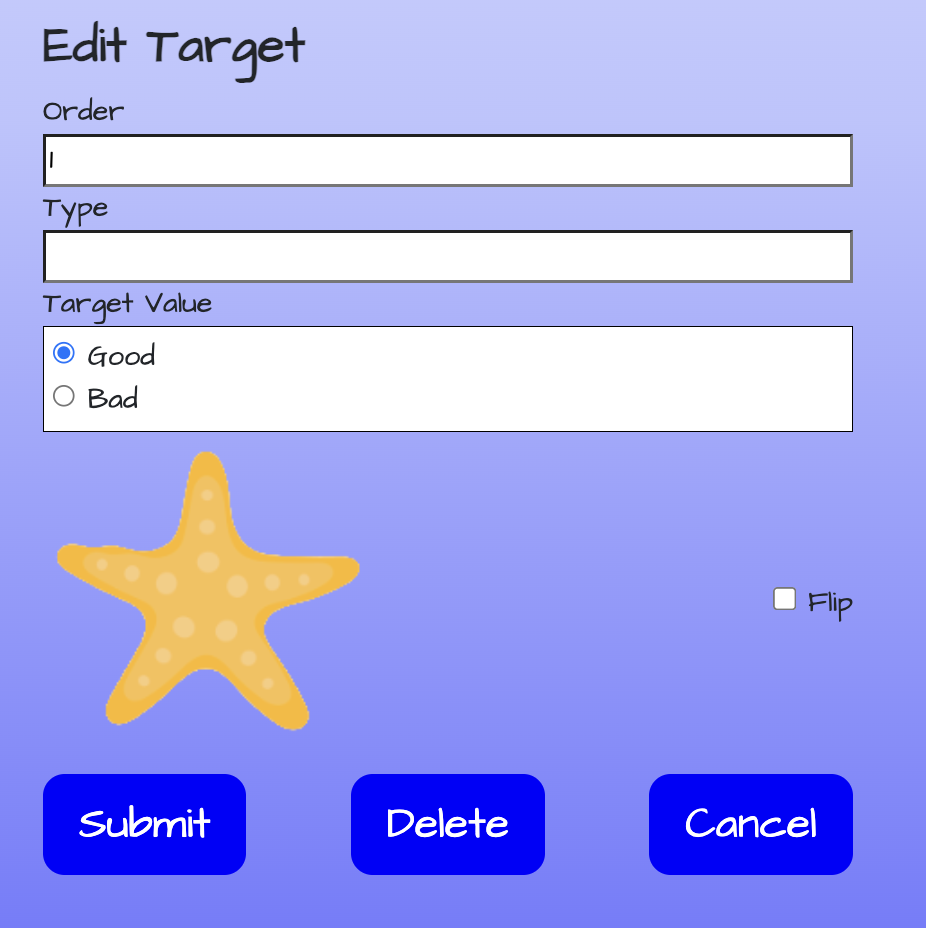
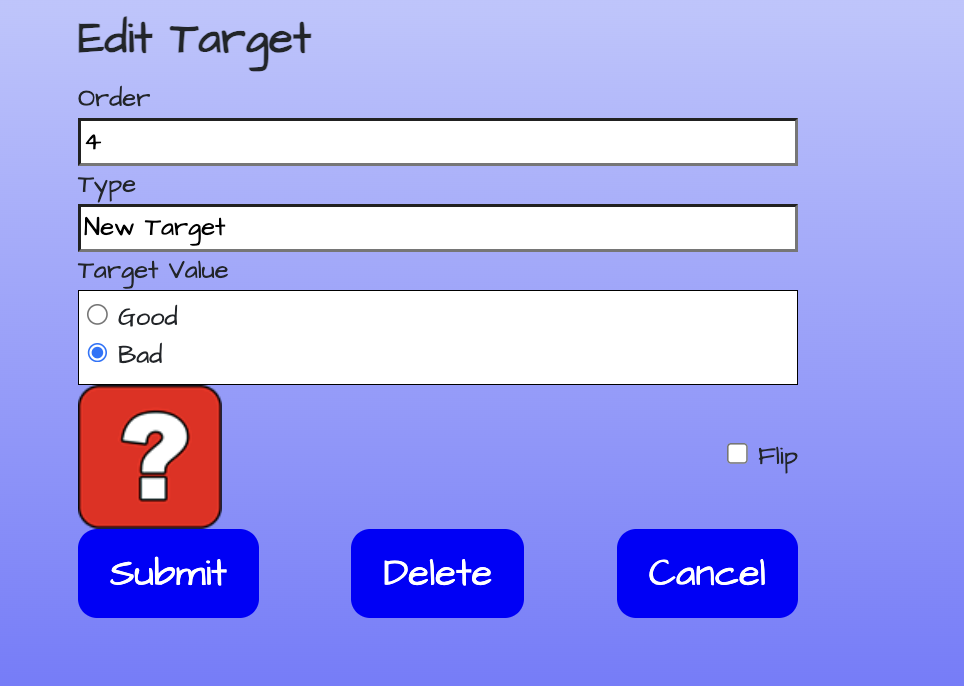
When editing existing targets, you’ll be able to change the image of the target by clicking on the current target image and selecting or uploading a new image using the asset manager as shown above. You can edit whether the target is a good or bad target and even flip the target image. You can also delete a target or click “Cancel” in order to exit editing that particular target. If you do make changes to your existing target, click on “Submit” when you’re done editing.
Moving Targets Block Editor – Adding Targets
Click on the “Add New Target” if you want to add more targets, if you have less than four. Scroll up in the editor and you’ll get a pop-up message indicating that a new target was added. Click “Ok” and scroll back down to see the new target added.
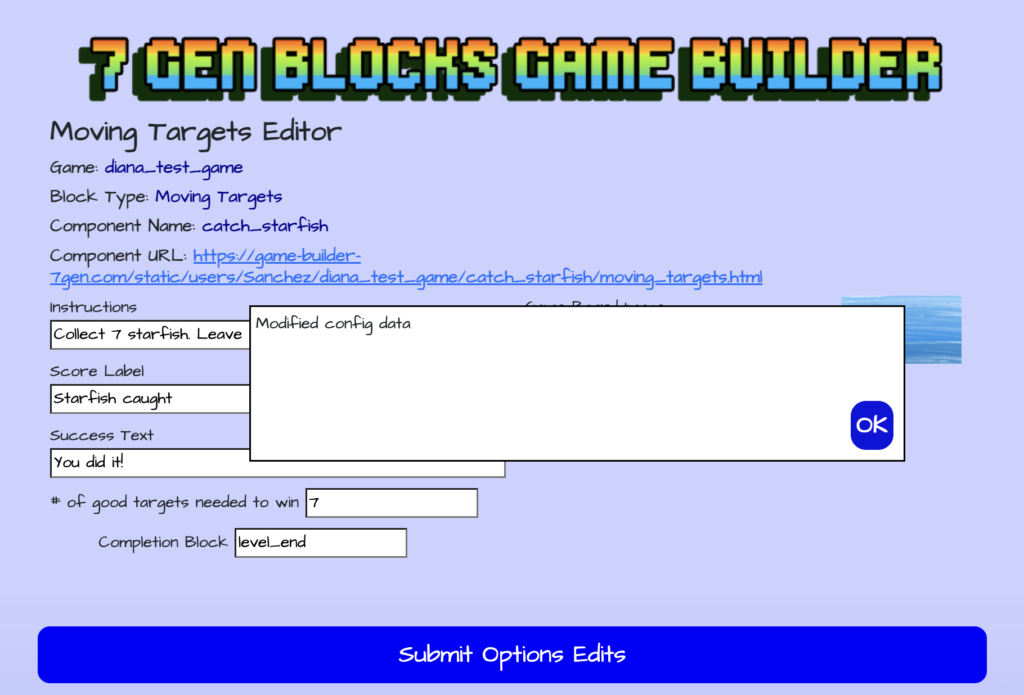
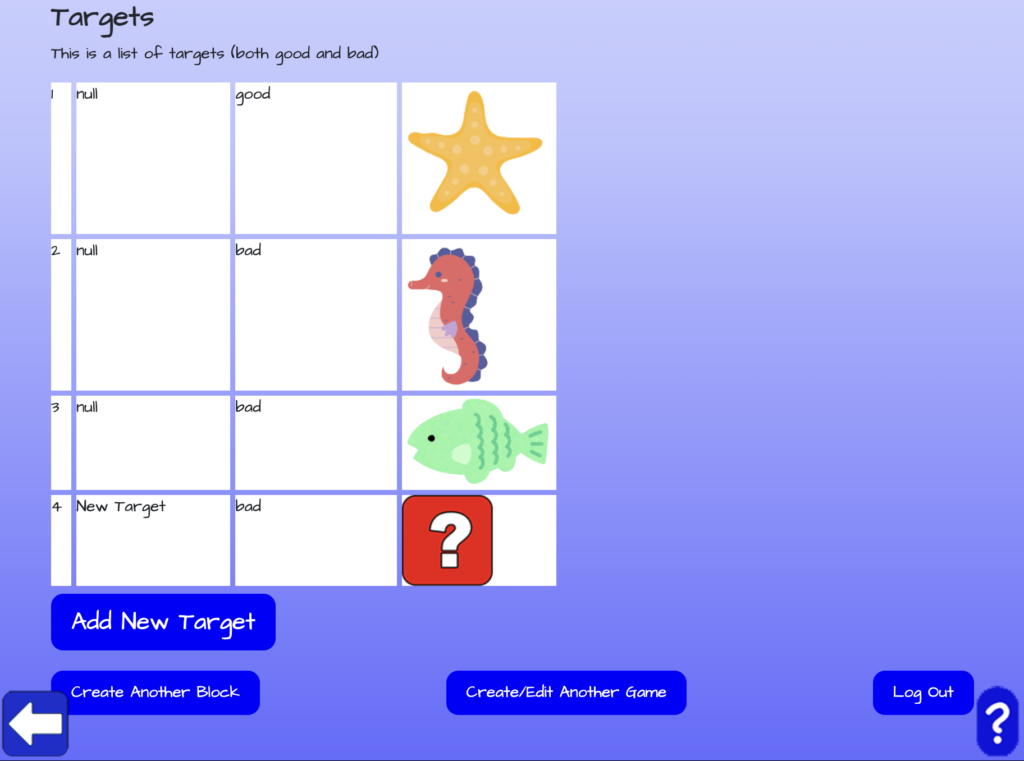
Click on the target image (the red question mark) to edit the new target image. Use the asset manager as shown above to upload or select an image for the new target. Choose the target value, a good or bad target. Also, delete “New Target” from the Type text field and add “null” like the other existing targets. You can also choose to flip the target image. Once you are done editing the new target, click on “Submit”. You’ll get a pop-up message at the top of the editor indicating that the changes to your new target were saved.
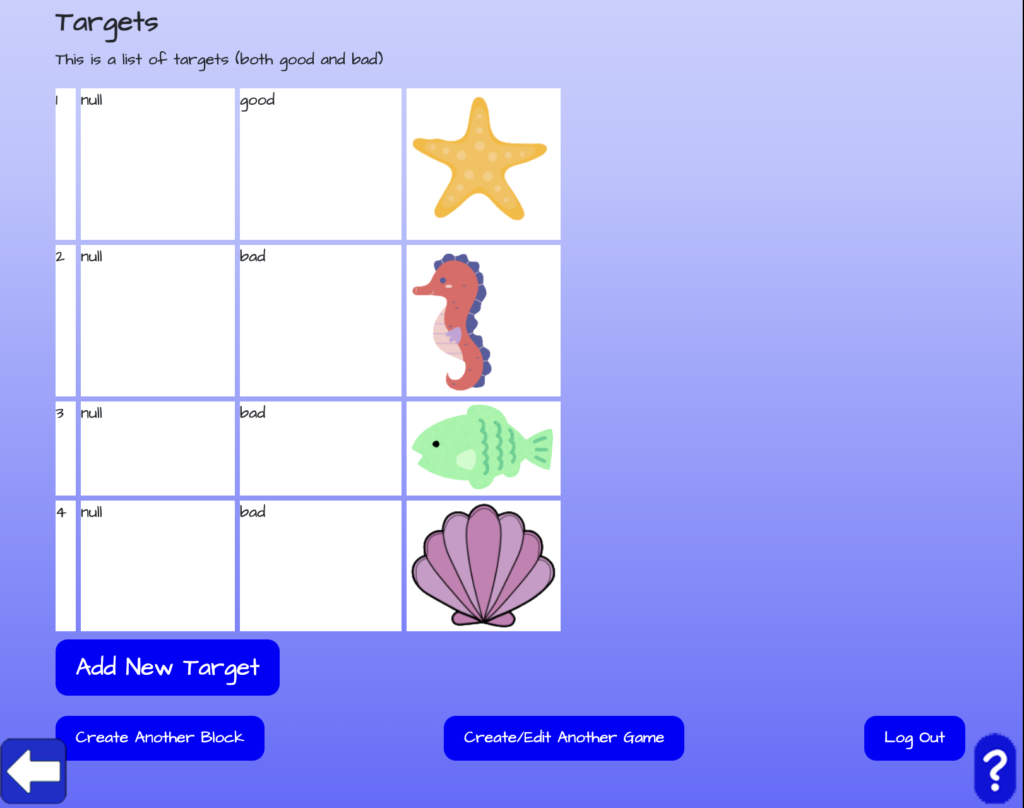
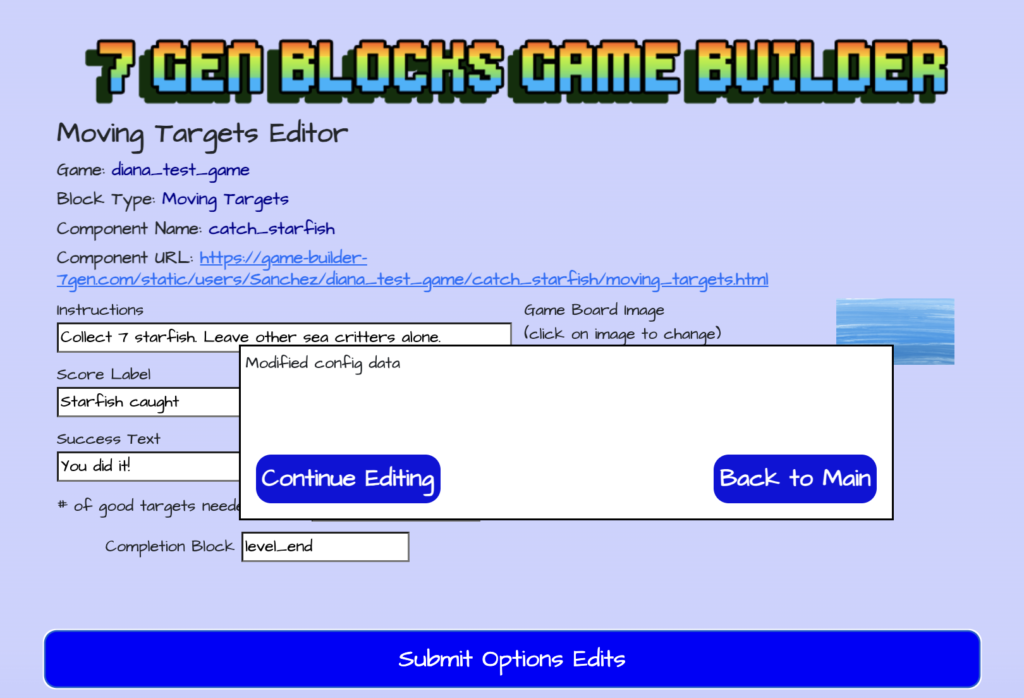
Once you are done editing the instructions and targets for your moving targets block, click on the “Submit Options Edits” button to save your changes. You’ll then be shown a pop-up message indicating that the changes were saved. That message will also give you the option to continue editing or go back to the main menu. Click on “Continue Editing” to make more changes or click on “Back to Main” to go back to the list of blocks included in your game.