This is (usually) an instructional block where players are taught some information, whether how to add fractions or the history of a community. It can also be used to provide part of the game narrative, such as introducing characters or explaining the challenge required to win the game.
If you are more a learning through video type, you can check out our video of how to make a video block on YouTube.
Getting Started
- Login
- Select create a game or edit a game
- If you selected Create a Game, give your game a name. If you selected Edit a Game, pick the name of the game you want to edit from a drop down list.
Make your Video Block
NOTE: You’ll see a CANCEL button on the bottom of every screen. Clicking this button will cancel creating a video block, so only click it if that is what you intend.
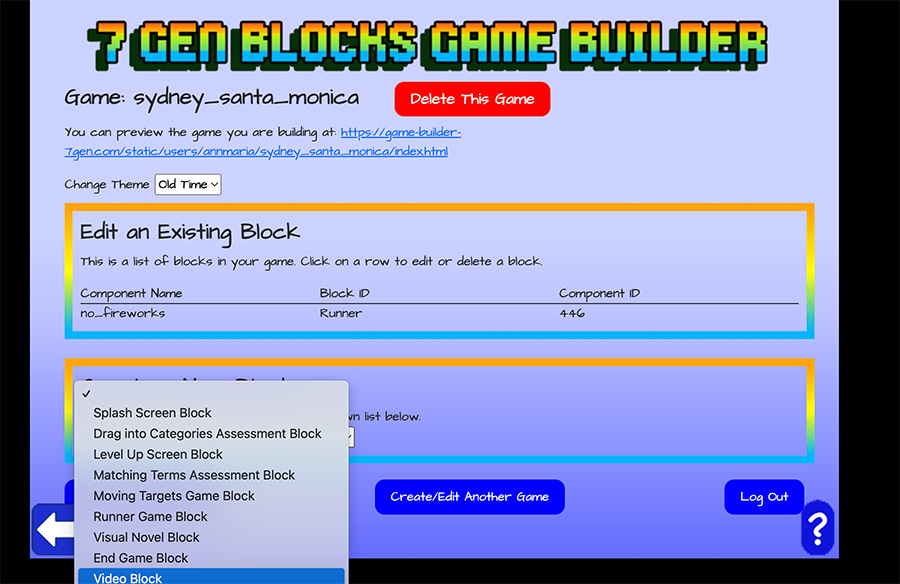
Select Video Block from the menu
You may have to scroll down.
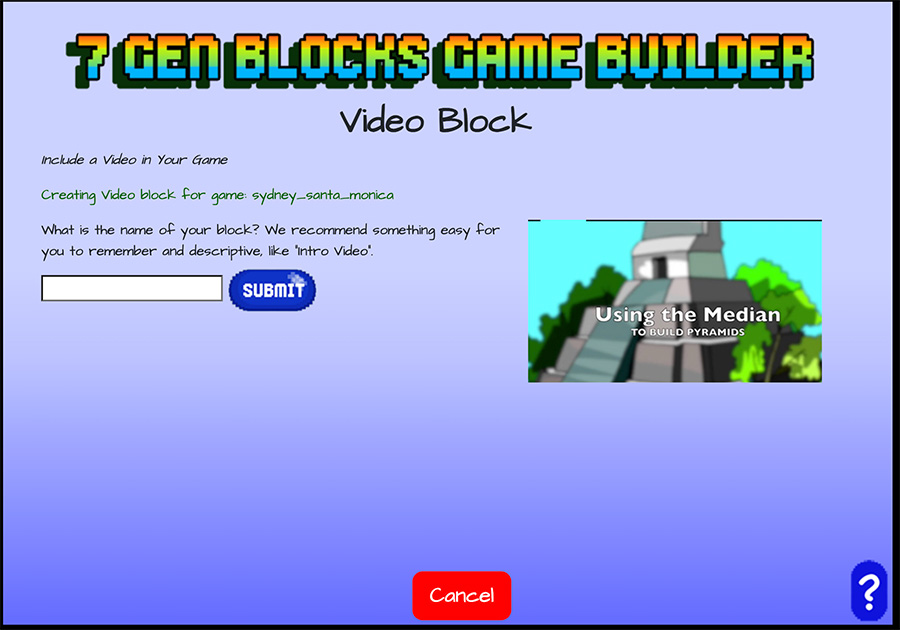
Give your block a name
As with all blocks, whatever name you give will be converted to all lower case, the spaces will be changed to an underscore ( _ ) and any special characters will be deleted, so Santa Monica Vid becomes santa_monica_vid.
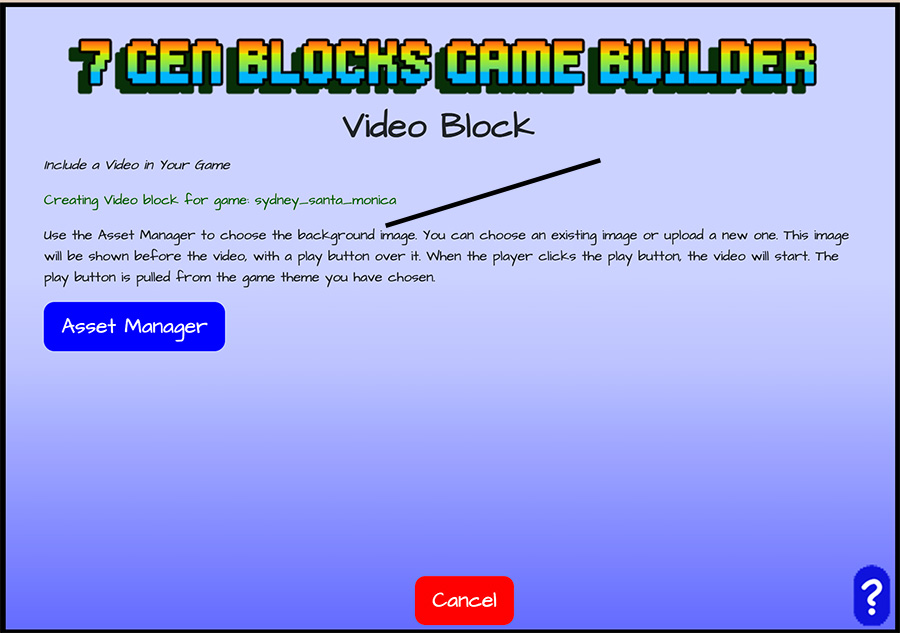
Select the image for the title screen
As you can see above, on the right, there will be a title slide shown before the video. Next, you are going to select the background image for that slide, and, if the title text is not part of the image, you’ll provide title text.
Note that this next choice is for the BACKGROUND IMAGE of the title, not the video. Click the asset manager button to select your image.
Select the background image from the asset manager
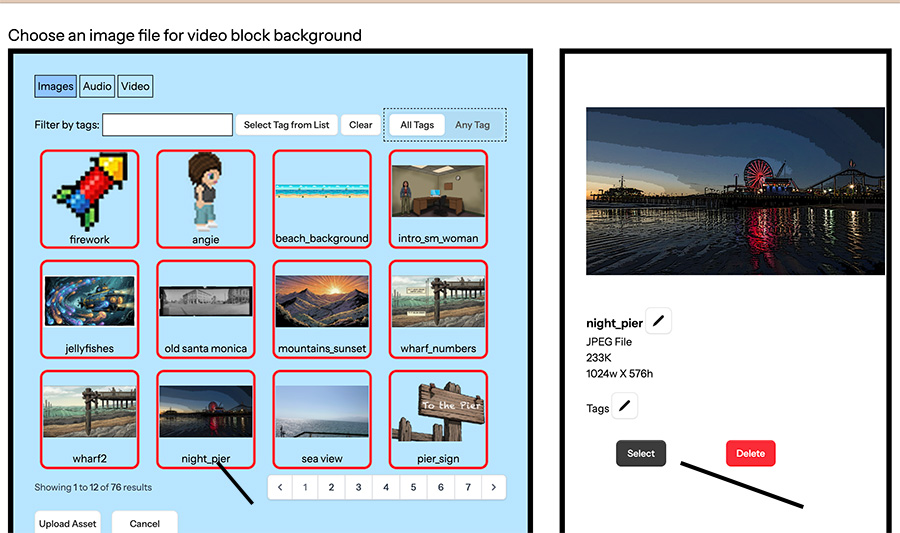
You will click on the image you want and then, in the pane that comes up on the right, click to select it. If you want to upload a new image instead, click on the UPLOAD ASSET button on the bottom right. After it is uploaded, you’ll click that image, and click to select it, just the same.
Give an image for the title screen (optional)
If your title image does not have the text embedded, and you want to show a title, click the box next to Use Title Text and type in a title. The default color for the title text is black but you can click in the box next to text color and select different color if you like.
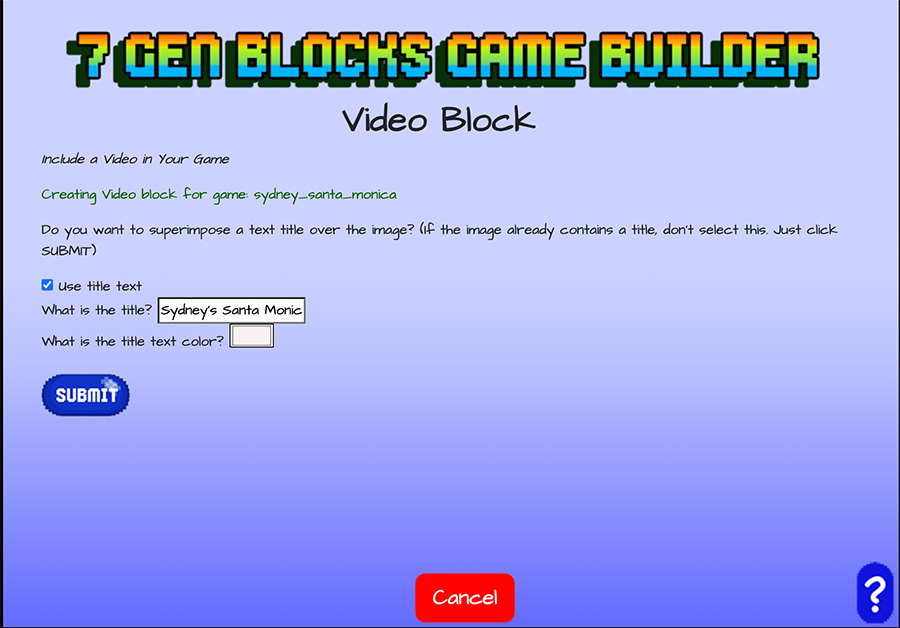
Select your video
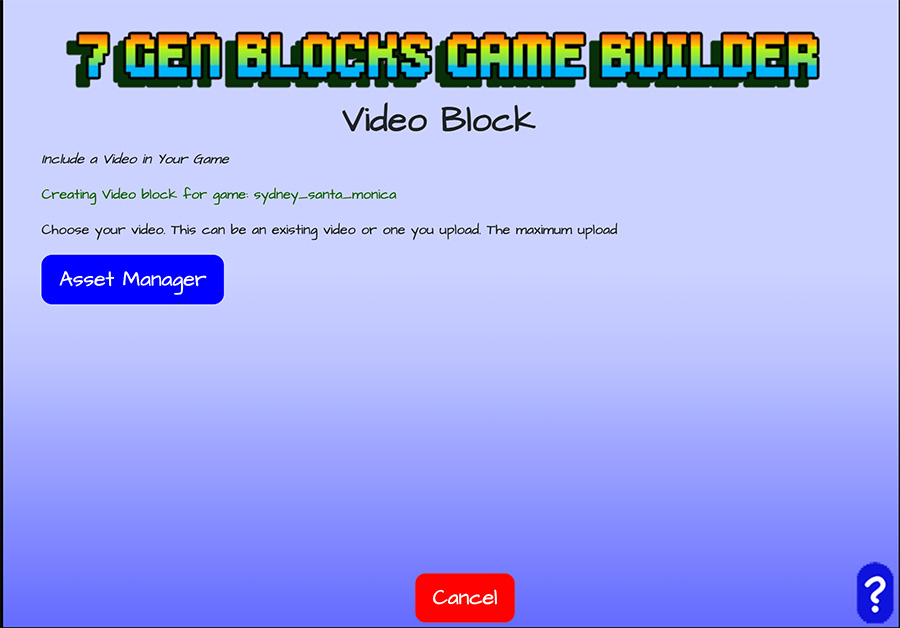
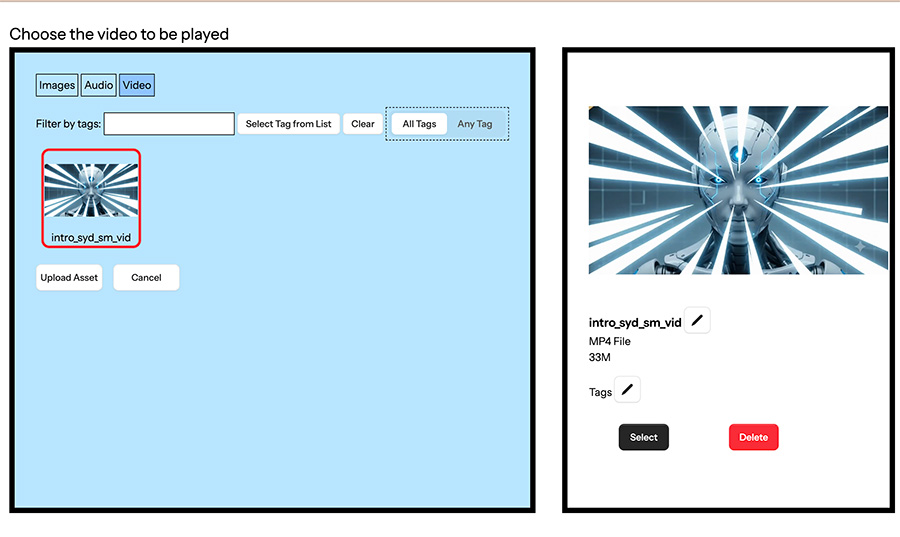
Click the video you want to use, and then click on SELECT in the pane at right to select it. To upload a new video, click the UPLOAD ASSET button and, when uploaded, click the video and then select it.
The last screen asks you to fill in the next block
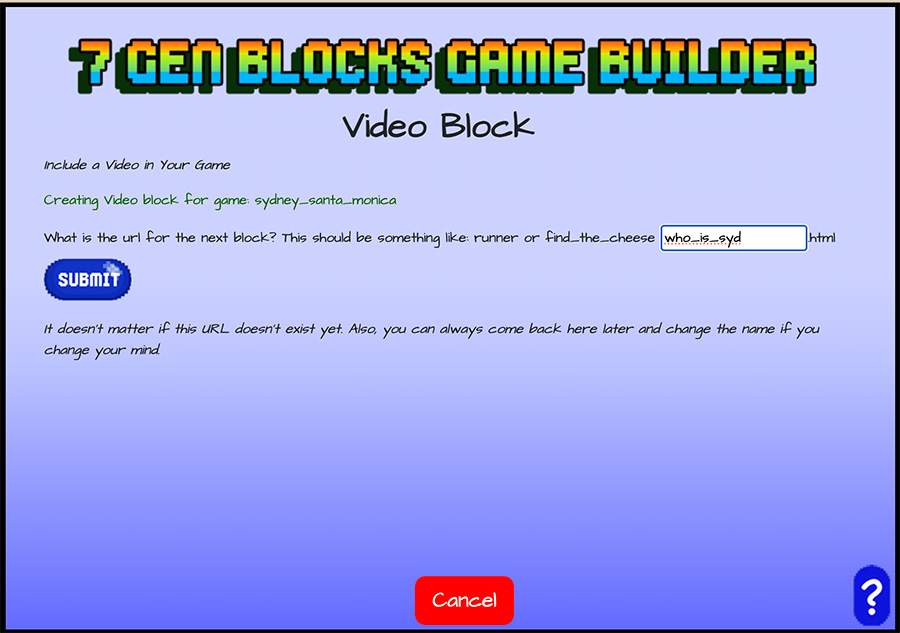
As with any block you create, it doesn’t matter whether this next block exists yet or not. If you change your mind about the next block, you can always come back and edit it.
Congratulations. You did it!
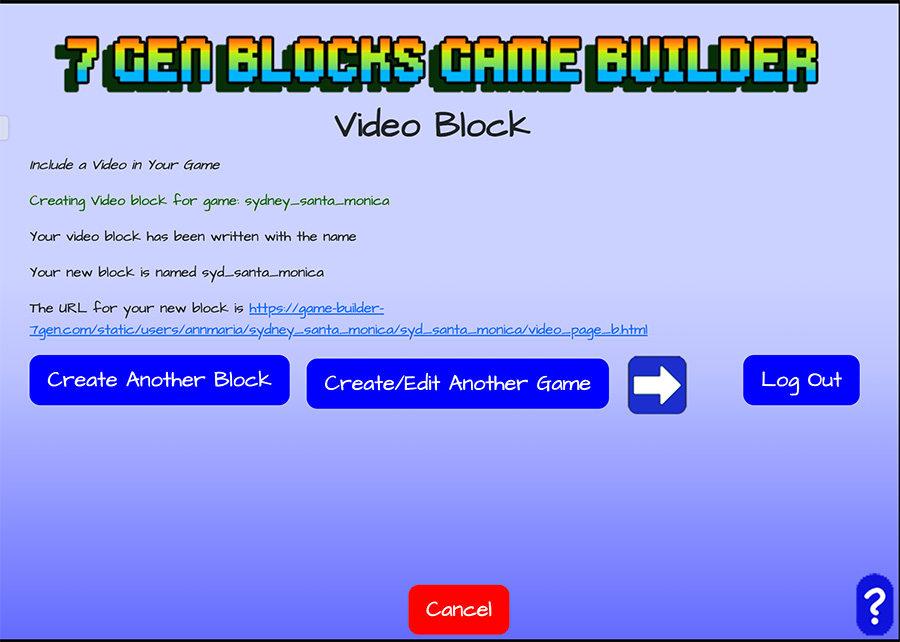
Now it’s time to create another block for this game, go on to another game or logout.