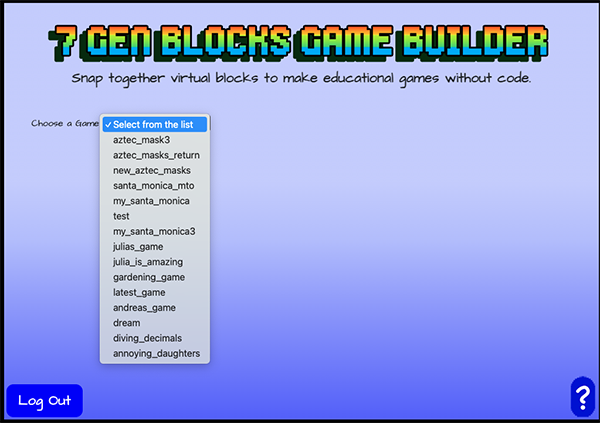
Start by creating or selecting a game. Then, select Moving Targets
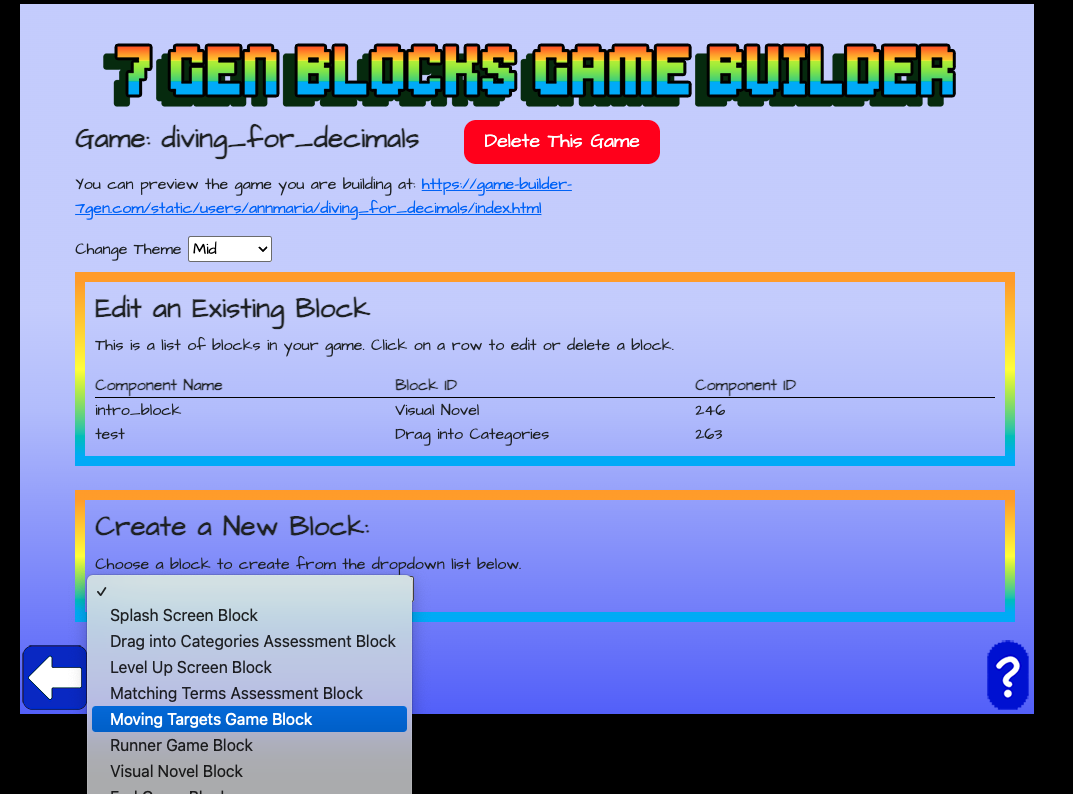
If you’ve made a few blocks before, you know the drill. The first window login asks if you want to create a new game or edit an existing one. In this example, I selected to edit an existing game and picked the game name from the list. Regardless of which you picked, your next step is to select the Moving Targets Game Block from a drop-down list.
Want to take these instructions on the go? Download the Moving Targets PowerPoint here.
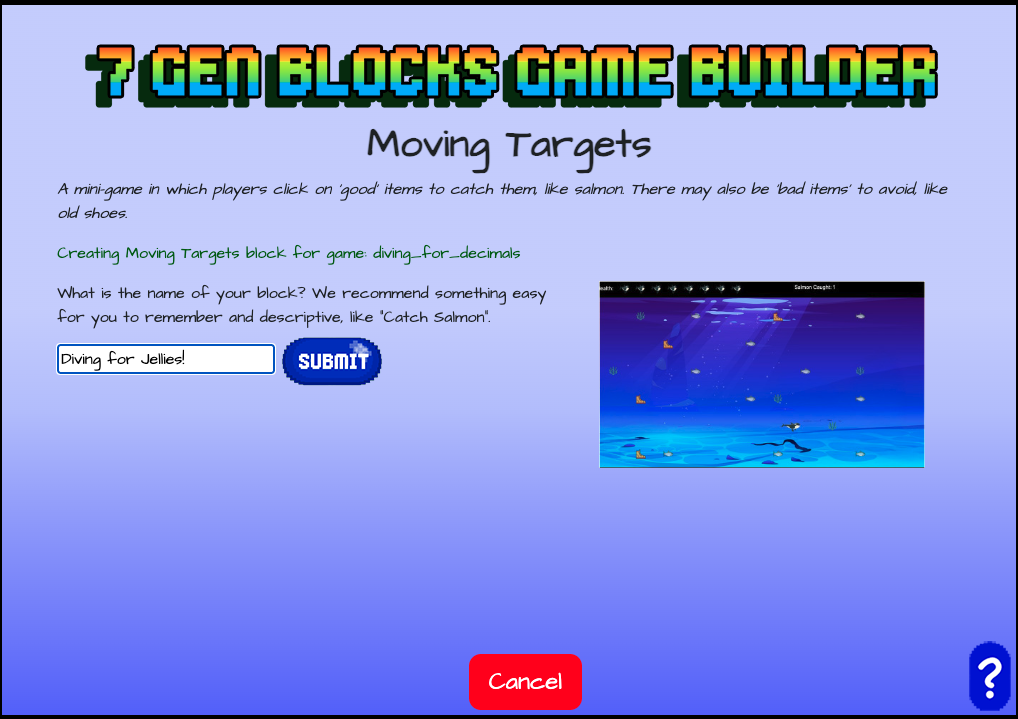
Name your block
As always, you are going to be asked to give your block a name. As with all block names, is you include a space, that will be changed to an underscore ( _ ) and if you enter a special character not allowed in a URL it will be deleted. The entire block name will be changed to lower case. So, Diving for Jellies! will become diving_for_jellies .
This name is what you will use to refer to your block as the next block in a game. At the end of the block that comes before this in the game, you will put diving_for_jellies as the next block.
If you are looking for this block to edit later, it will show up in your list of blocks as diving_for_jellies.
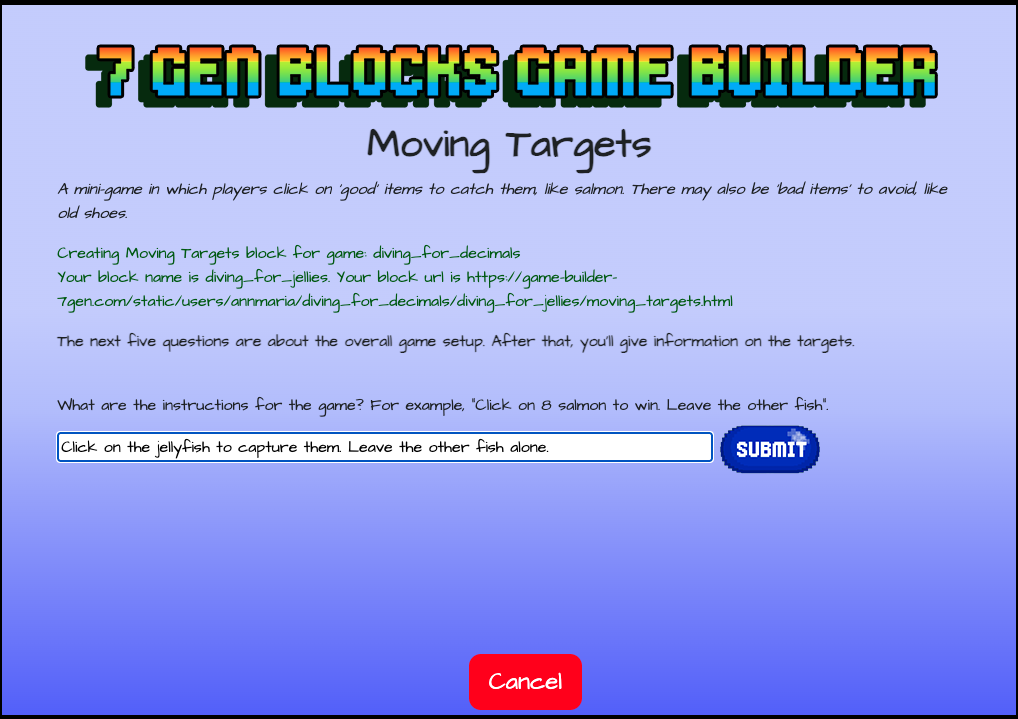
Provide Instructions
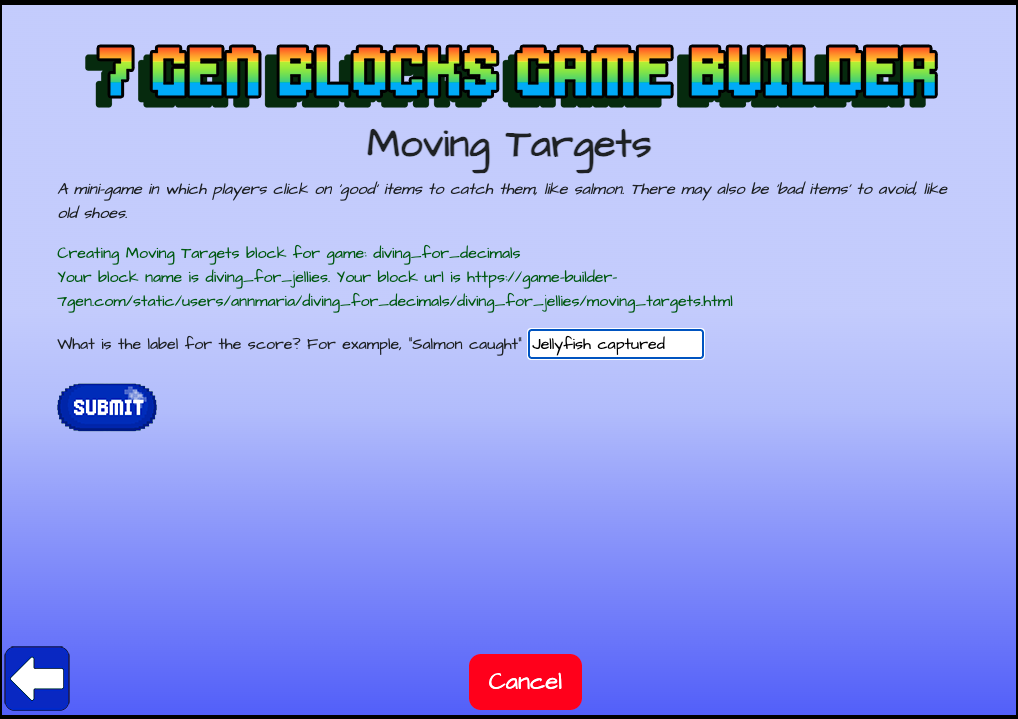
Give the label for the score
This will show at the top of the screen, next to the number of targets the player clicked.
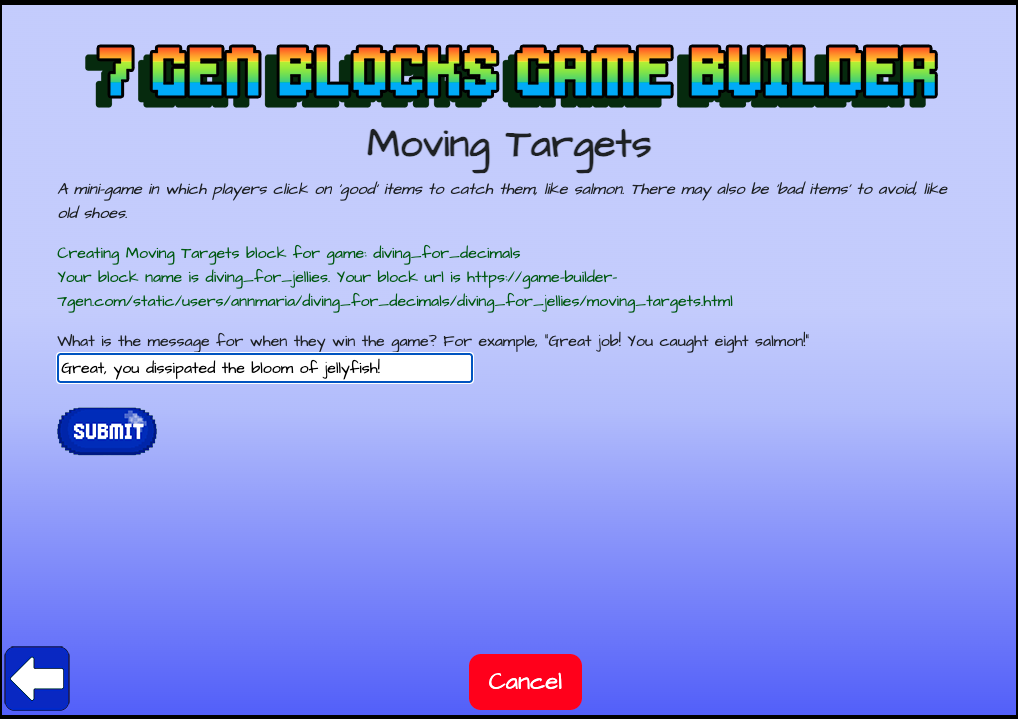
What message should the player see when they win?
This text will be shown when the player has captured as many targets as they need to win.
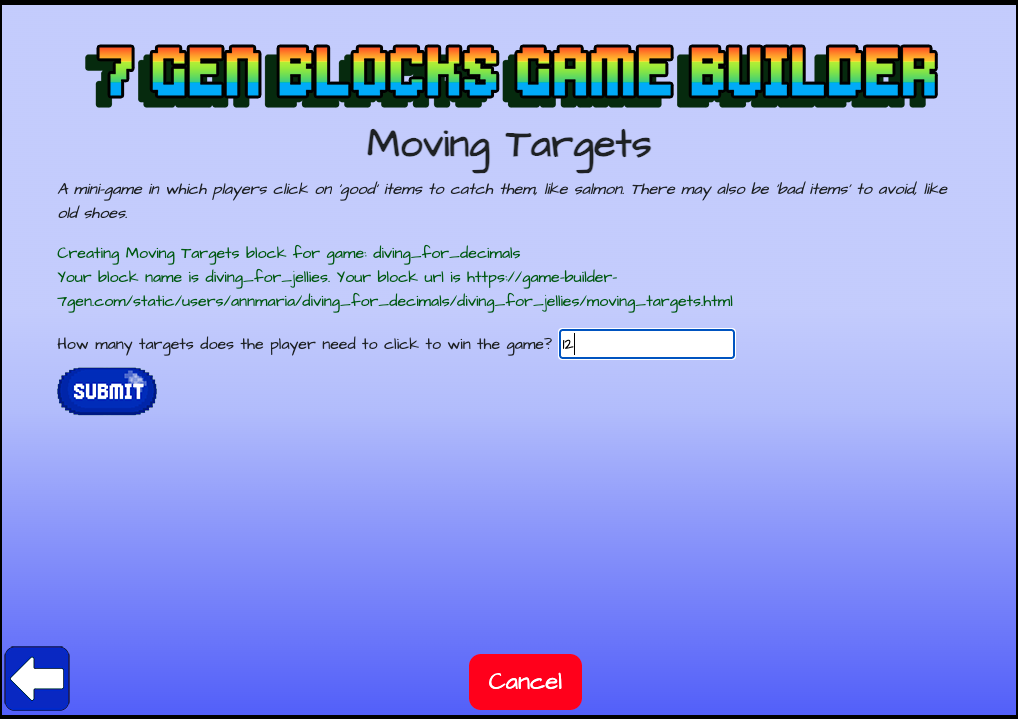
How many targets do players need to click to win?
Enter a larger number for a longer game, fewer for a shorter game. I recommended 8- 12.
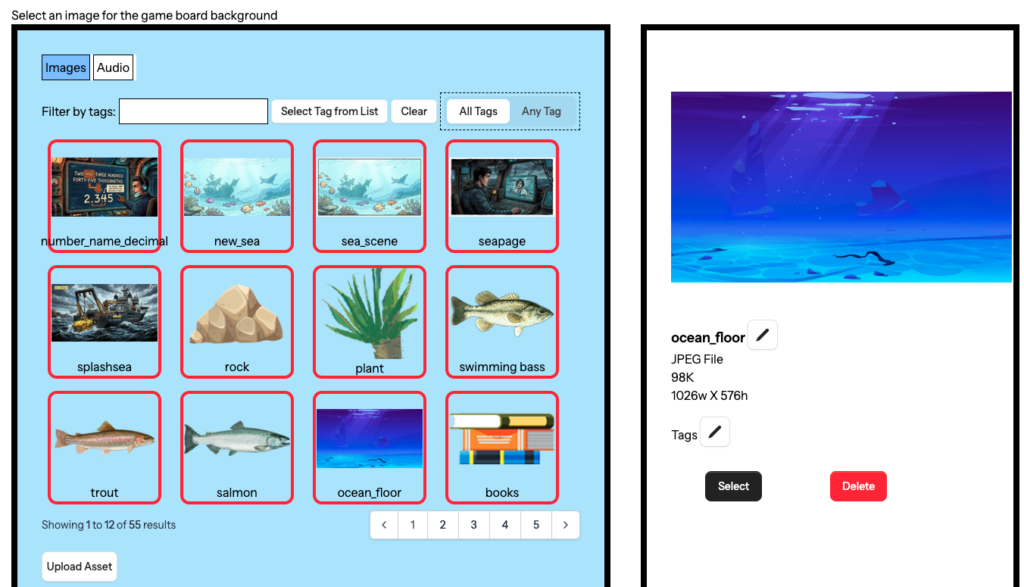
Click on the asset manager to choose the background
There will be a screen with a button that says “ASSET MANAGER” that instructs you to select the image for the background. Click on that button and the asset manager screen will appear. You can select an existing image or upload one from your computer. Once uploaded. Click the image to select it, then click the SELECT button.
Decide how many targets you want
You can have up to four targets. You need at least one “Good” target. A good target is a thing the player needs to click to count. You can have more than one good target and you can have one or more “Bad” targets that players are not supposed to click.
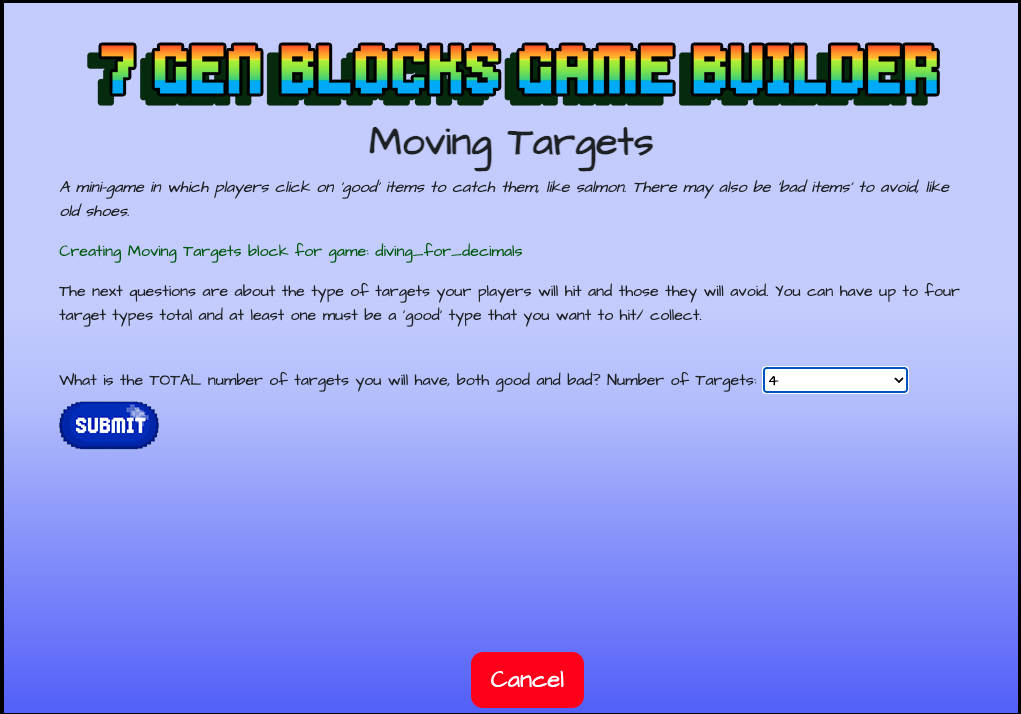
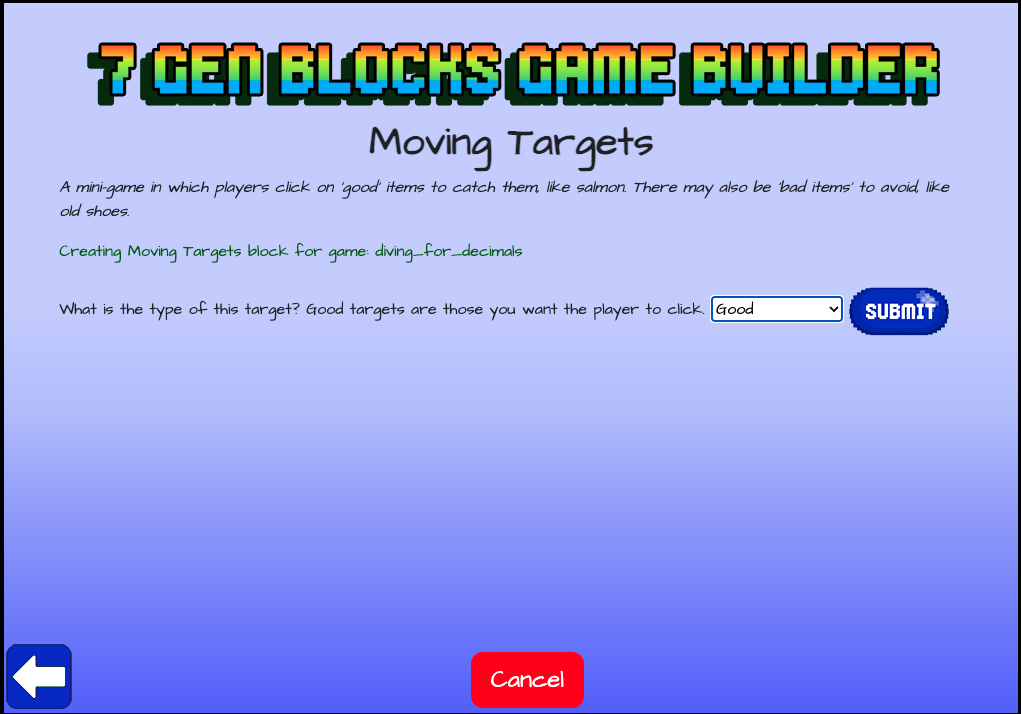
Select the type for each target
You will see this screen for however many targets you selected. Each time, you will be asked to select the type of target.
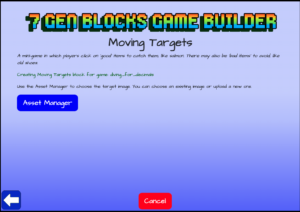
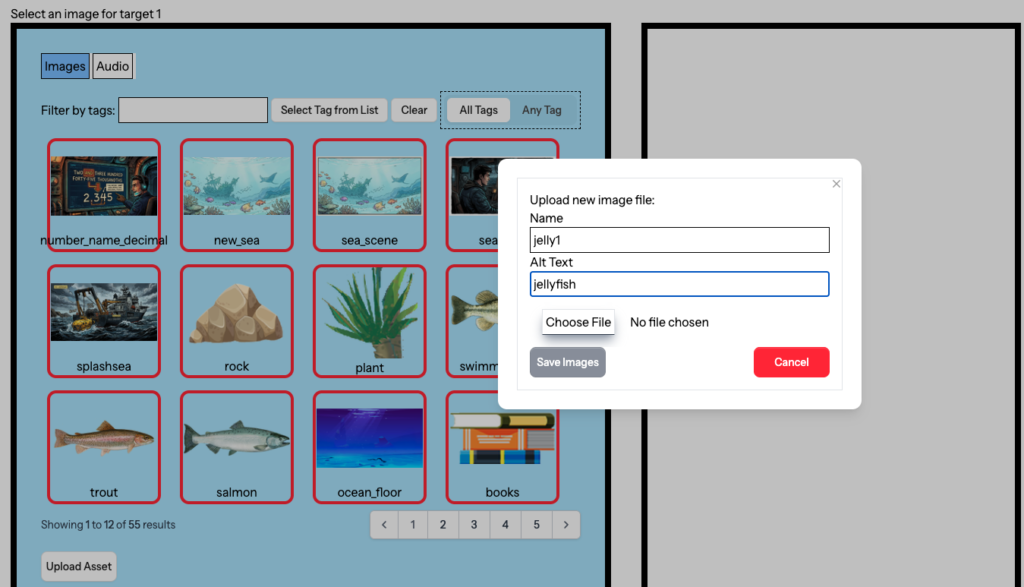
Select or upload the image for each target
After selecting the target type, you will see a screen with a button that says ASSET manager. Click the button. If you want to upload an image, give your image file a name, include alt text, and click CHOOSE FILE to select the image to upload from your computer. Then click SAVE IMAGES. Once you see your new image, click on it to select it and click the SELECT button you’ll see in the screen at right.
Once you have selected the type and images for all of the targets, you’ll be asked the next block
As always, it doesn’t matter if this block exists or not. This will be the name of the next block in the game, but you can always come back and create a block with that name later if it does not exist.
Make another block or test your block
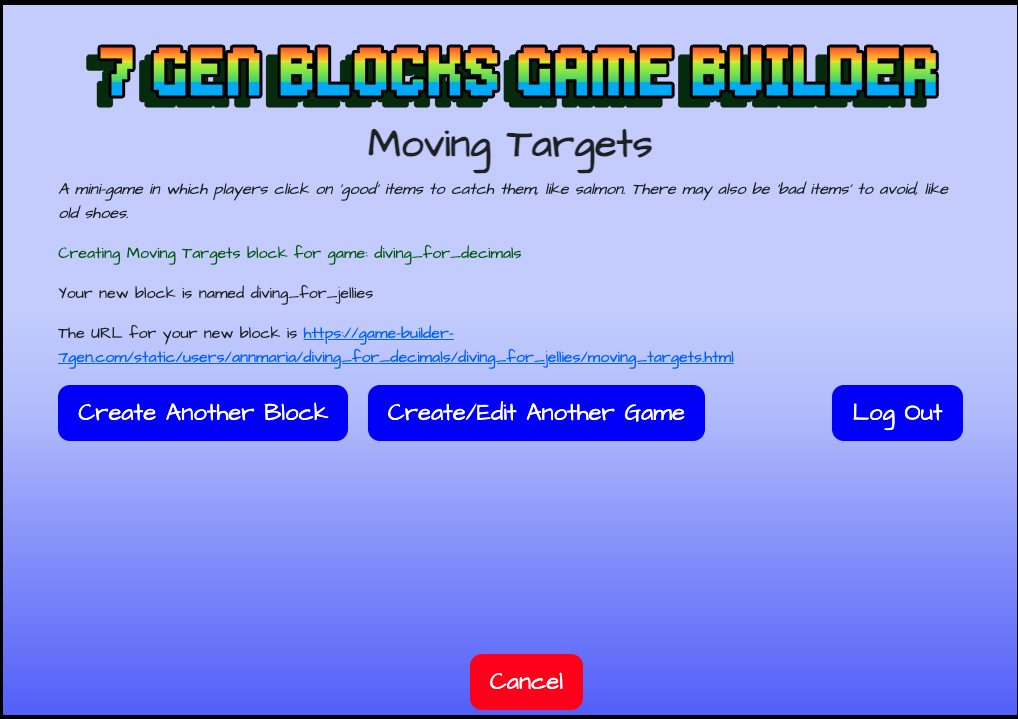
Click on the URL to open the block you just created
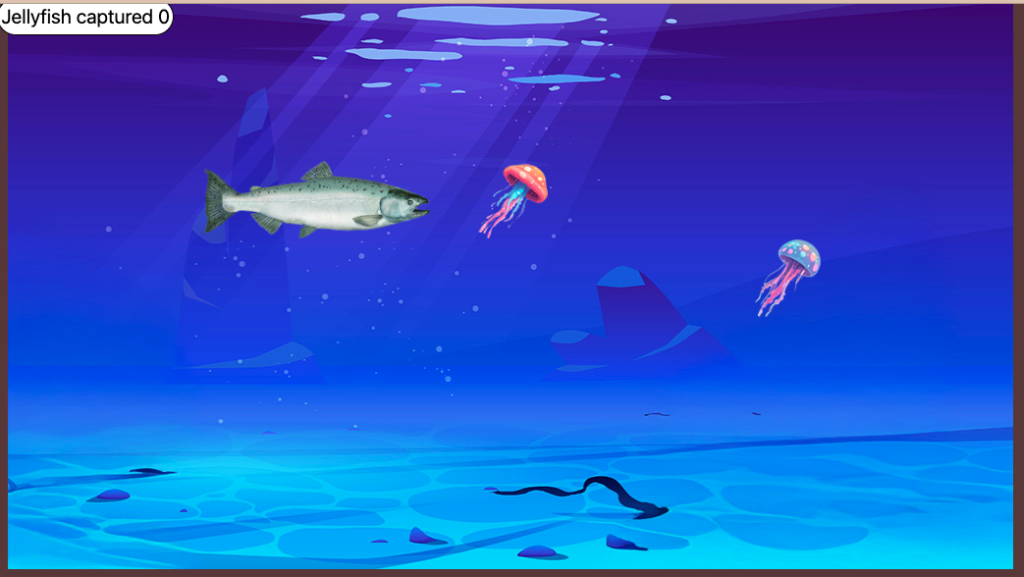
This URL will open in a new tab, so after you have played through this block, you can go back, create another block, edit another game or log out.