The Runner Game Block can be used to add a mini-game where players use the space bar to jump over items as they run toward a goal
Grab a PowerPoint Presentation here on how to build the Runner Game Block for on the go!
Choose and Name the Runner Game Block
After you have created your game and picked your theme or decided to edit your game, you can choose to create a block for your game. You can create and add a runner game block.
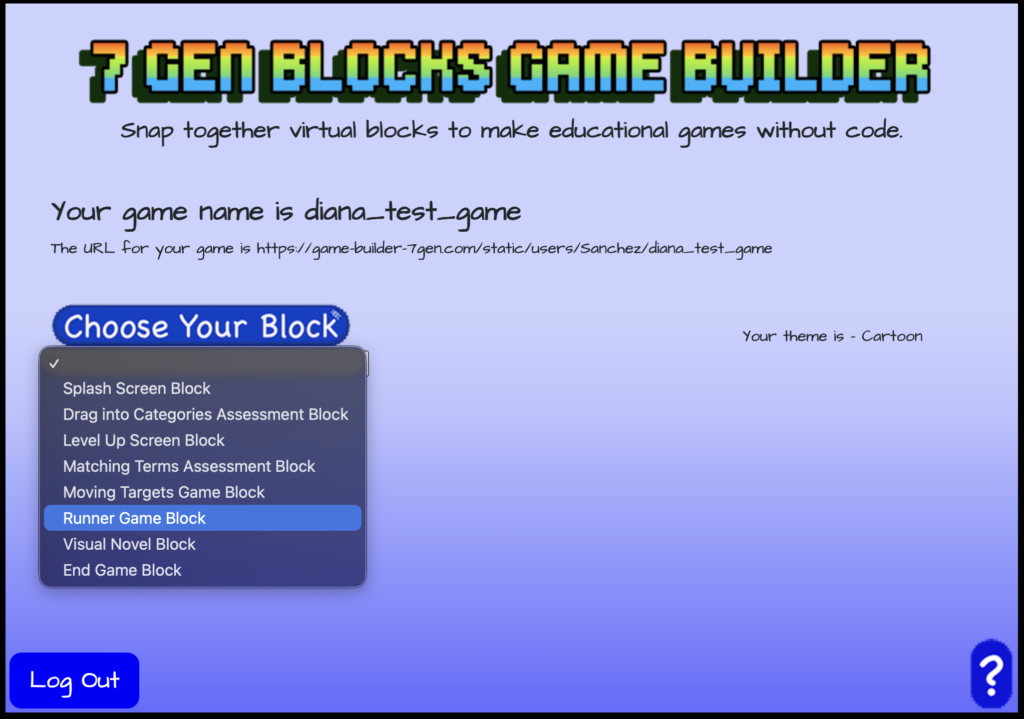
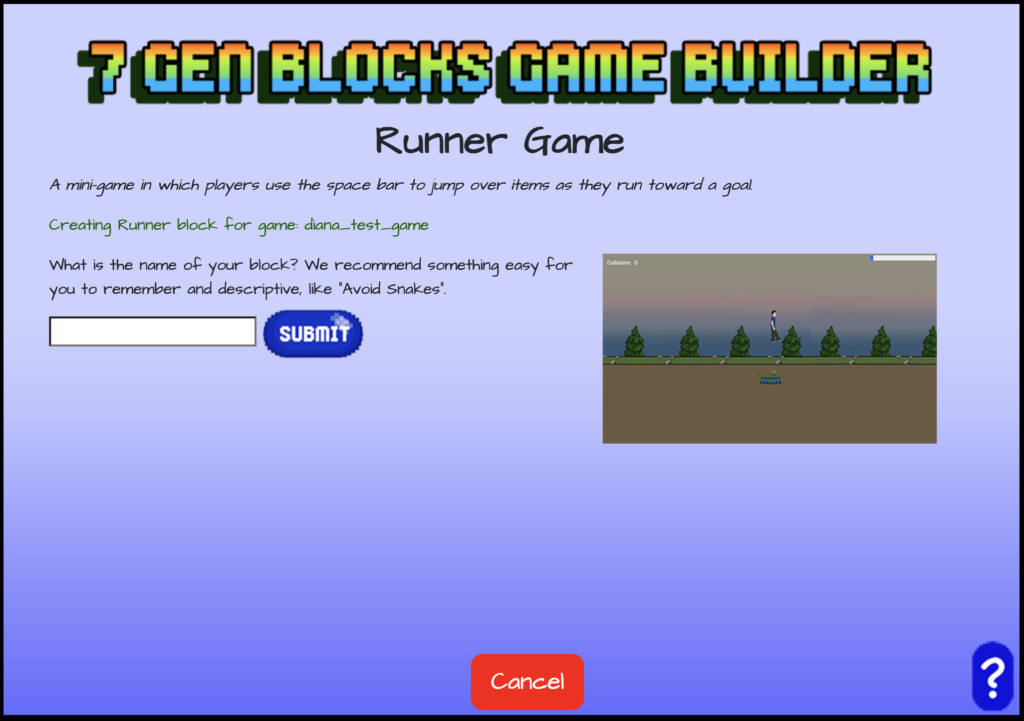
Choose to create a block and use the drop down menu to select “Runner Game Block” from the list of blocks. Once selected, give your runner game block a name.
Instructions and Score Label
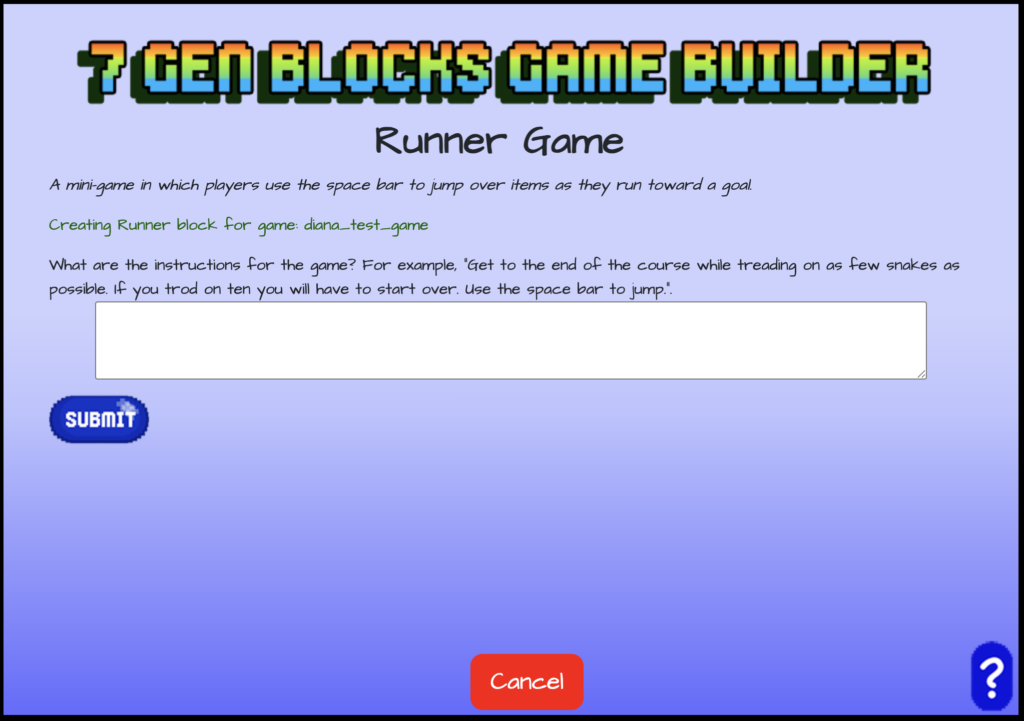
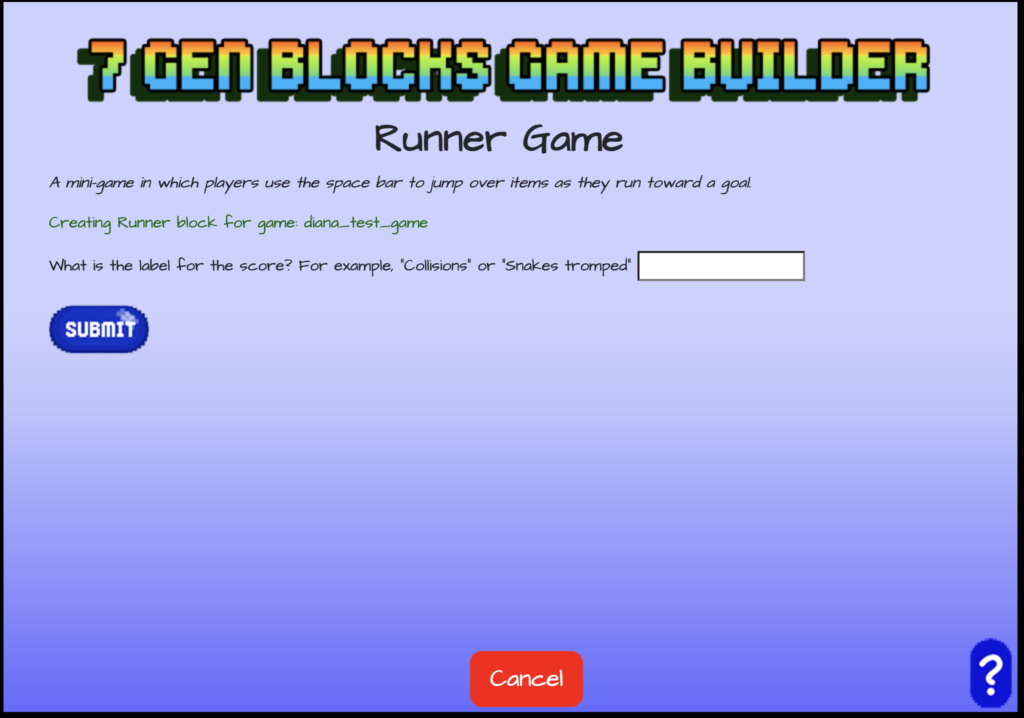
Once you name your runner game, enter the instructions and the label for the score. The score in your game would be the object that your character collides with that they are not supposed to.
Win Message and Number of Obstacles Hit to Lose
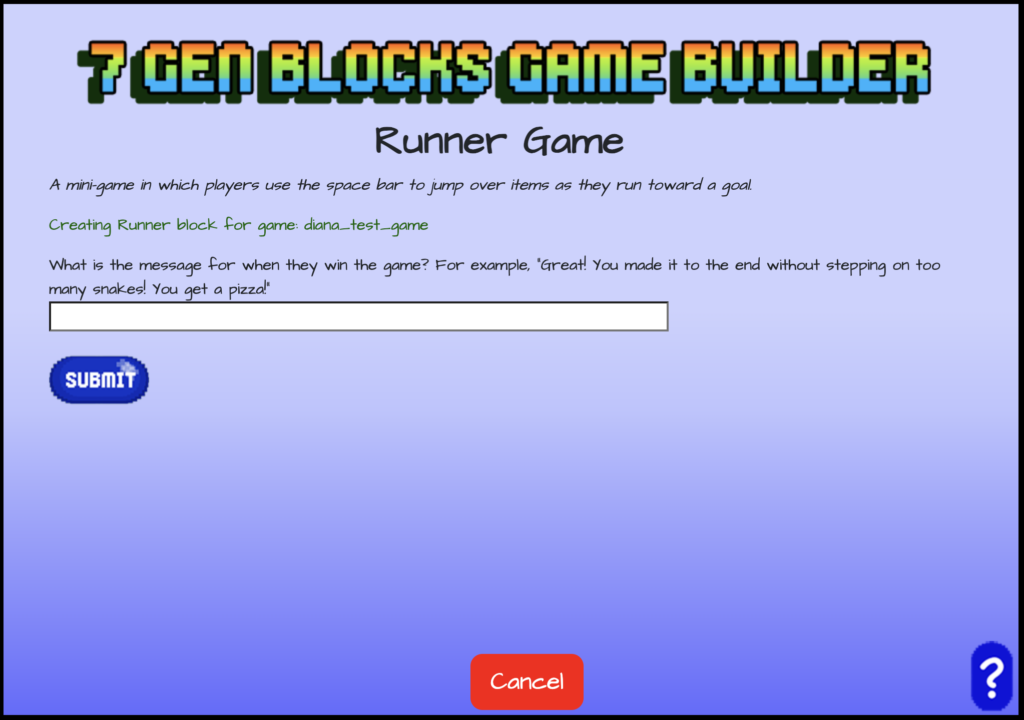
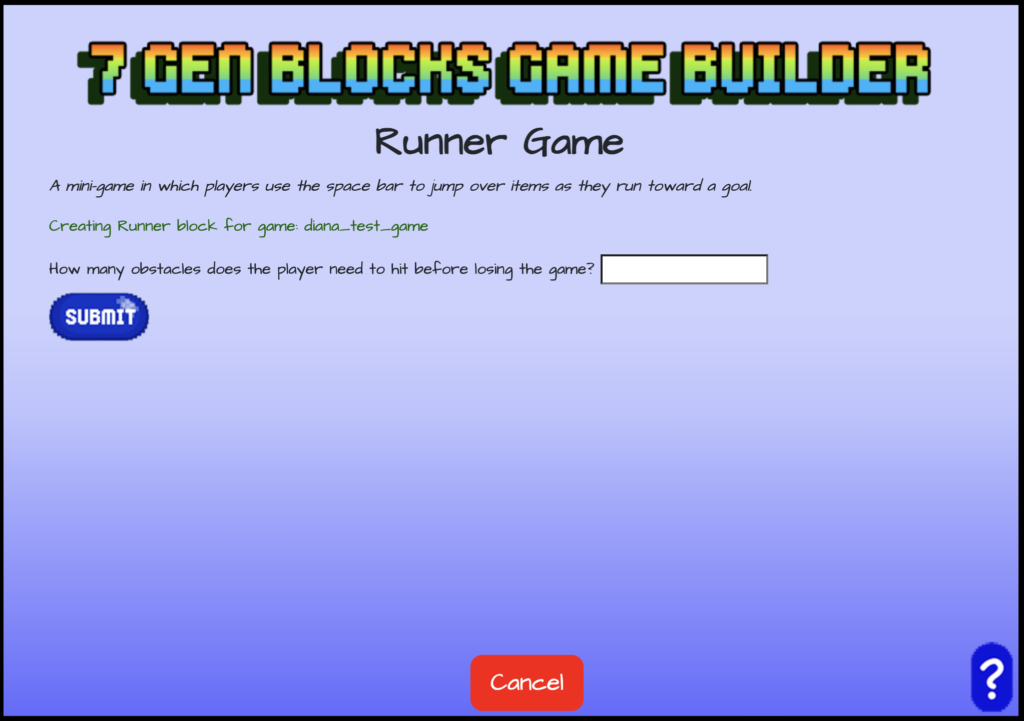
What message should the player see when they win? Enter that message and hit submit. For the next step, enter the number of obstacles that the player has to hit in order to lose the game and click submit.
Lose Message and Number of Obstacles Jumped to Win
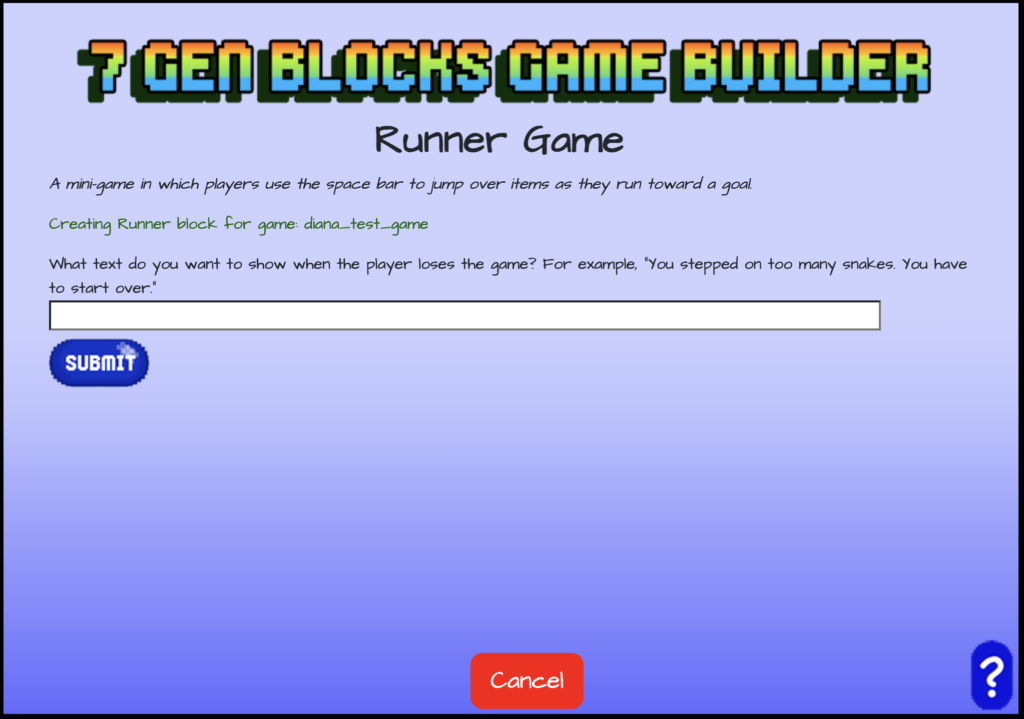
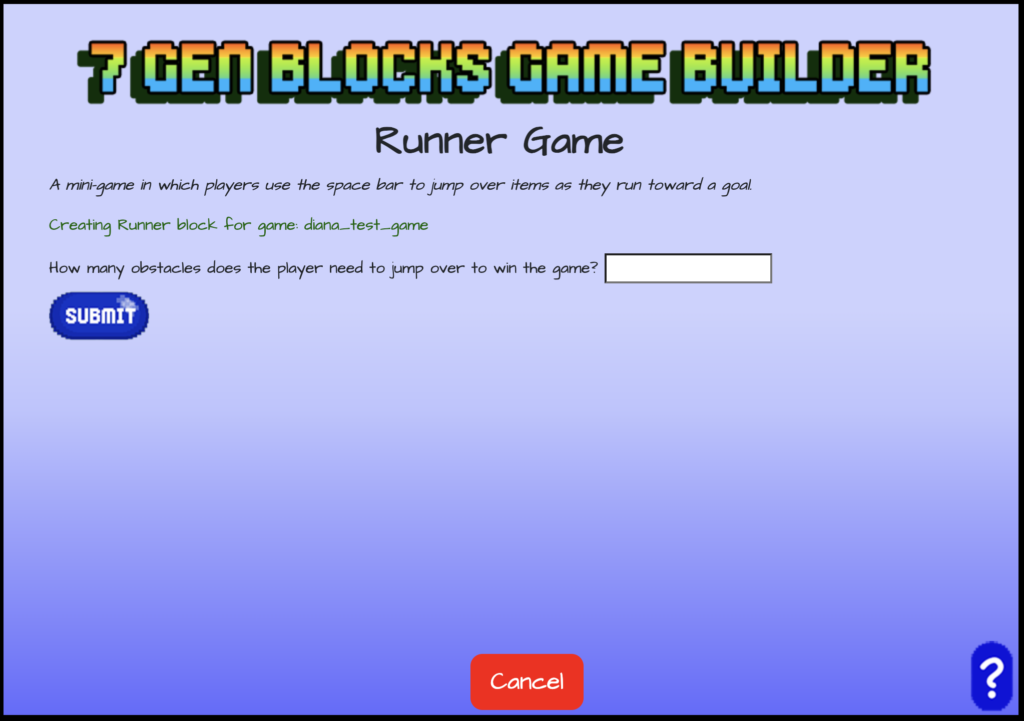
What message should the player see when they lose the game? Enter that message and hit submit. Also, enter the number of obstacles that the player has to jump over in order to win the game and click submit.
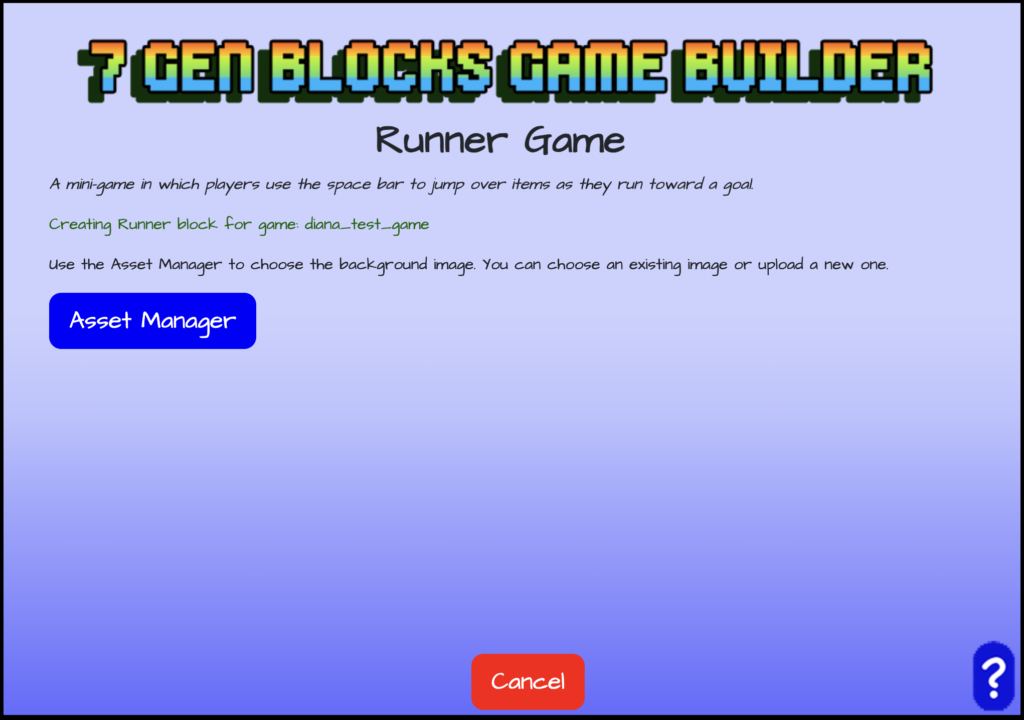
Game Background
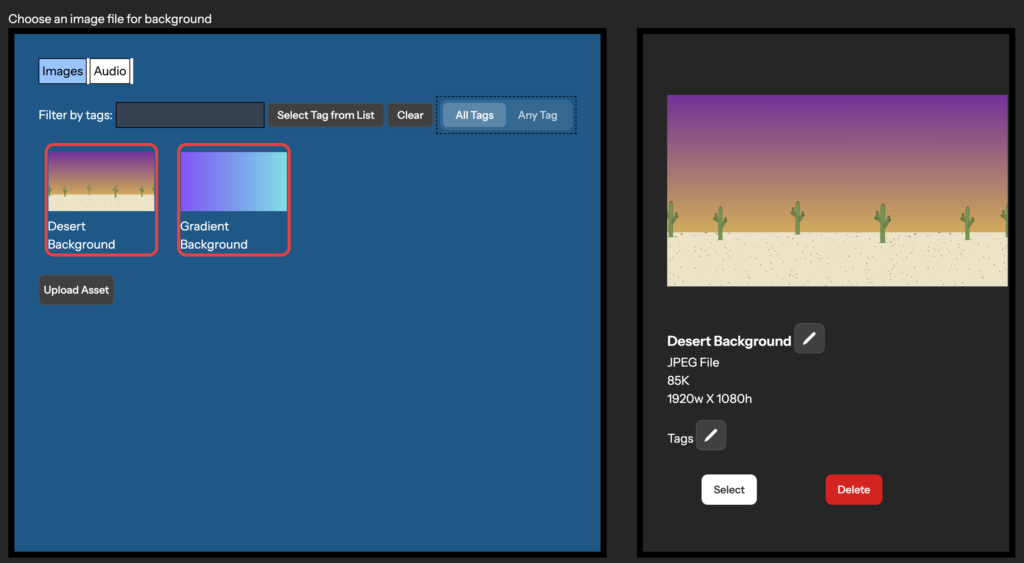
Use the asset manager to upload an image or select one already in your library to use as the background for the runner game. Once the image has been uploaded or if it’s already in your library, make sure to click on the image in order to see the image details and then click on “Select” to use as the runner game background.
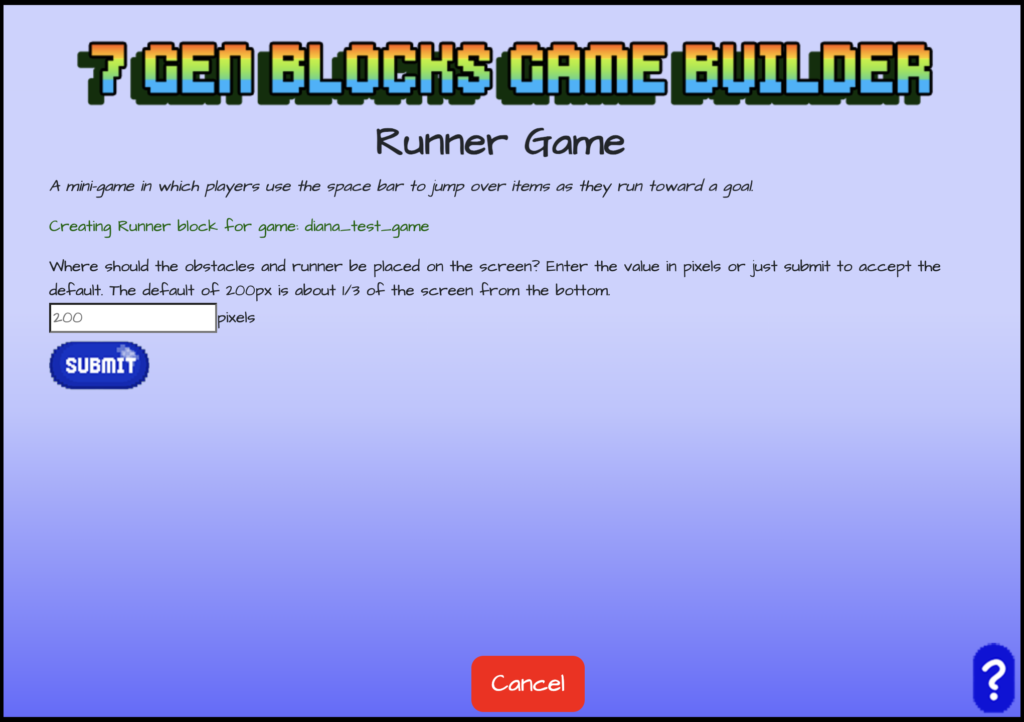
Placement and Height
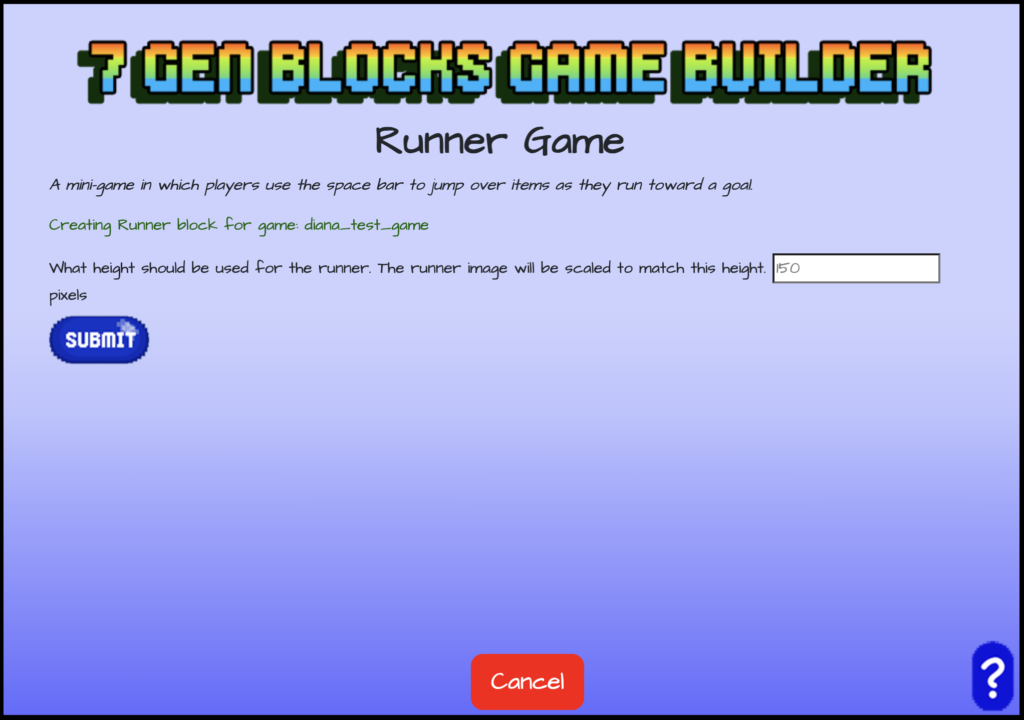
Enter the value in pixels for the placement for both the obstacles and the runner in the game. The default is already set to 200 pixels, which places the runner and obstacles at about one third of the screen from the bottom. You can accept the default and click submit. You can adjust as needed by editing the block after testing it. Also enter the height for the runner image, which will be scaled to match the height you enter. This value can also be adjusted after viewing the runner game.
Obstacle Image and Next Block
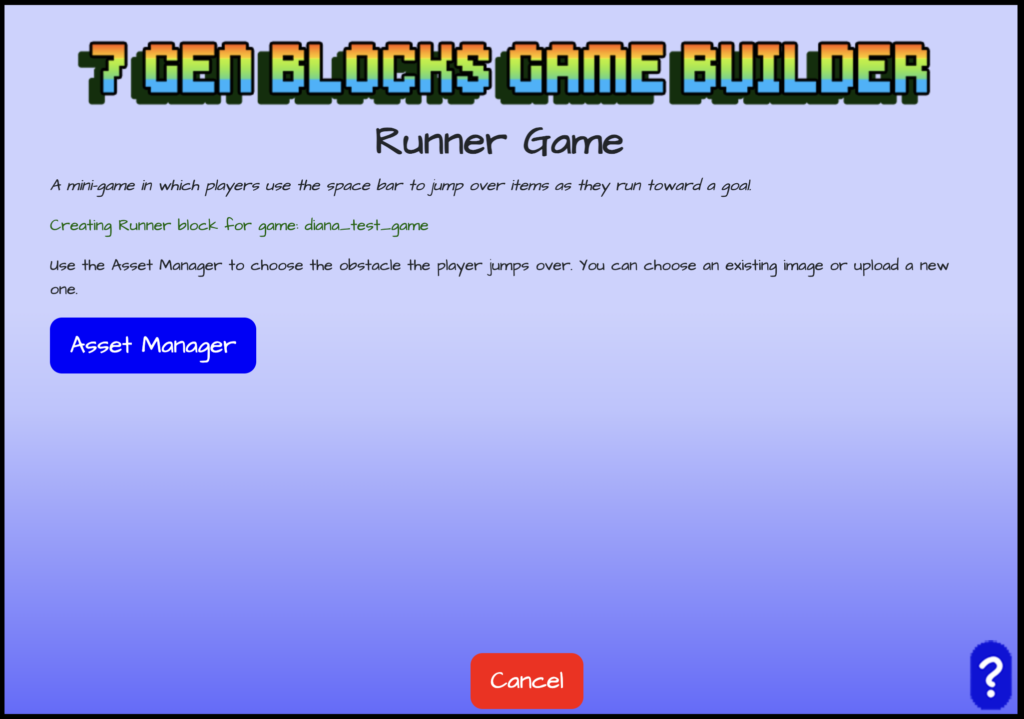
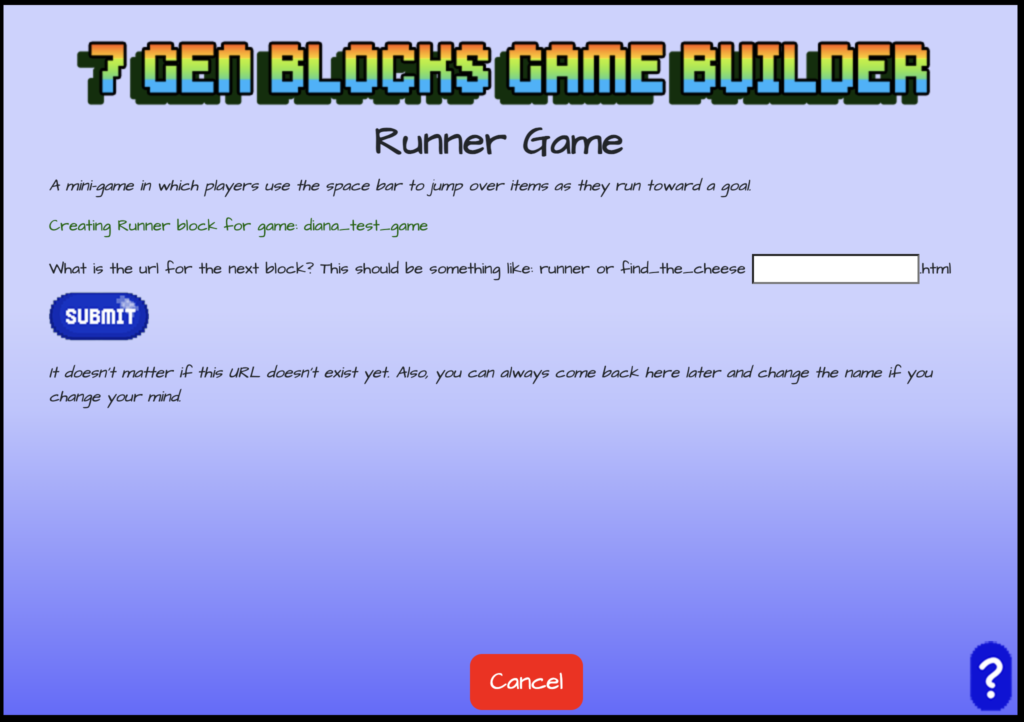
Use the asset manager to upload an image or select one already in your library to use as the obstacle that the player jumps over in the runner game. Once the image has been uploaded or if it’s already in your library, make sure to click on the image in order to see the image details and then click on “Select” to use as the obstacle image. Then enter the name of the block after the runner game and click submit.
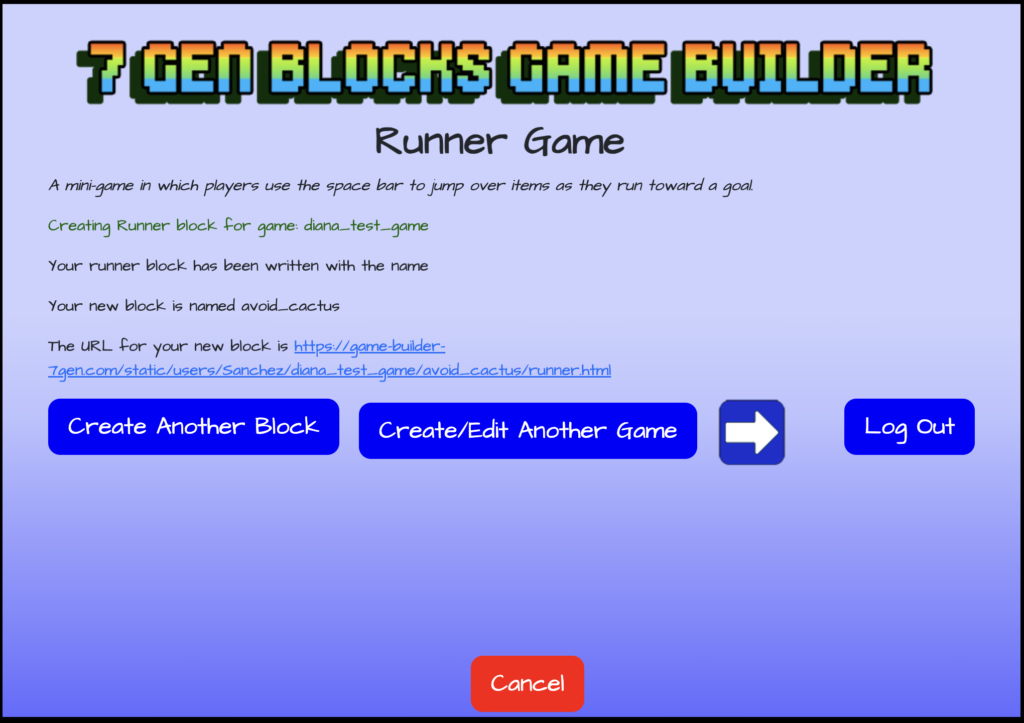
Runner Game Complete
Your Runner Game Block is now complete! You’ll be shown the name of your block URL. Now, you can create another block, credit/edit another game, or log out.