The Level Up Screen Block can be used to add a screen shown to players when advancing to the next level in your game.
Want a PowerPoint Presentation on how to build the Level Up Block? Download a copy here!
Choose and Name the Level Up Screen Block
After you have created your game and picked your theme or decided to edit your game, you can choose to create a block for your game. You can create and add a level up screen block.
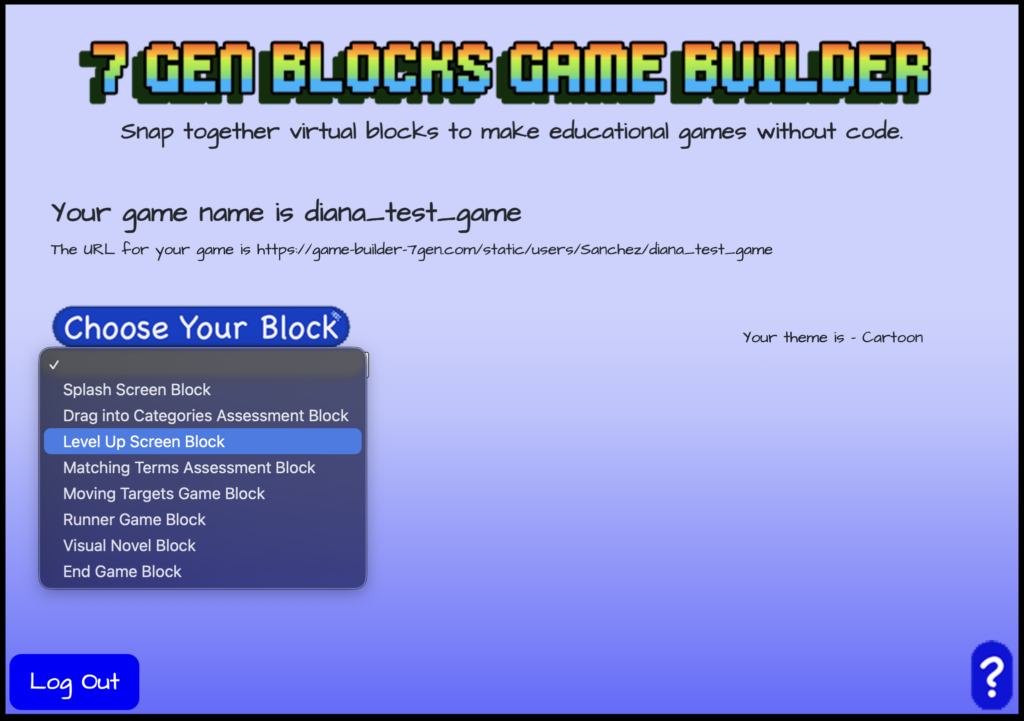
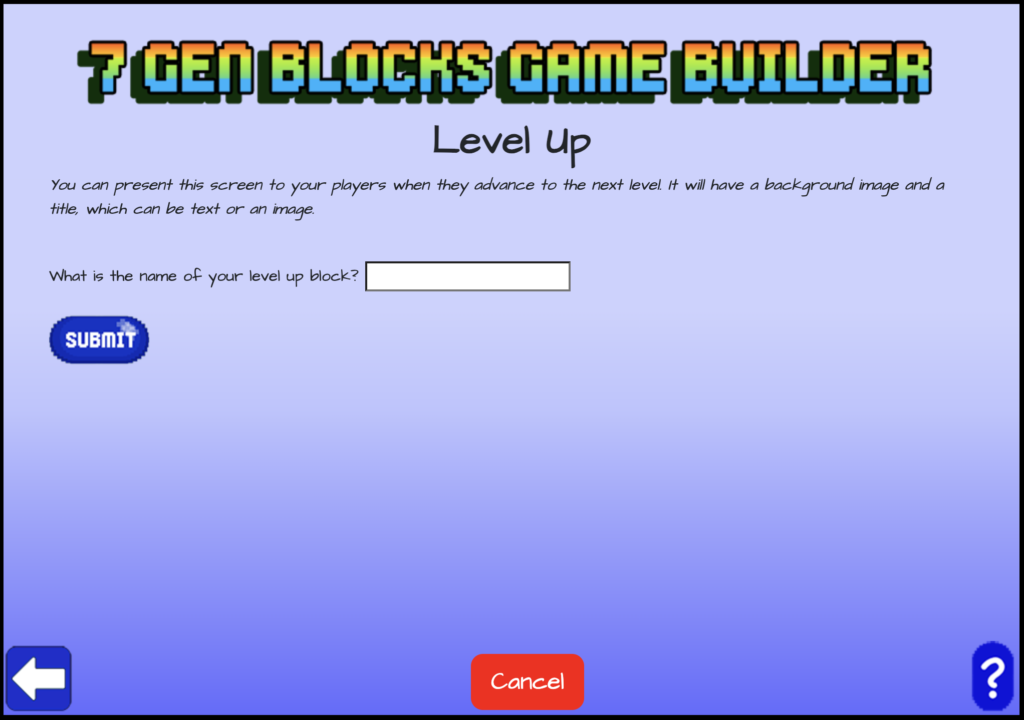
Choose to create a block and use the drop down menu to select “Level Up Screen Block” from the list of blocks. Once selected, give your level up screen block a name.
Add a Background and Text to the Level Up Screen Block
Now that your Level Up Screen Block is created and named, it’s time to add to your level up screen. Use the Asset Manager to upload a background image for your level up screen. Click on “Choose File” to upload an image file from your computer, name the file, and click on “Save Images”.
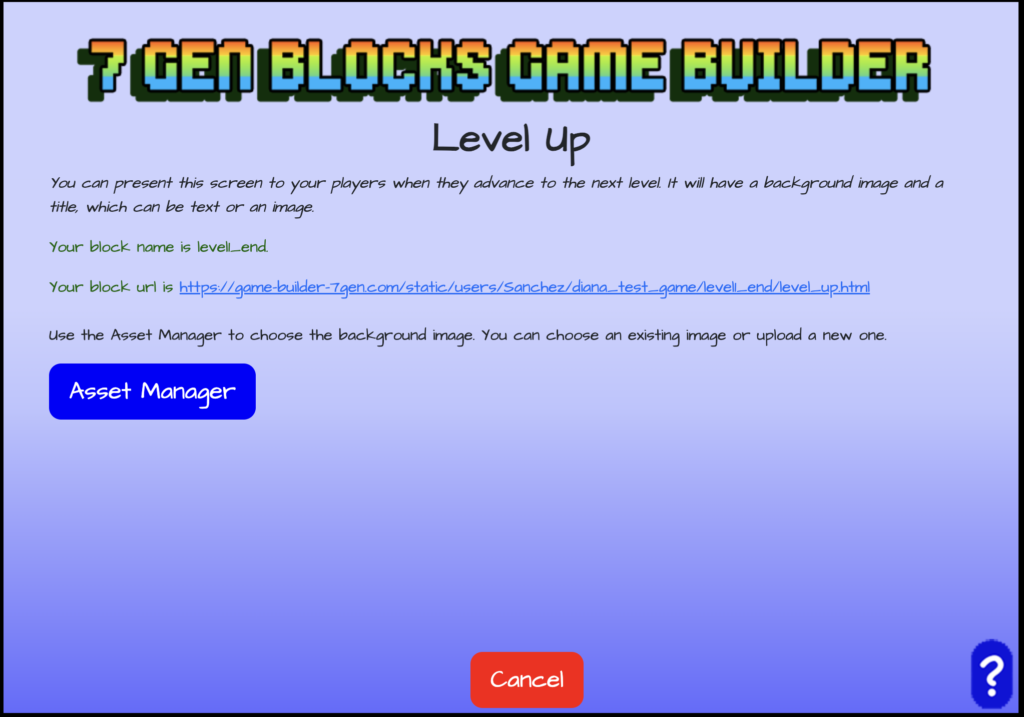
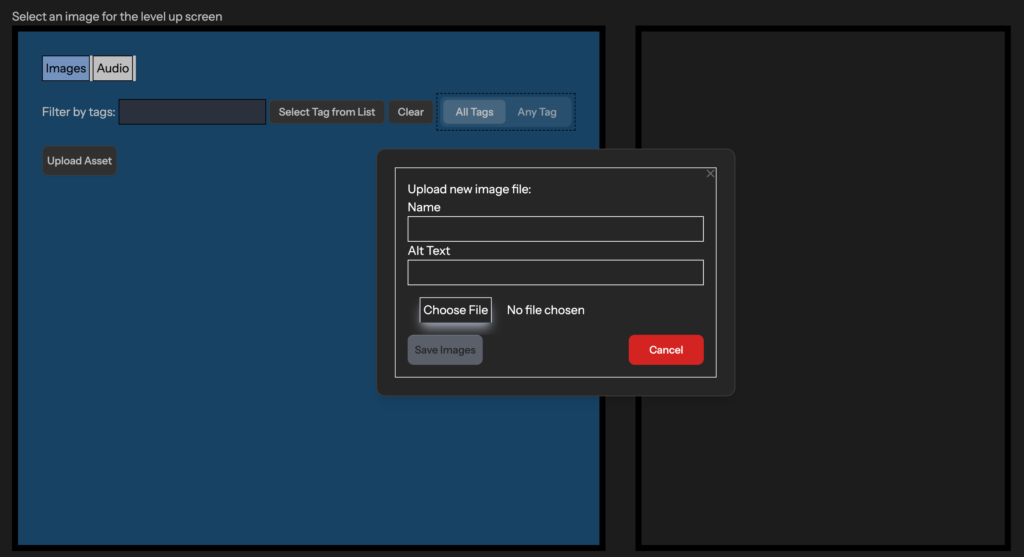
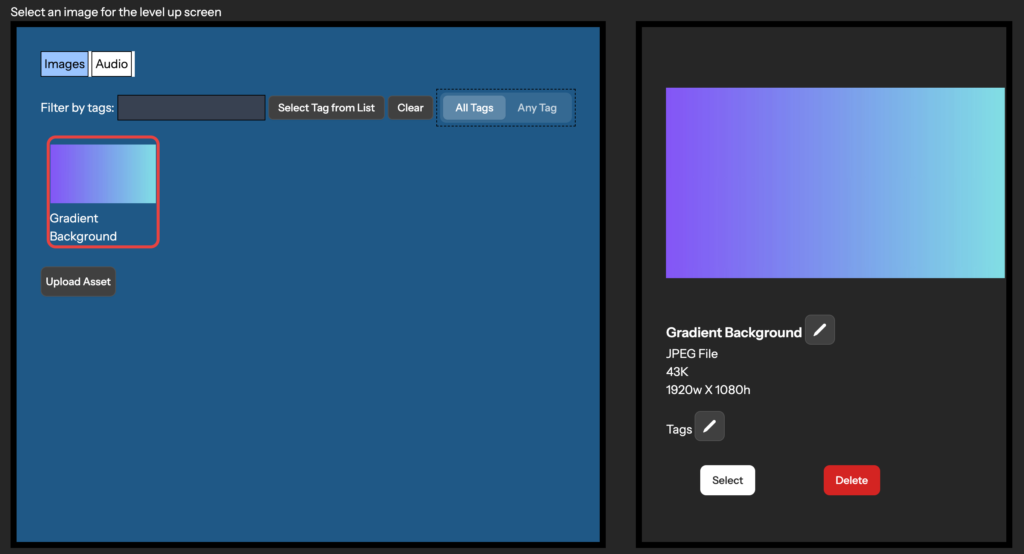
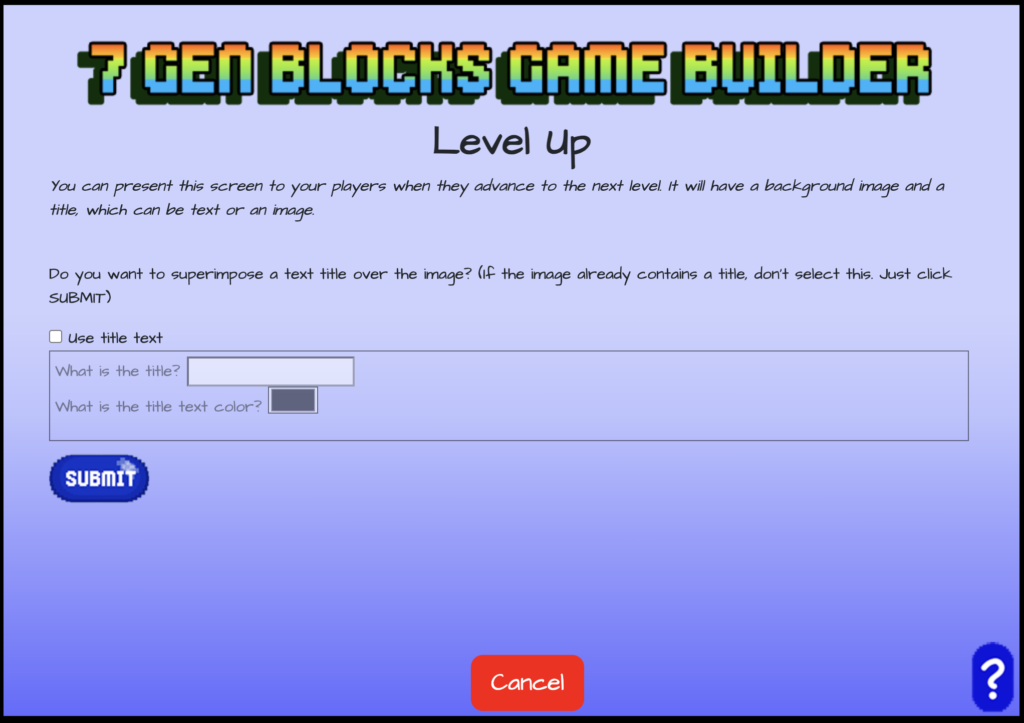
With your image uploaded, click on the image and then click “Select” to use it for your level up screen. If you want to add text to your level up screen then check the box labeled “Use title text”, enter your title, select the color, and click submit. If you don’t need title text then simply click submit to skip this step.
The Next Block and Continue to Create
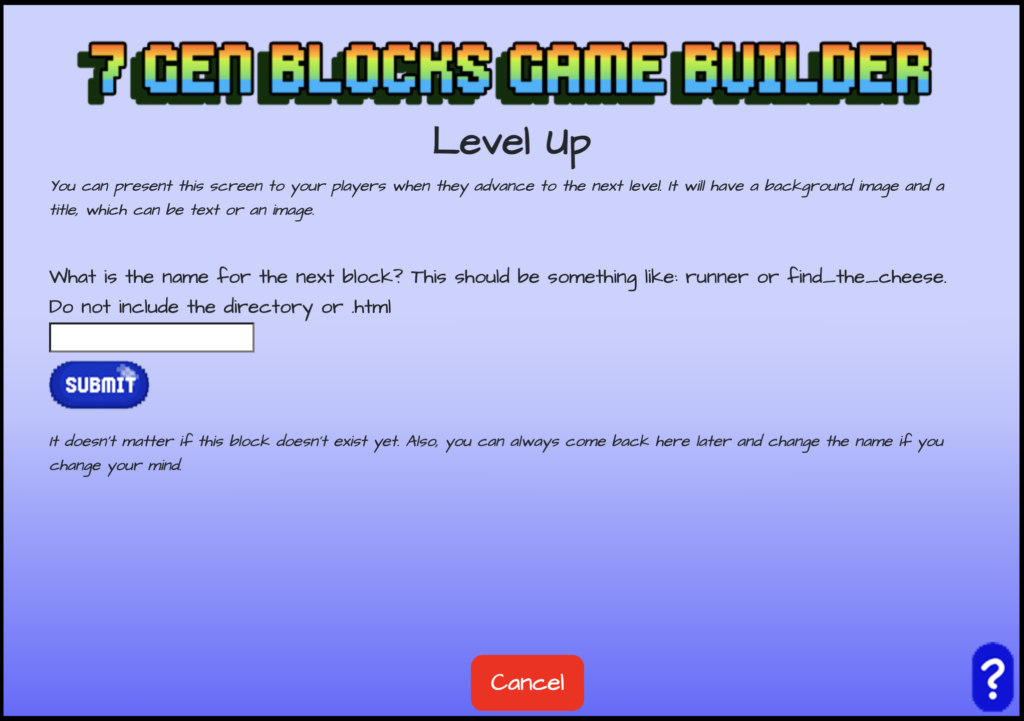
Finally, enter a name for the next block after your level up screen in your game and click submit.
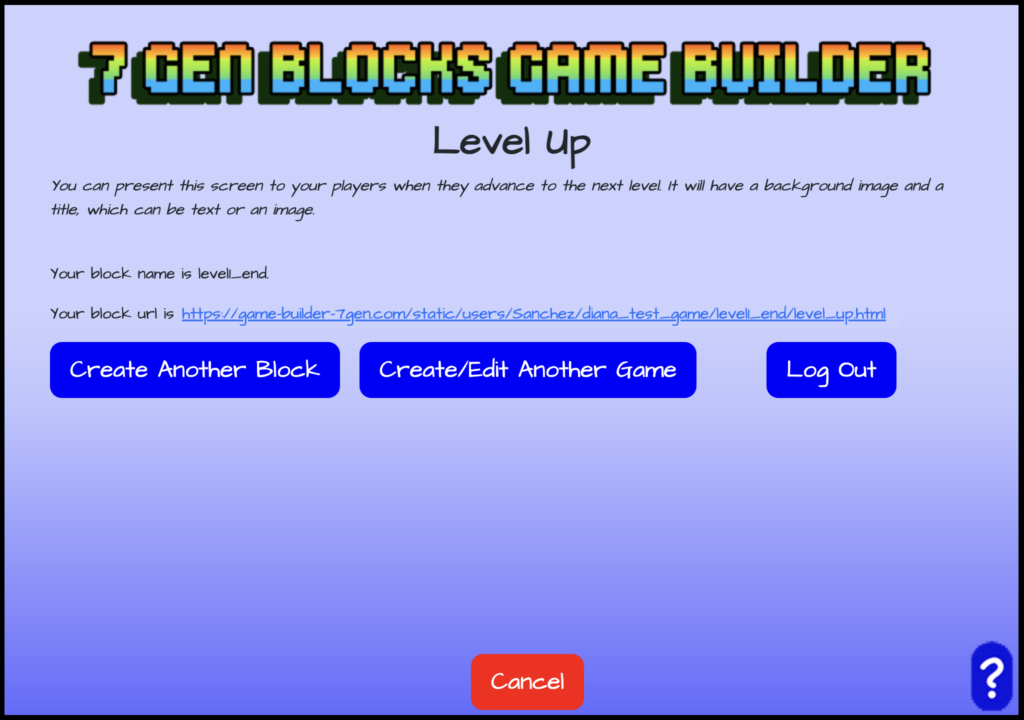
Your Level Up Screen Block is now complete! You’ll be shown the name of your block and the block URL. Now, you can create another block, credit/edit another game, or log out.