When creating your game blocks, it’s normal to make a mistake or simply change your mind. That’s why it’s important to know how to edit any game block.
Login and Choose Game to Edit
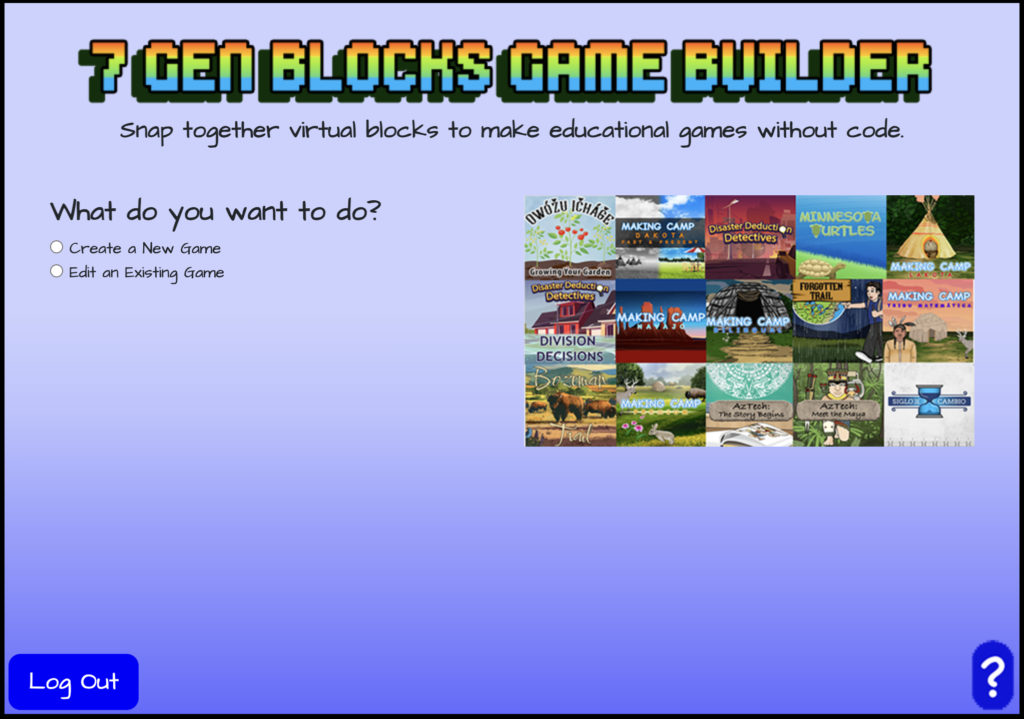
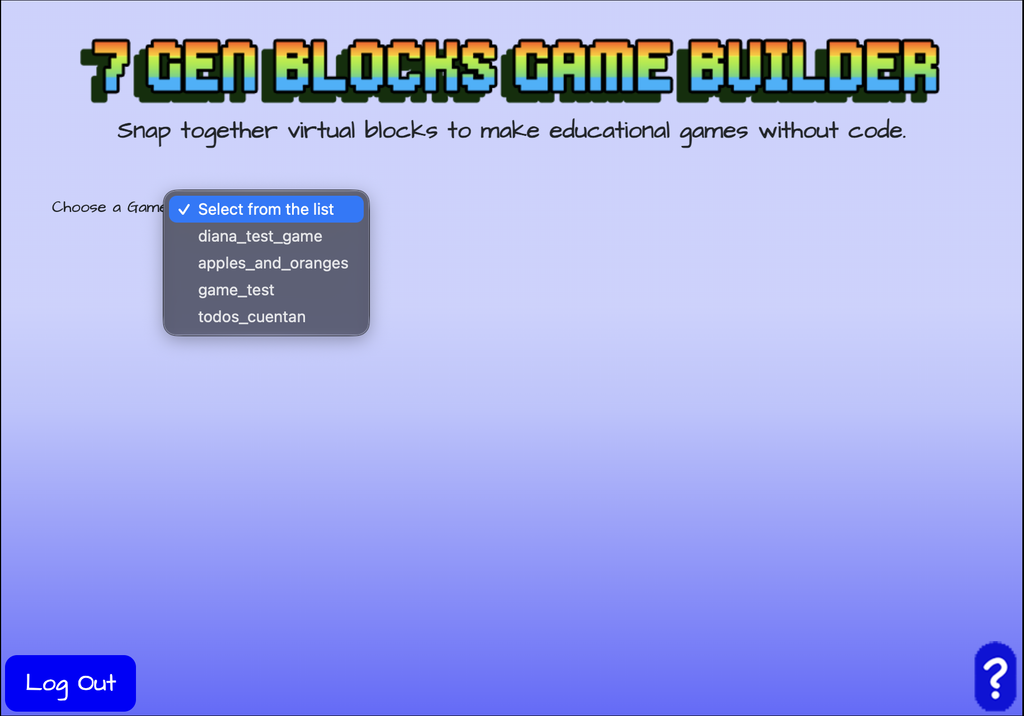
When choosing to edit a game block, like your catching falling items block, login to the 7 Gen Blocks Game Builder like you normally would. However, instead of creating a game, select “Edit an Existing Game”. Then choose the game that you want to edit from your list of games.
Choosing Your Block to Edit
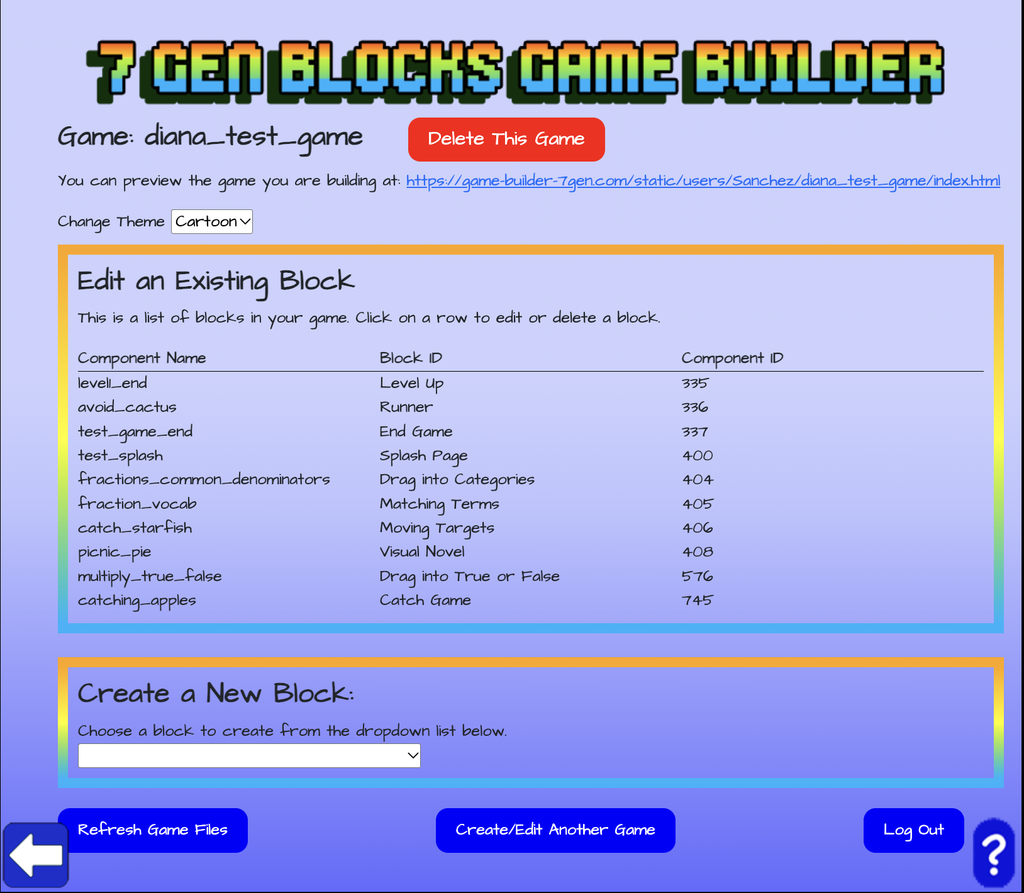
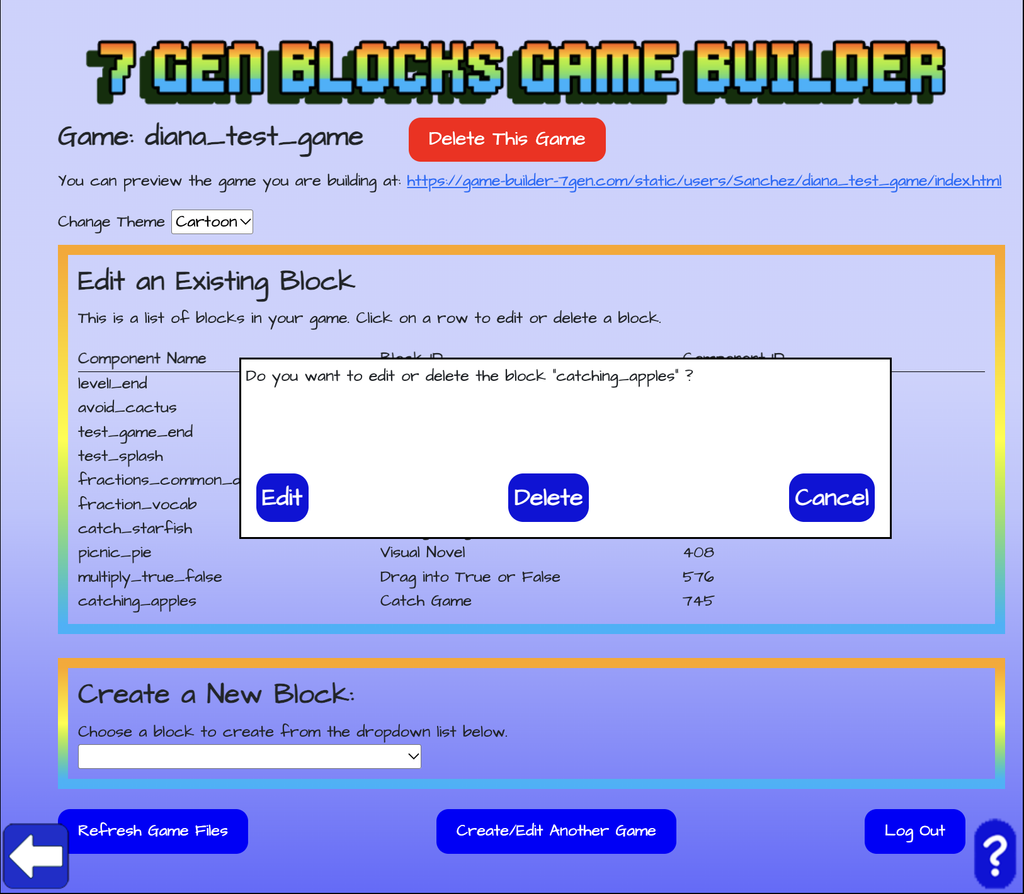
Once you have chosen the game, you can then choose which existing block in that game you want to edit. You’ll be shown a list of the blocks in that game. Click on the name of the block that you want to edit. In this case, we’re selecting to edit the catching falling items block. You’ll be asked if you want to edit or delete your catching falling items block. Click on edit.
Catching Falling Items Block Editor – Editing Instructions, Image, and Next Block
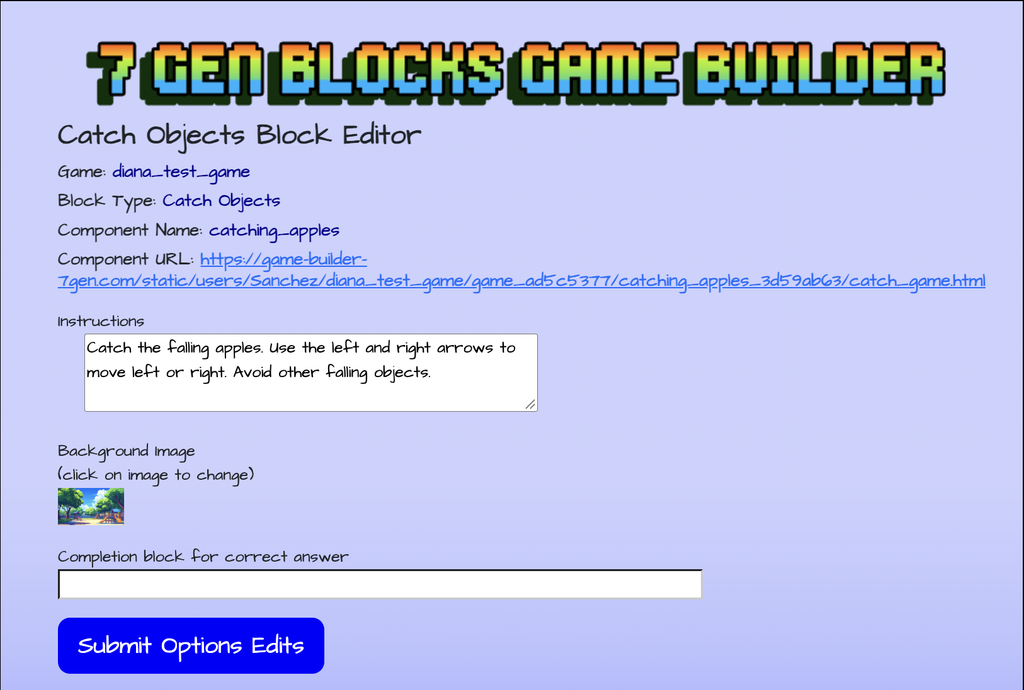
After choosing to edit your catching falling items block, you’ll be directed to the Catching Objects Block Editor. Using the top section of the Catching Objects Block Editor, you can edit the text for the instructions, the background image for your block, and the name of the next block (or completion block) after your catching falling items block.
To change the background image, click on the current game background image to open the asset manager and upload or select a new image.
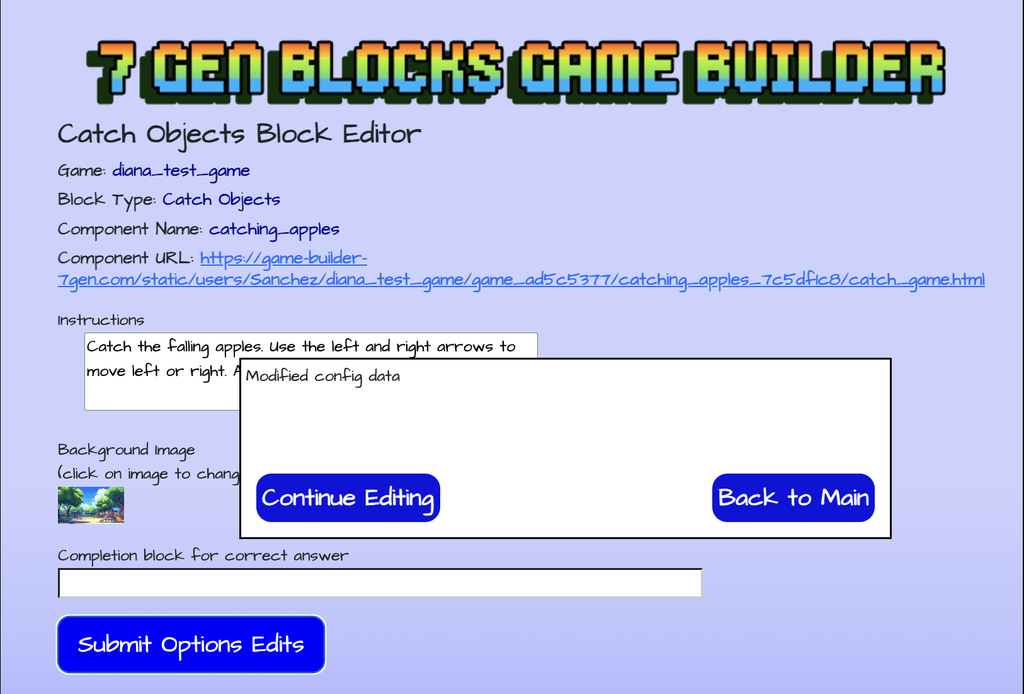
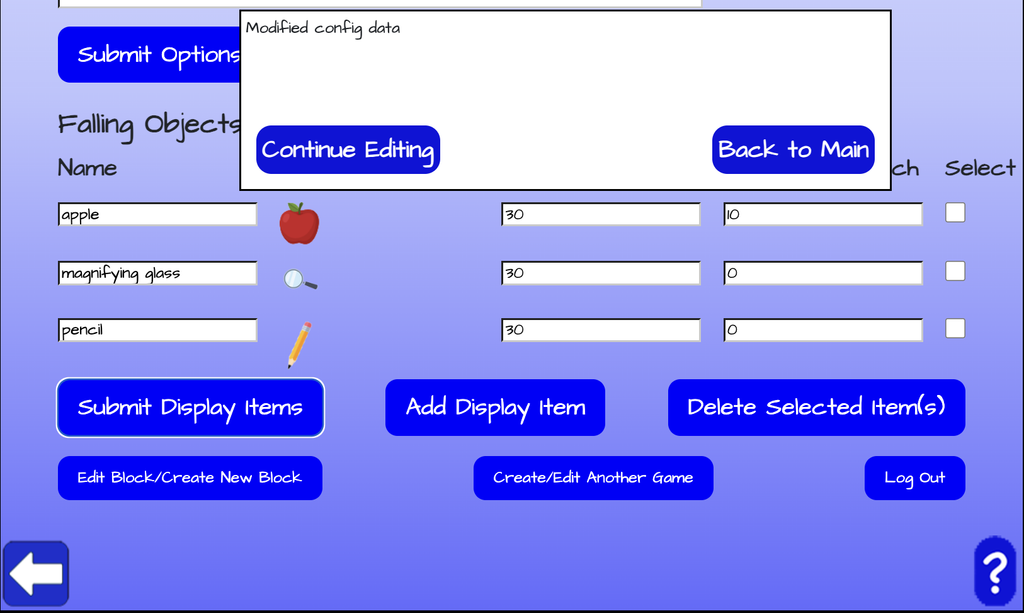
Once you are done making those changes at the top of the editor, click on “Submit Options Edits” to submit your changes. You’ll receive a pop up message indicating that your changes have been submitted. Click on “Continue Editing” to use the bottom of the editor or click on “Back to Main” to go back to the main menu.
Catching Falling Items Block Editor – Editing & Adding Falling Objects
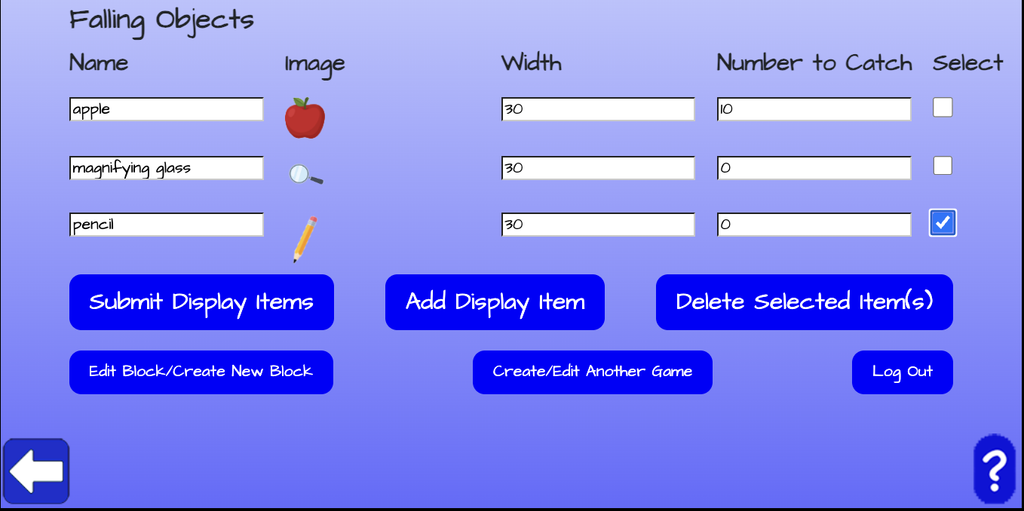
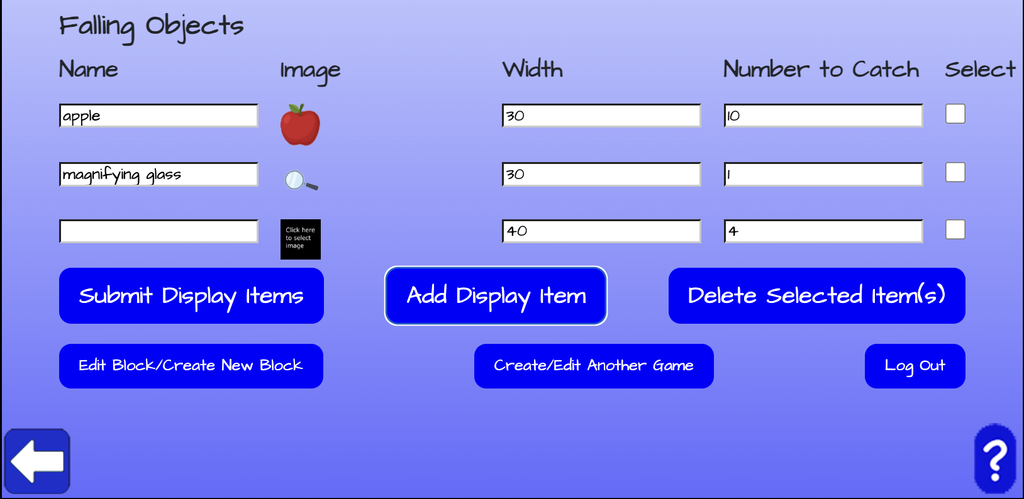
The bottom of the Catching Objects Block Editor is where you can edit the name, image, width, and number to catch for each falling object. You can also add another falling object by clicking on “Add Display Item”. You’ll see another line pop up for the new falling object. There you can add the name, click on the black box to add an image, add the width, and the number to catch of that falling object.
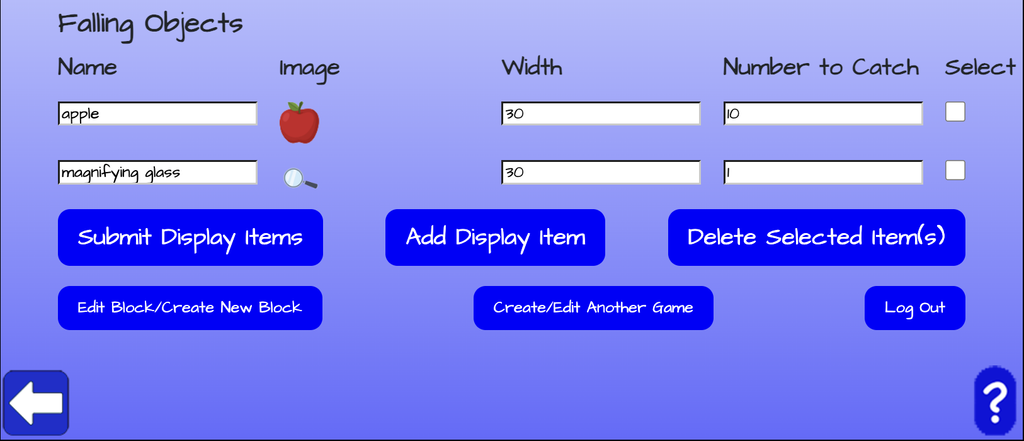
Once you are done editing the falling objects, click on “Submit Display Items” to save your changes. You’ll receive a pop up message indicating that your changes have been submitted. Click on “Continue Editing” if you want to keep on editing or click on “Back to Main” to go back to the main menu.
Catching Falling Items Block Editor – Deleting Falling Objects
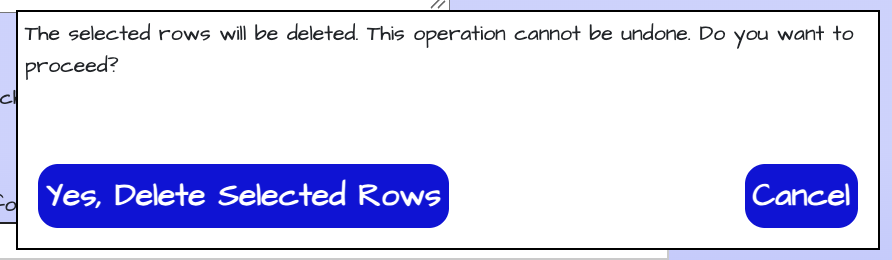
You can also delete a falling object by checking the select box next to the falling object that you want to remove. You’ll receive a pop up message asking you to confirm that you want to delete the falling object. Click on “Yes, delete selected rows” to delete the falling object or you can choose to “cancel”.
Once the falling object has been deleted, click on “Submit Display Items” to submit your changes.