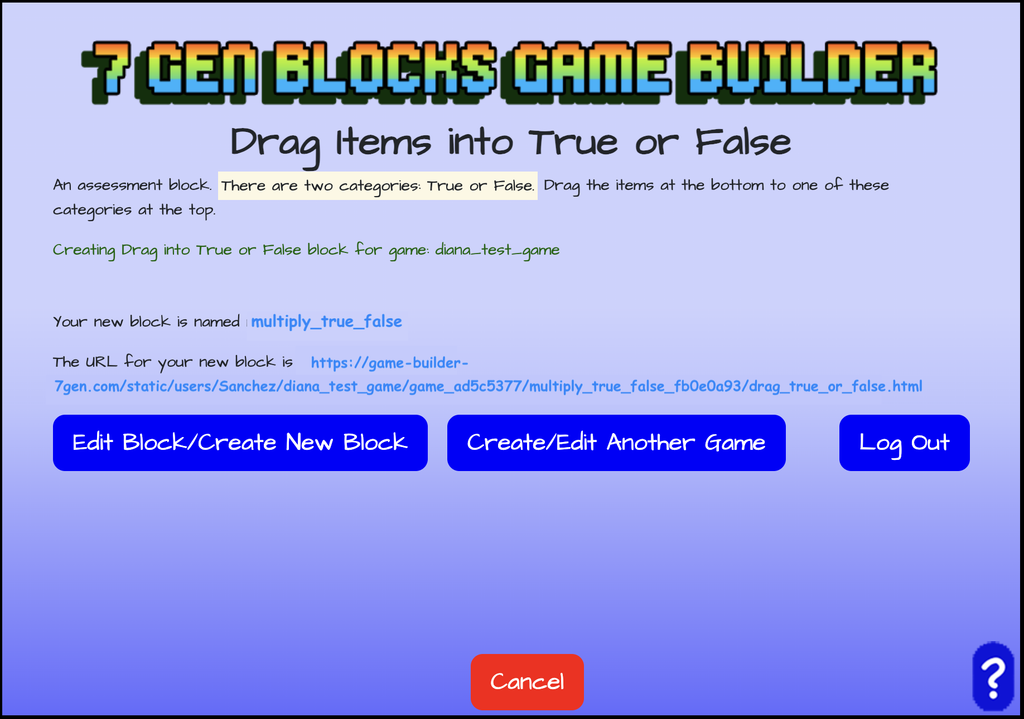
This is an assessment block where players drag items at the bottom to one of the True or False categories at the top. You could use it for mathematics, English language arts, social studies or science.
Need a PowerPoint to show your class how to use this block? Download it here.
Getting Started
- Login
- Select create a game or edit a game
- If you selected Create a Game, give your game a name. If you selected Edit a Game, pick the name of the game you want to edit from a drop down list.
Choose and Name the Drag into True or False Assessment Block
After you have created your game and picked your theme or decided to edit your game, you can choose to create a block for your game. You can create and add a drag into true or false assessment block.
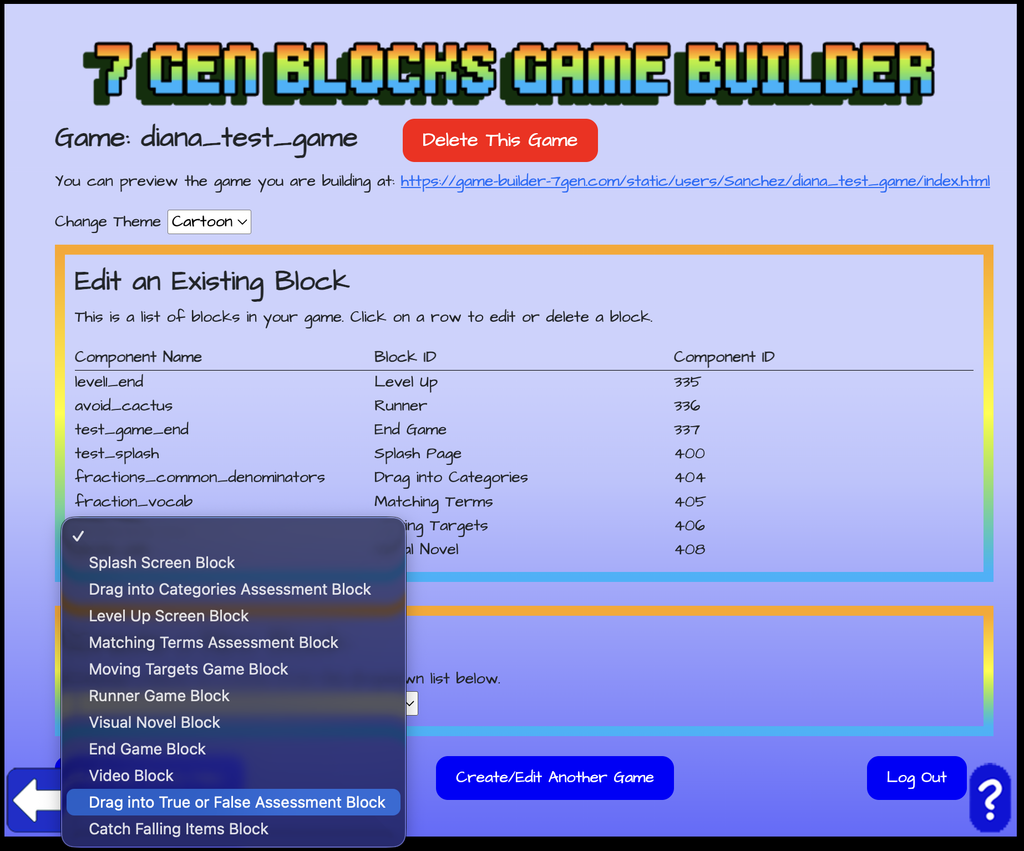
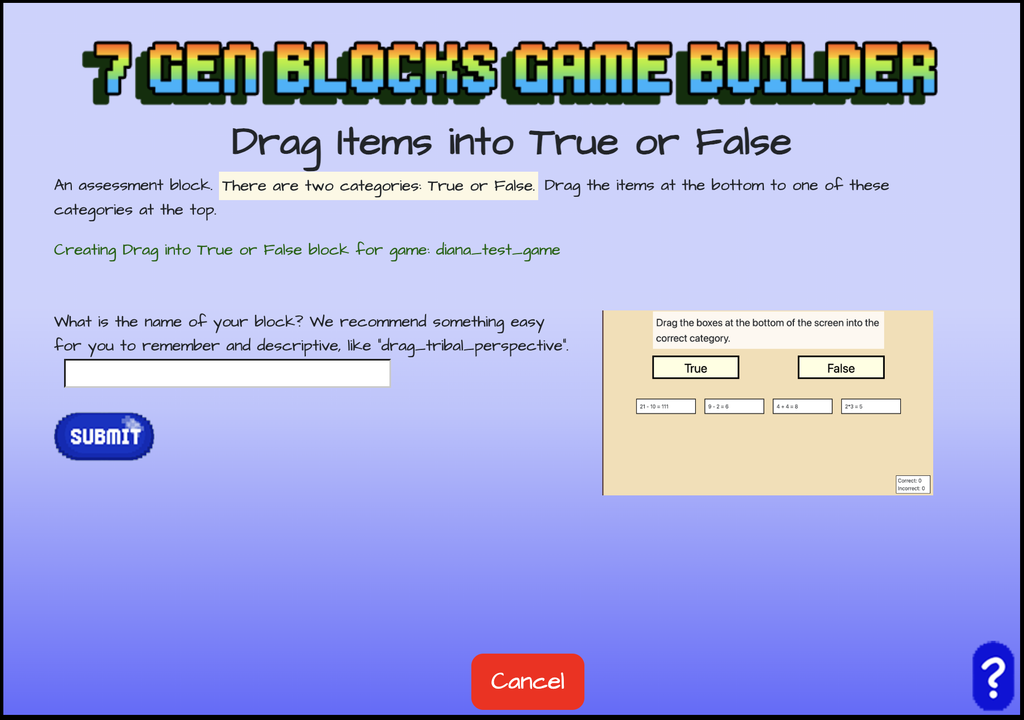
Choose to create a block and use the drop down menu to select “Drag into True or False Assessment Block” from the list of blocks. Once selected, give your true or false block a name.
Instructions and Background Image
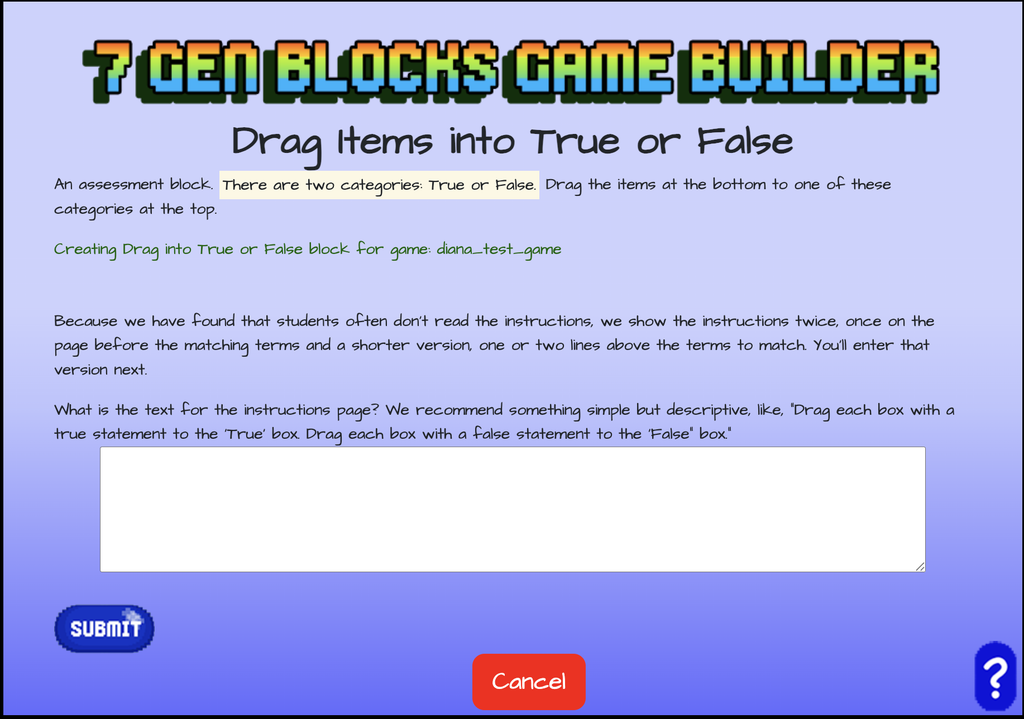
After creating and naming your true or false block, enter the text for the instructions page of your block.
Then select if you want a background image for your true or false block.
If so, use the asset manager to upload an image or select one already in your library to use as the background image. Once the image has been uploaded or if it’s already in your library, make sure to click on the image in order to see the image details and then click on “Select” to use it as the true or false background image.
If you decide not to select a background image, the image for assessment blocks for your game theme will be used.
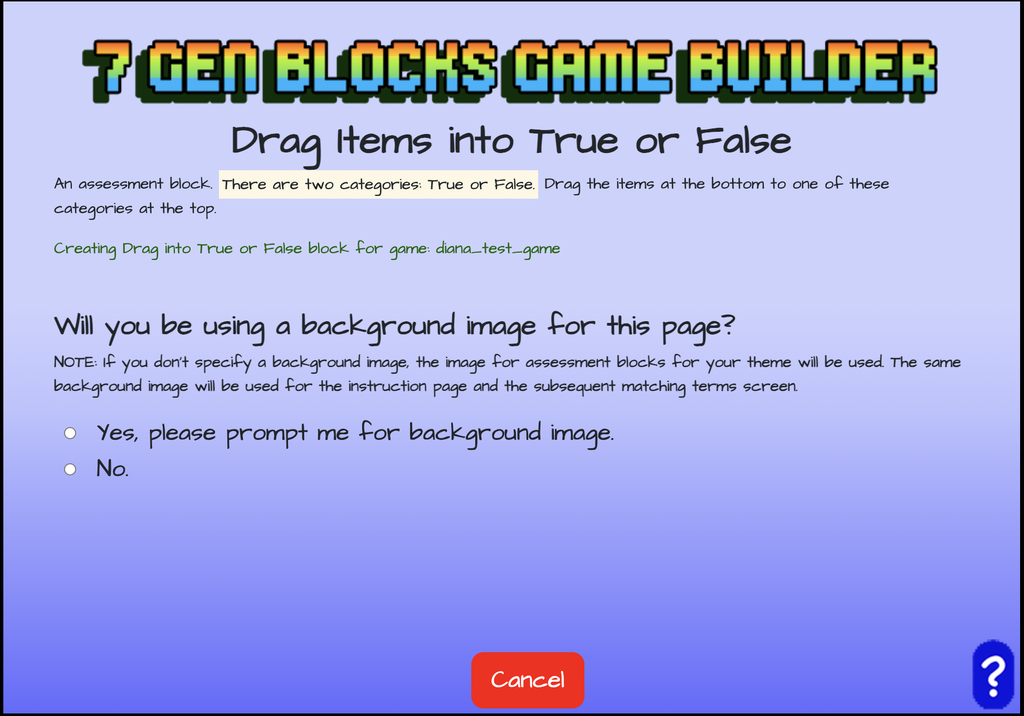
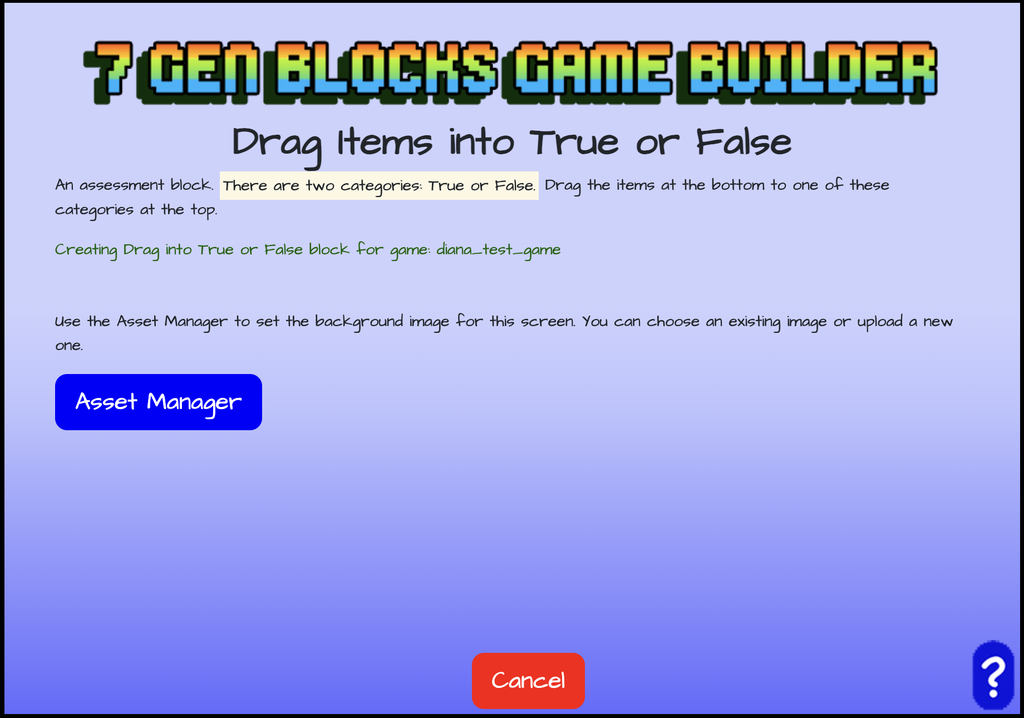
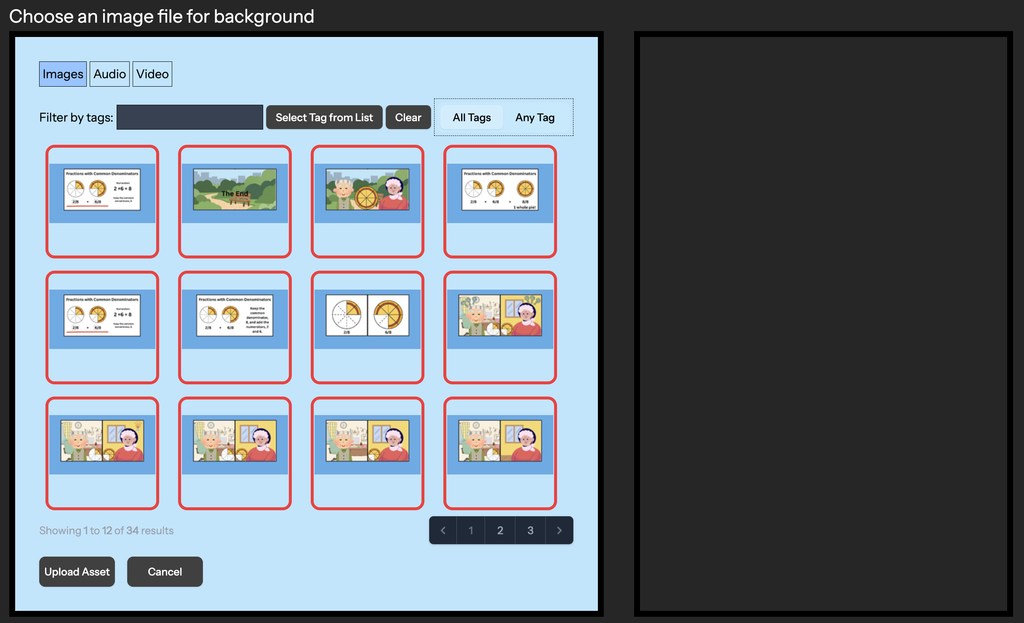
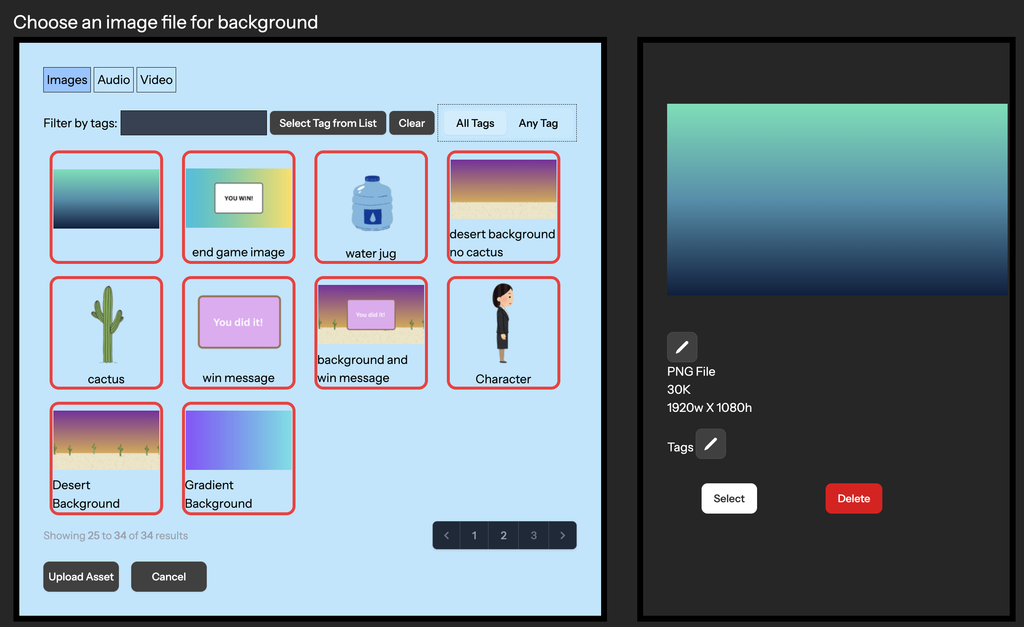
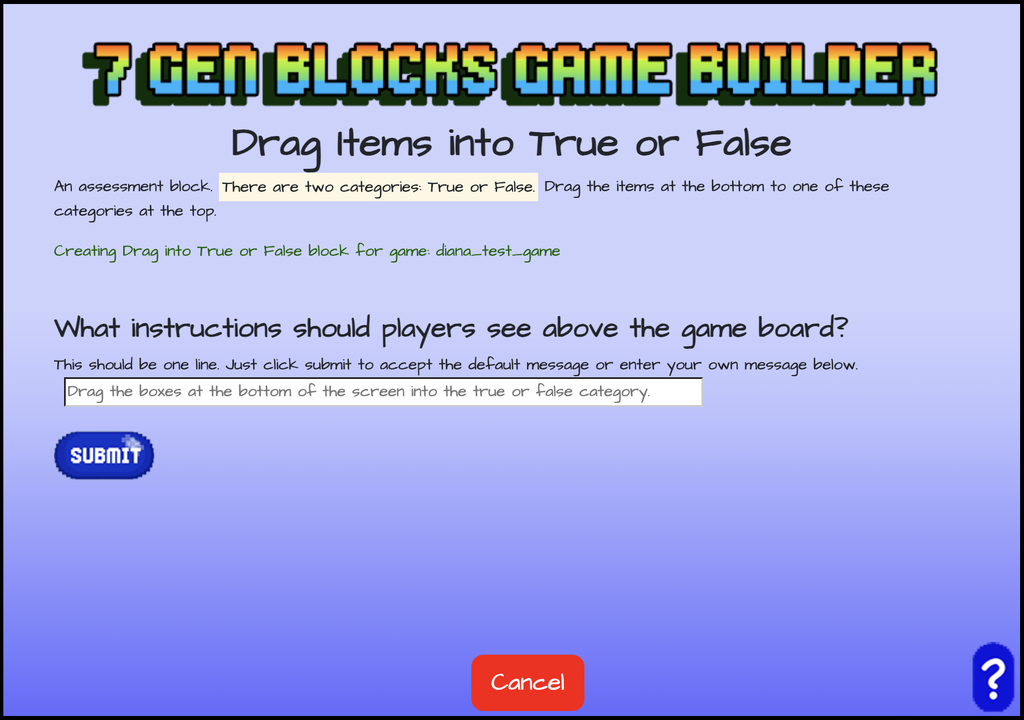
Then enter the short text (one line) for instructions that go above the game board. You can click “Submit” to accept the default message if you don’t want to enter your own.
Items
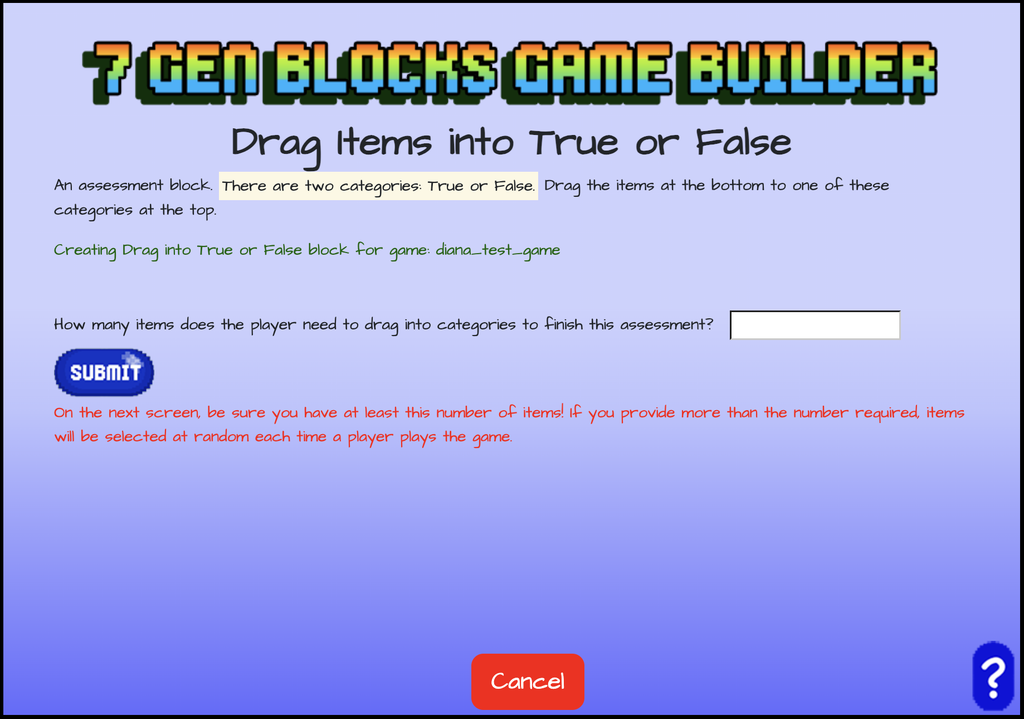
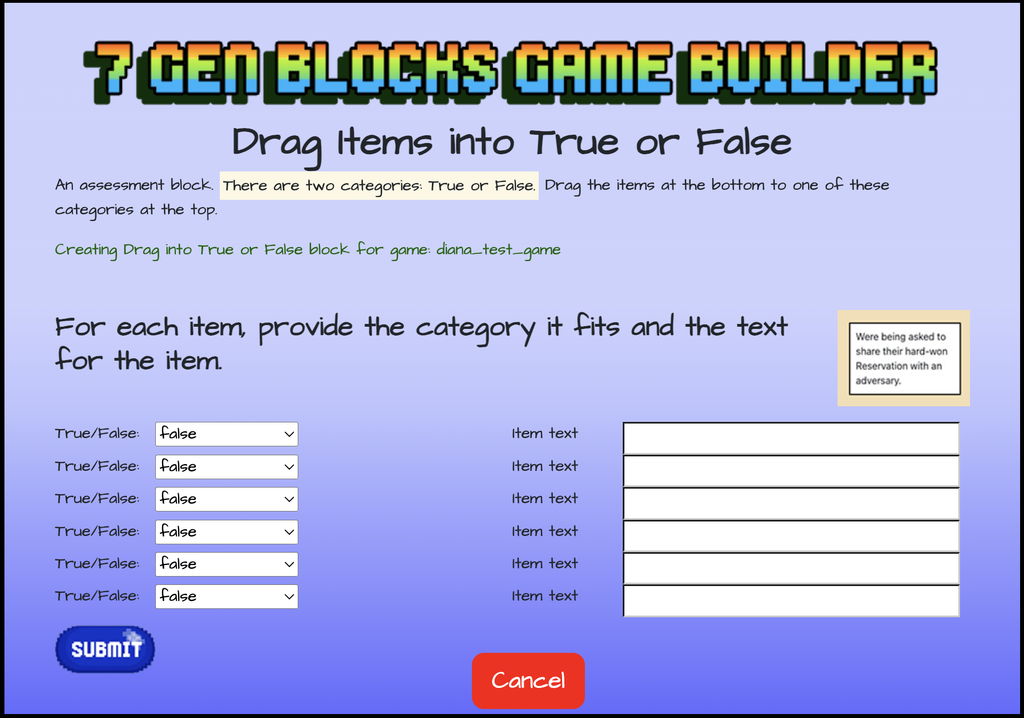
After entering instructions for your true or false assessment block, enter the number of items that the player has to drag into either the ‘True’ or ‘False’ category. Also, the text for the specific items that will be dragged and whether each item is true or false.
Next Blocks and Finish
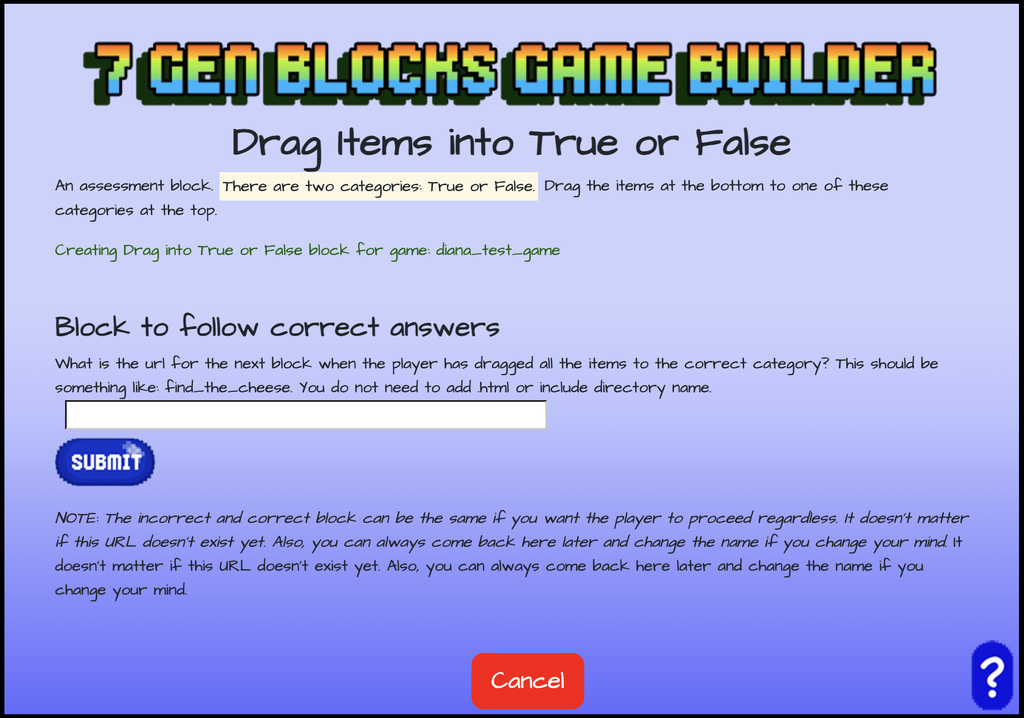
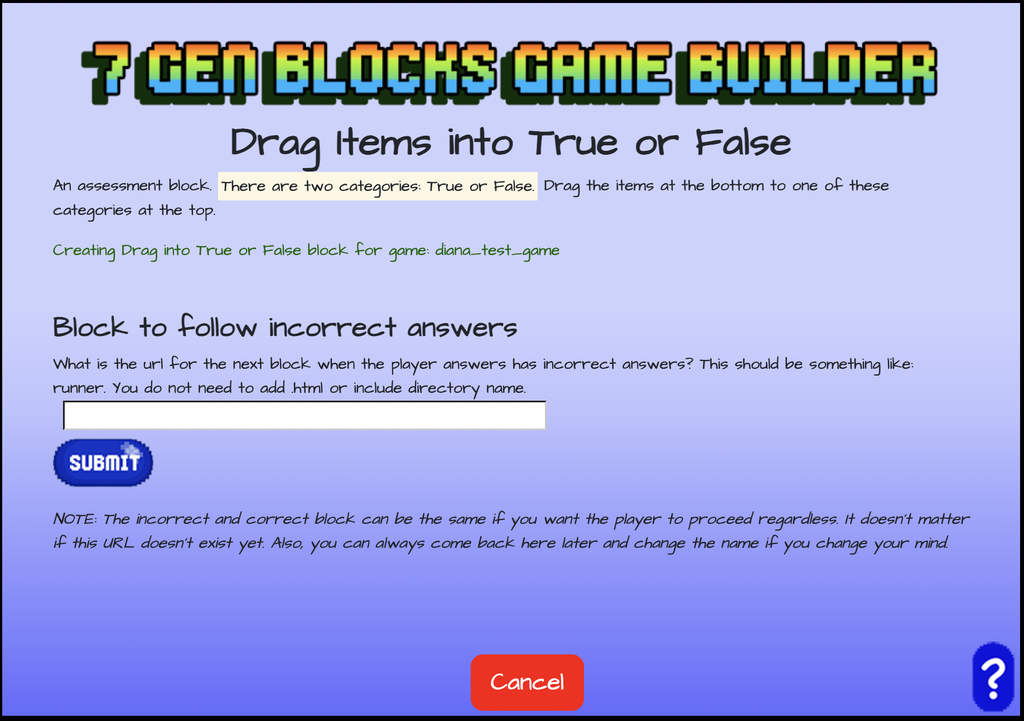
After entering the items, enter the name of the next blocks your players will go to after completing the true or false assessment block.
You can choose to direct players to separate blocks depending on whether players get correct or incorrect answers during the assessment. Or you can have players proceed to the same block regardless of their answers.
You can also choose to click the submit button if you haven’t decided a name for your next blocks and leave those empty. You can edit the block later to add those next block names or change them if you change your mind.
After naming the correct or incorrect next blocks, you are done! You are shown the URL for your true or false assessment block. From there you can choose to edit or create a new block, create or edit another game, or log out of the 7 Gen Blocks Game Builder.