When creating your game blocks, it’s normal to make a mistake or simply change your mind. That’s why it’s important to know how to edit any game block.
Login and Choose Game to Edit
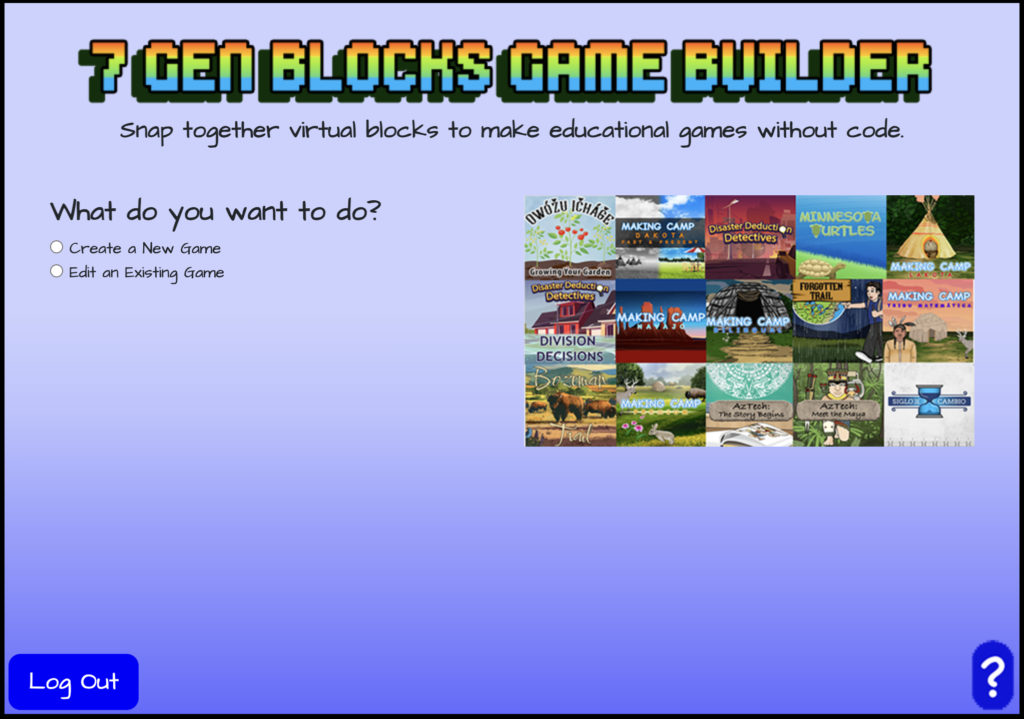
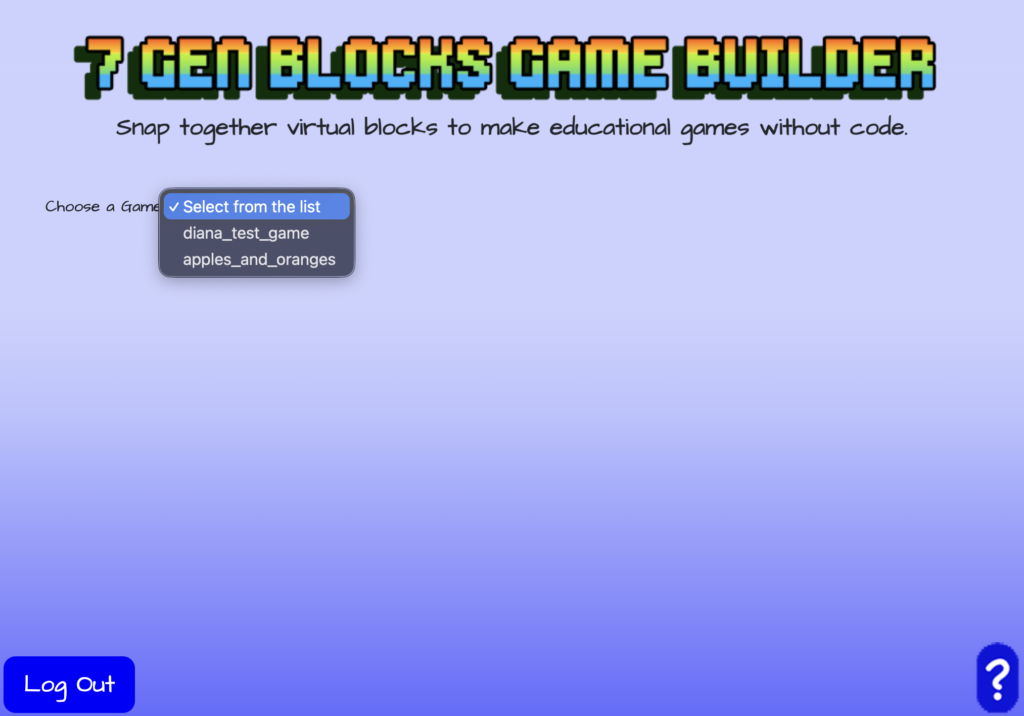
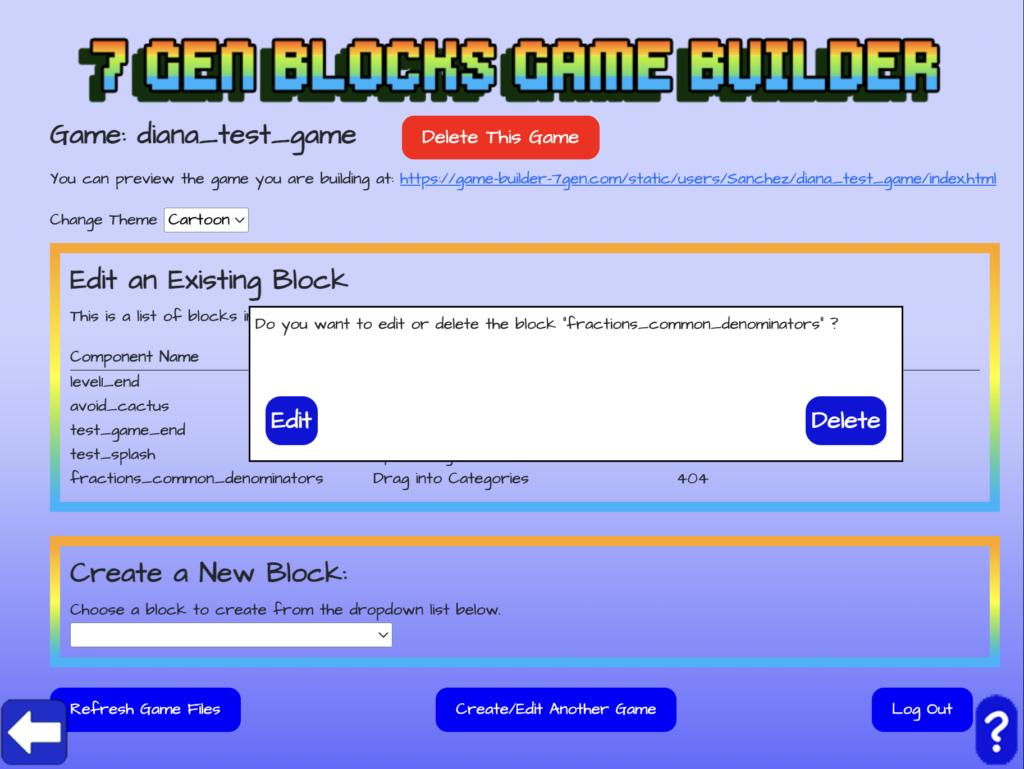
When choosing to edit a game block, like your drag items into categories block, login to the 7 Gen Blocks Game Builder like you normally would. However, instead of creating a game, select “Edit an Existing Game”. Then choose the game that you want to edit from your list of games.
Choosing Your Block to Edit
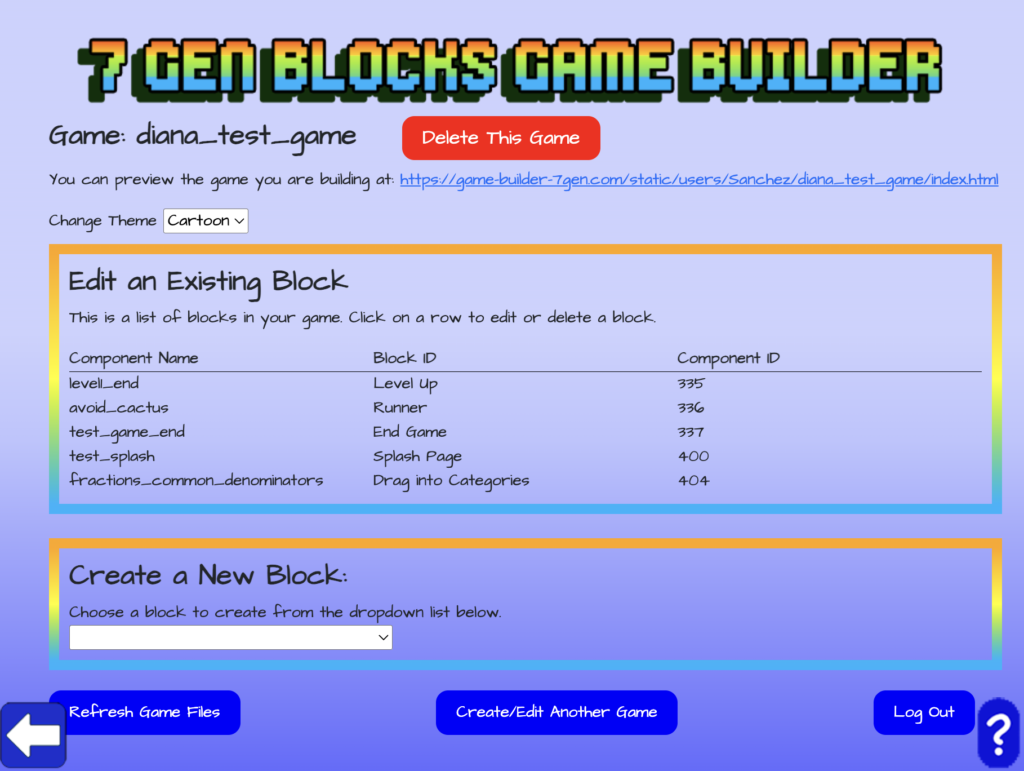
Once you have chosen the game, you can then choose which existing block in that game you want to edit. You’ll be shown a list of the blocks in that game. Click on the name of the block that you want to edit. In this case, we’re selecting to edit the drag items into categories block. You’ll be asked if you want to edit or delete your drag items into categories block. Click on edit.
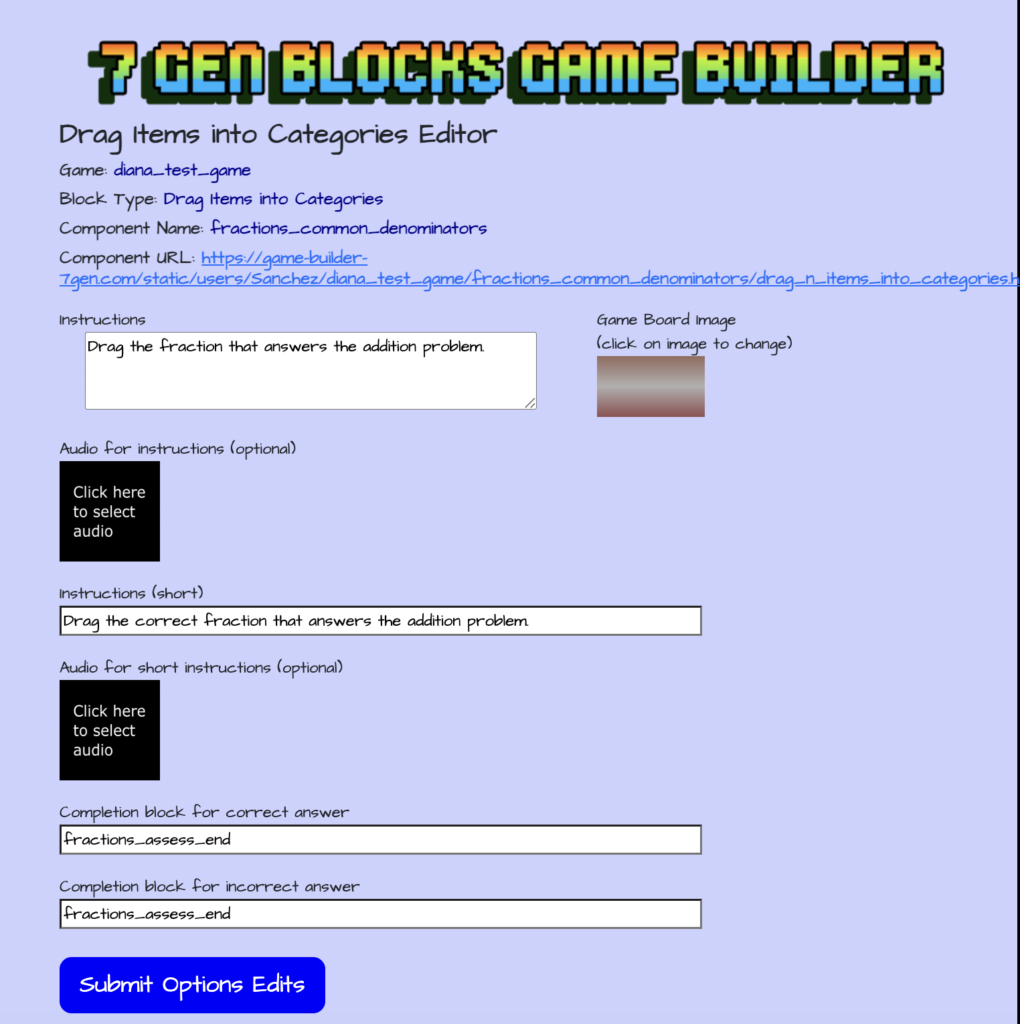
Drag Items Into Categories Block Editor – Changing Instructions and Completion Blocks
After choosing to edit your drag items into categories block, you’ll be directed to the Drag Items Into Categories Block Editor. The editor is broken up into three sections. Use the top of the Drag Items Into Categories Block Editor, to edit your instructions if you made a mistake or add instructions if you left that text field blank. Also, you can choose to change the audio clip or add one of the instructions being read to the players. Lastly, in the top section of the editor you can edit the name of the completion block for correct or incorrect answers.
Note: Again, the incorrect and correct block can be the same if you want the player to proceed regardless. It doesn’t matter if this URL doesn’t exist yet when you created this drag items into categories block.
Once you are done editing the instructions, changing or adding audio, and editing the completion block names, click on “Submit Options Edits” to save your changes.
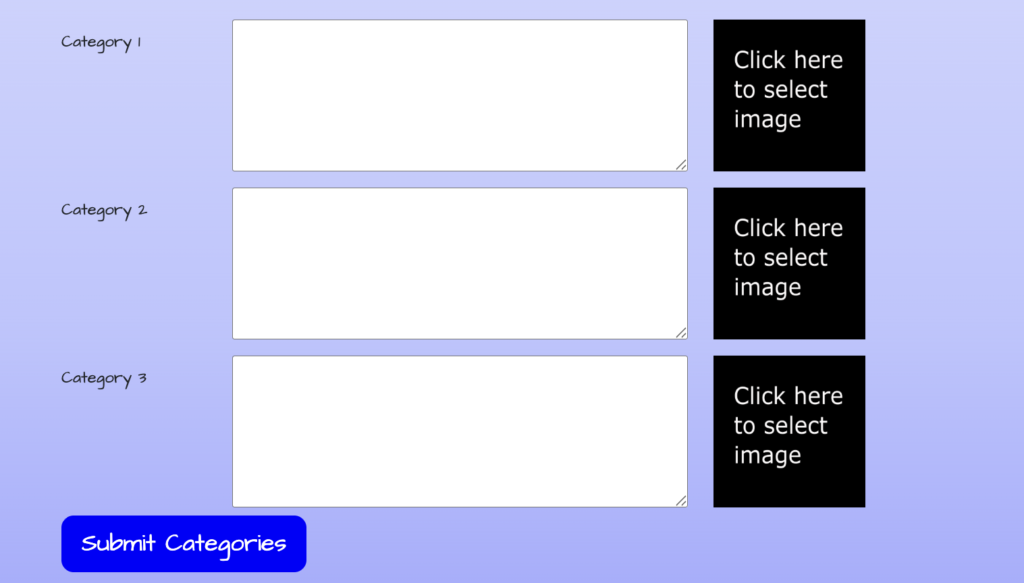
Drag Items Into Categories Block Editor – Changing Categories
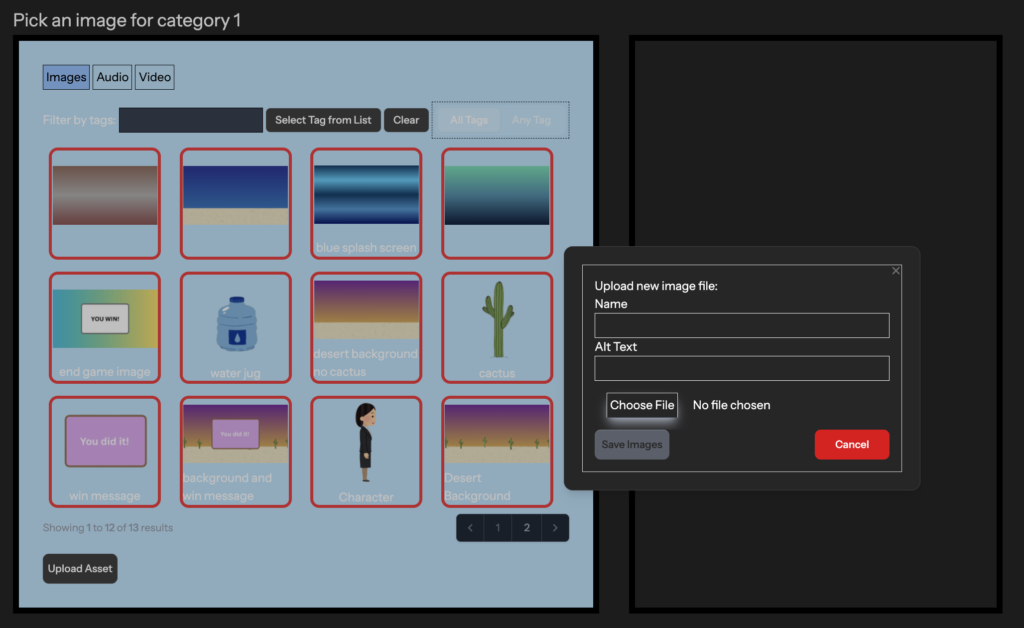
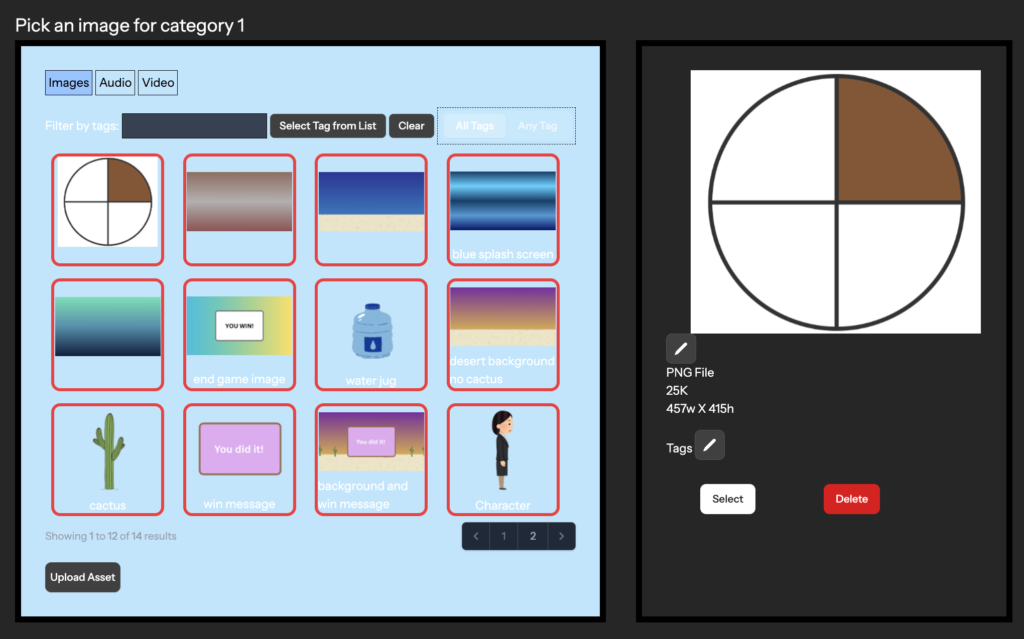
Then scroll down to the second section of the Drag Items Into Categories Block Editor. There you can edit your three categories. You can also change the image or add an image for each category. To change the category images, click on the current category image (a black square if none was previously added) to open the asset manager. Using the asset manager, you can select the image that you want to replace the current category image or you can click on the “Upload Asset” button in the asset manager in order to upload a new image.
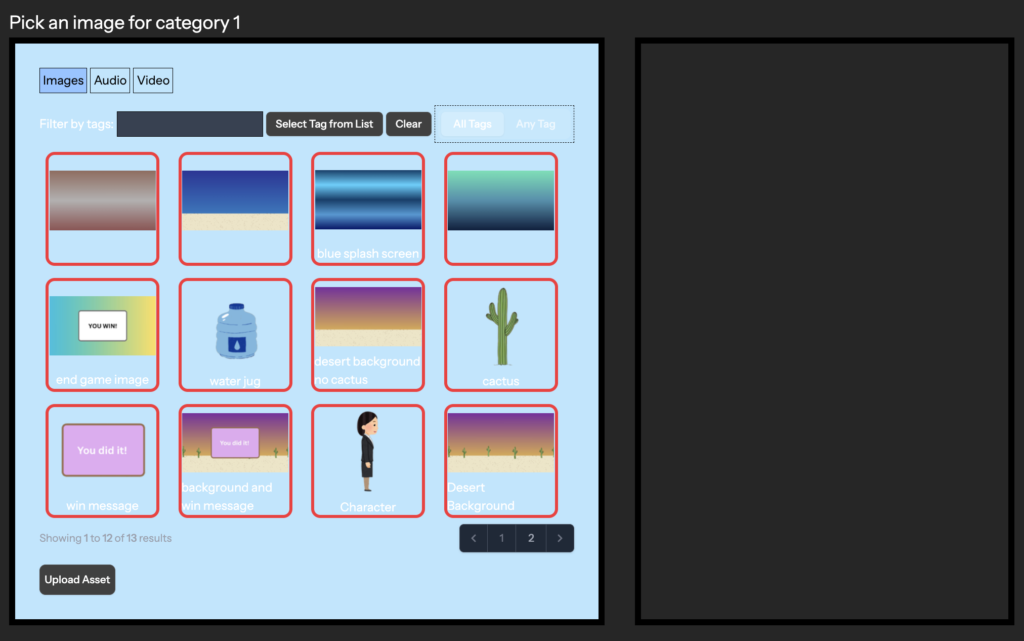
When uploading a new image, click on “Choose File”, select the image you want to upload, and click “Save Images”. Once you have uploaded your new image or if you are selecting another image already uploaded, make sure to click on the image that you want to select as your new category image. Selecting the image will show you those image’s details, there you can click on the “Select” button to make that image your new image for that category. Repeat these steps in order to change the images for categories 2 and 3, if needed.
Once you are done editing the categories and their images, click on the “Submit Categories” button to save your changes.
Drag Items Into Categories Block Editor – Changing Items
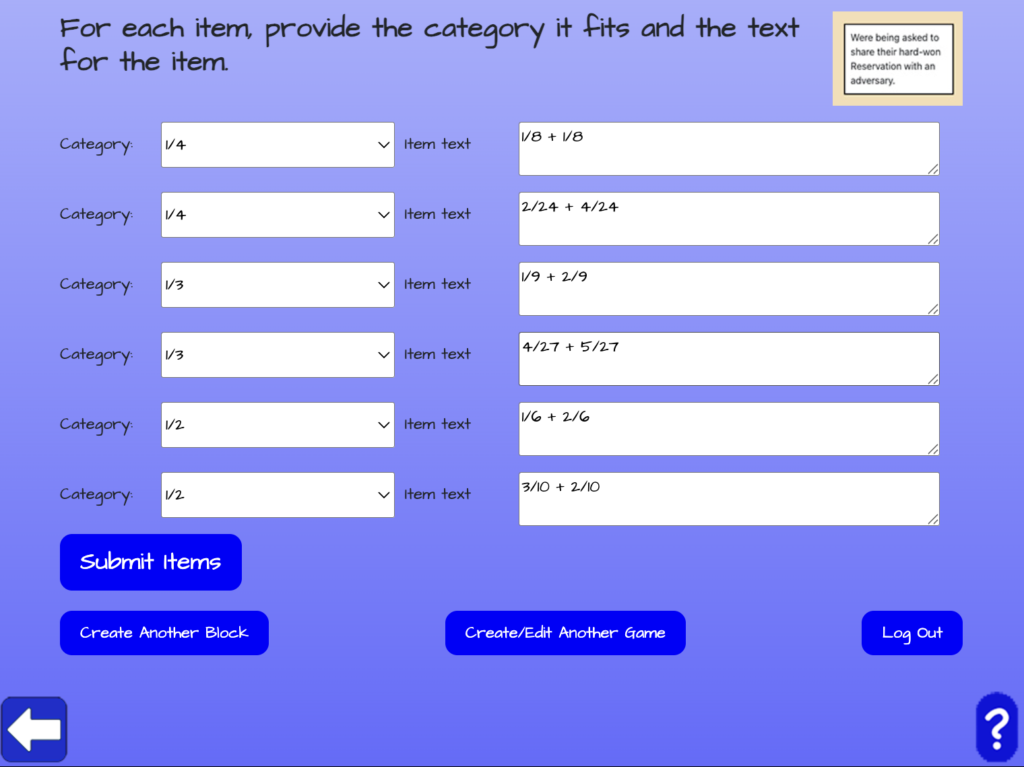
Then scroll down to the third section of the Drag Items Into Categories Block Editor. There you can edit your items that will be dragged to the categories. You can edit the each item text and set its corresponding category. Once you are done editing the items’ text and their corresponding category, click on the “Submit Items” button to save your changes. Then you can choose to create another block, create/edit another game, or log out.