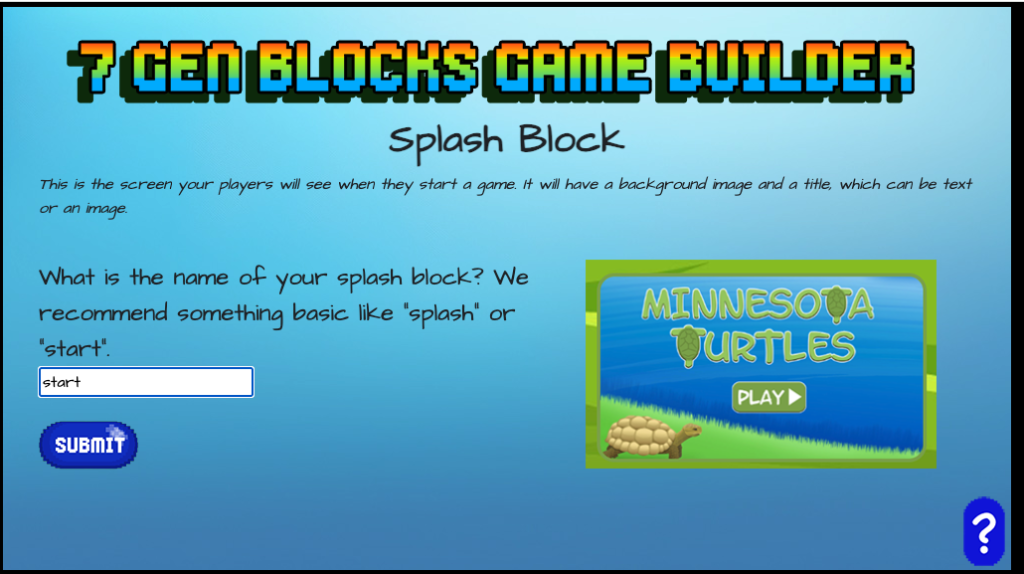
This is the first screen your players will see and one of the easiest to make.
(If you’d prefer to watch a video of making a splash screen – we’ve got you covered on our YouTube channel)
1. Give your block a name. We recommend something easy, like “splash”
Like all block names, this will be a valid URL. If you include spaces or other characters not allowed in a URL, these will be automatically converted to a valid name with underscores (_) replacing those characters. If there are any upper case characters, your block name will automatically be converted to all lower case.
2. Select an image
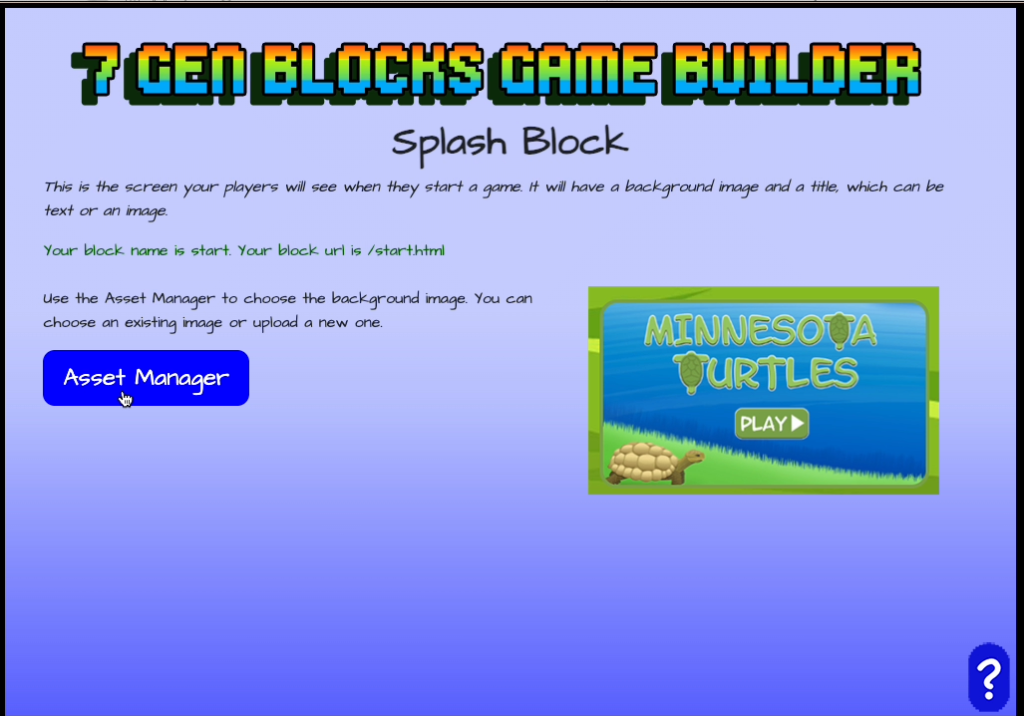
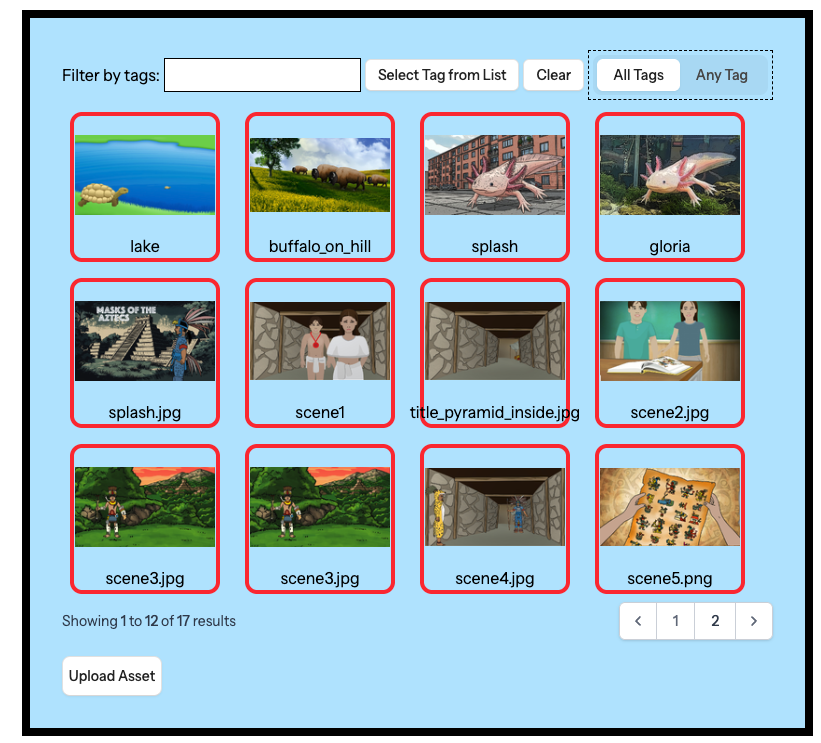
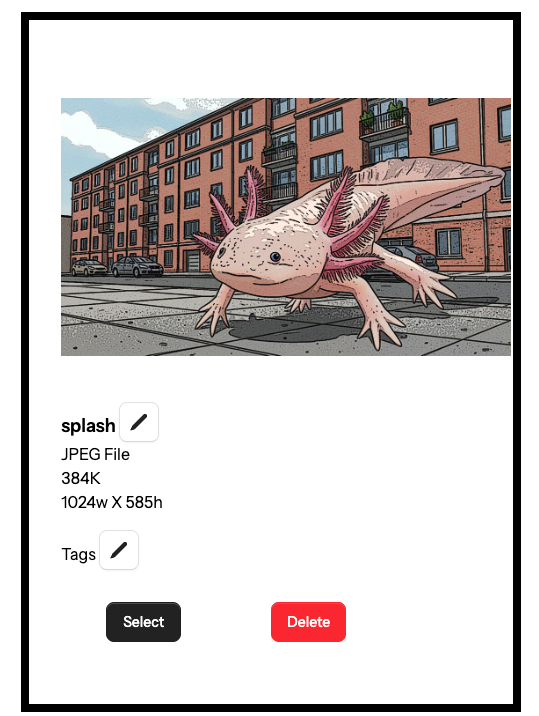
You will be prompted to click on the asset manager to select an image. You can select one of the images in the library, or upload your own. Click on the image you want to select. If you just uploaded an image, you will need to click that image to select it.
3. (Optional) Enter a title if the image does not include one
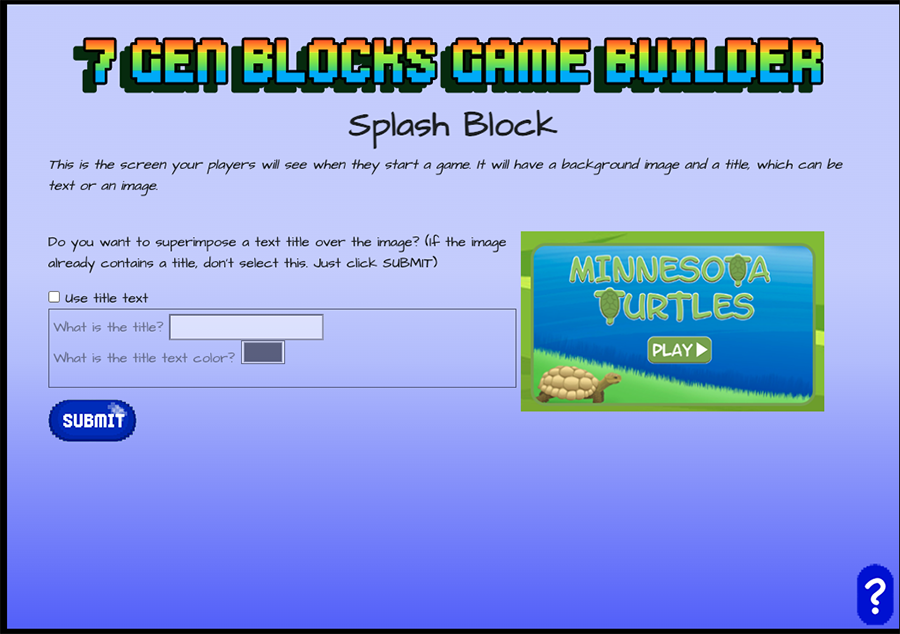
Some images, like the one on the right above, may already contain the game title. However, if yours does not, click the box next to title text and enter the title for your game. The default color for the title text is black, but you can click on the black box and select a different color.
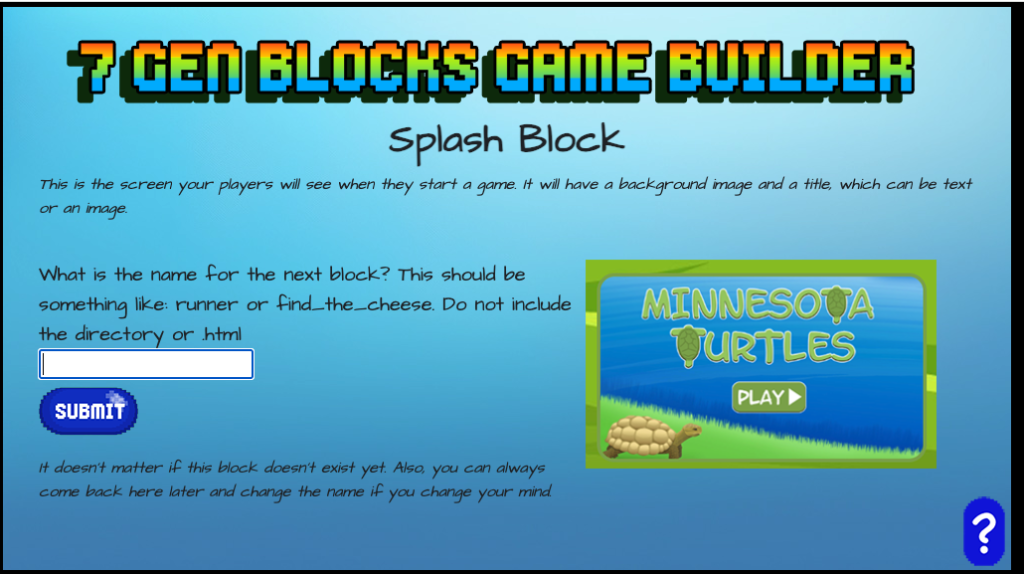
4. Give the name for the next block
This block does not have to exist yet. This is where the player will go after the splash block. Since it is the beginning of your game, this will often by a visual novel that sets the story. However, it may also be some other type, like a runner block, to get the player starting the game, then they arrive at the goal and are told that they need to solve a mystery, find the answer to whether the temperature is really rising using statistics, find the herbs to save the village, or something else.
That’s it. Your splash block is done. When you end, you’ll be prompted for whether you want to create another block, create or edit a different game or log out.